Participant
July 10, 2020
Answered

Acrobat Crashes after trying to add/embed a MP4 video into a document exported from InDesign

  • July 10, 2020
  • 3 replies
  • 10333 views

Hello, recently I have been having some issues with Acrobat crashing consistently when I try to place a MP4 into a PDF document that I previously exported from InDesign. I use the "Rich Media" option to then add a video that I select from my computer. However as it is "connecting" it crashes 10/10 times. I have done this same thing on a different computer that I had. I only began encountering issues on this new computer I got. I'm running on all the latest versions of adobe programs through the CC subscription.
Correct answer gauranja

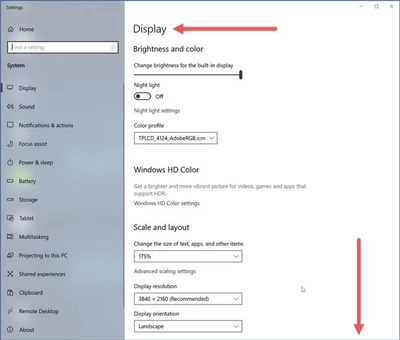
Hi community, this is an ongoing issue with Windows Media Playback that we are investigating with Microsoft. The issue is primarliy affecting devices which have both and integrated graphics processor along with a discrete graphics card. While we are working on solving the underlying problem, we have discovered a temporary workaround which works by setting a default GPU for Acrobat. The workaround can be implemented using the Windows 10 Display Settings:


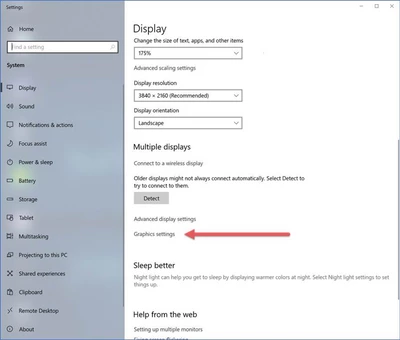
Under Display Settings, head on over to Graphics Settings:


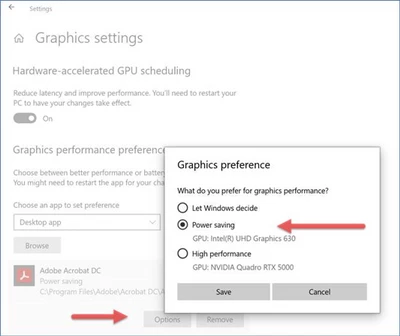
You get a screen that lets you choose, by application, which display adapter (GPU) you wish to use:


Add Adobe Acrobat (you will need to browse through the appropriate Program Files (x86) or Program Files file structure to point to the executable for the applications you wish to add here). Then click on Options and choose which GPU you want. In this case, I chose Power saving which on this system was the built-in Intel® UHD Graphics 630. Hit Save and you should be good to go.

3 replies

gauranjaCorrect answer
Participating Frequently
February 19, 2021

Hi community, this is an ongoing issue with Windows Media Playback that we are investigating with Microsoft. The issue is primarliy affecting devices which have both and integrated graphics processor along with a discrete graphics card. While we are working on solving the underlying problem, we have discovered a temporary workaround which works by setting a default GPU for Acrobat. The workaround can be implemented using the Windows 10 Display Settings:


Under Display Settings, head on over to Graphics Settings:


You get a screen that lets you choose, by application, which display adapter (GPU) you wish to use:


Add Adobe Acrobat (you will need to browse through the appropriate Program Files (x86) or Program Files file structure to point to the executable for the applications you wish to add here). Then click on Options and choose which GPU you want. In this case, I chose Power saving which on this system was the built-in Intel® UHD Graphics 630. Hit Save and you should be good to go.

Participant
March 7, 2022

Hello,

Are there any updates to when/if this bug will be solved in Acrobat?


Thanks you and Best Regards

Peter

Participant
January 24, 2021

Hi All 


Was this issue ever resolved, I am having the exact same problem. Tells me its connecting and then crashes completly everytime. 


If anyone knows how to resolve this would be great. getting desperate 


Thanks 


Luke

Participant
January 29, 2021

We are also having the exact same issue, argh! Any updates?

Amal.
Legend
July 10, 2020

Hi JtdoubleL


We are sorry for the touble. As described the application is crashing on inserting the MP4 video.


Would you mind sharing the version of the Adobe Acrobat DC you are using? To check the version go to Help > About Adobe Acrobat DC.
Make sure you have the latest version 20.009.20074 installed go to Help > Check for Updates and reboot the computer once and check.

Please try to insert the video in a different PDF file and check if its a file specific issue. Also, please share the file with us so we can check it at our end.


You can set the legacy multimedia player options under Edit > Preferences > Multimedia (legacy) if you know your preferred media player.
Open Acrobat>Edit >Preferences> check Multimedia Trust (legacy) and check what all operations are allowed under it.


For testing purposes, please disable the Enhanced Security and Protected View from Acrobat's Preferences from Edit (Windows)/Acrobat (Mac)>Preferences>Security(Enhanced). disable the preferences>Click OK>restart the application and check.


Also, please take a look at the help articles mentioned below


1. https://helpx.adobe.com/in/acrobat/using/adding-multimedia-pdfs.html

2. https://helpx.adobe.com/acrobat/using/playing-video-audio-multimedia-formats.html


Let us know how it goes


Regards

Amal


Participant
August 26, 2020

I have the same issue, even though my PDF file was not created from InDesign. Anytime I try to play the embedded video the entire application crashes. 

Amal.
Legend
August 27, 2020

Hi Isabella,


We are sorry to hear that.  Have you tried the steps suggested earlier in this thread and still expericing this issue?


We need some more information for a better understanding:

  • Do you get any error message on crash? If yes, please share the screenshot of the same for better understanding.
  • What is the version of the Adobe Acrobat DC you are using? To check the version go to Help > About Adobe Acrobat and make sure you have the latest version 20.12.20043 installed.
  • Are you on a Mac or Windows machine and what is the version of the OS? Please check for pending updates for the OS (Optional & mandatory) and try updating it and reboot the computer and check again.


If it still doesn't work, please try to create a new test user profile with full admin rights or enable the root account in Mac and try using the application there and check.


You may also take a look at the steps provided in the help articles listed below:


Let us know how it goes


Regards

Amal