
Participant
November 26, 2020
Question

Acrobat DC will no longer combine Word Files into a single PDF

  • November 26, 2020
  • 1 reply
  • 2438 views

I'm running the latest versions of Word, Acrobat DC, and Windows 10 is up to date.


This has been going on for a few weeks now.  I have Creative Cloud.  On my Notebook Computer if I add files to combine, the Word thumbs show little priviews of the odcus before combining and, after I click Combine, they combine into a single PDF file.


On my desktop, however, when I add the same files, they remain as icons below (as if the Word covnerter is broken)
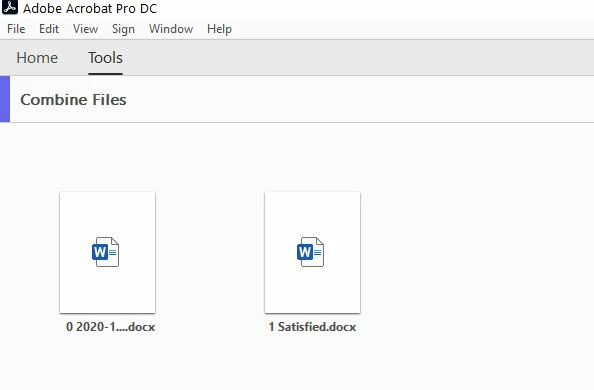


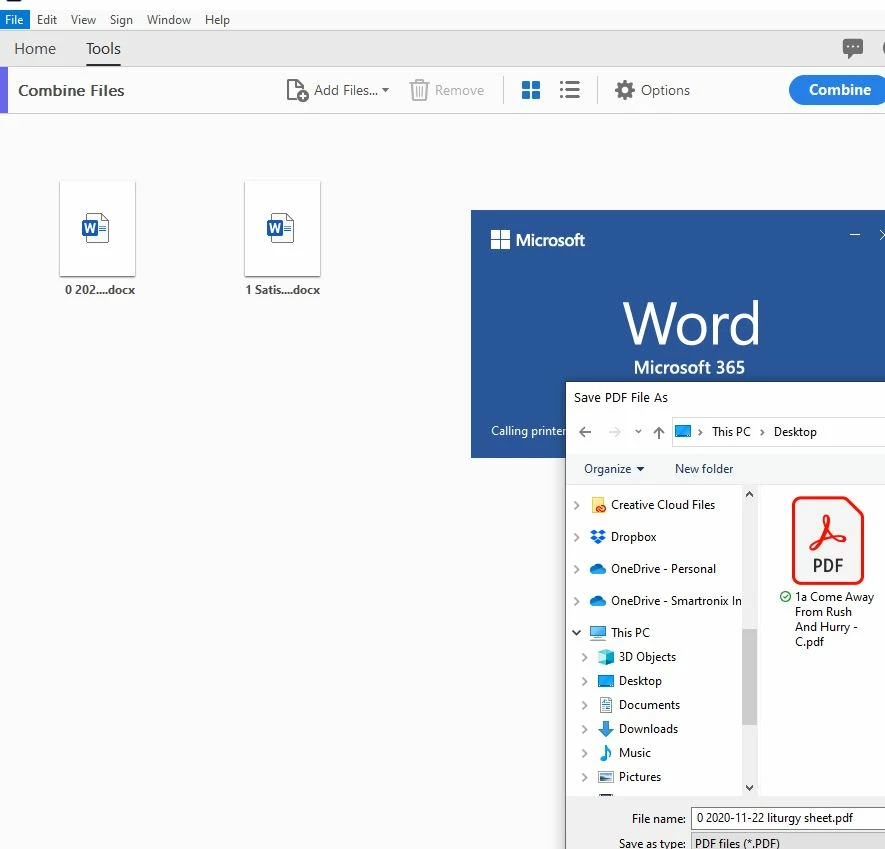
When I click Combine, Acrobat launches Word, Opens the first document, launches the Save as PDF Print Driver, and prompts me to save the first Word Dcoument as PDF.


Combine fails as below.  I have tried re-installing Office 365.  I have tried uninstalling and reinstalling Adobe Acrobat DC.  Combine files is broken and has been broken for a few weeks now after working for several years.
This topic has been closed for replies.

1 reply

AkanchhaS8194121
Legend
November 30, 2020

Hi Semper,


Thank you so much for sharing the screenshots, those are helpful to understand the exact issue. We apologize for not being able to respond earlier.


As shared above, this isn't the expected behavior. First, the files should be combined, and then it should be opened as PDF within Acrobat. To further investigate this, you may try the following steps-

1- Make sure the files size should exceed 100MB.

2- As word file isn't showing the preview. Try changing the preferences under Navigate to Acrobat>Edit>Preferences>Security (Enhanced)>disable "Protected Mode at Startup", "Protected View" and "Enhanced Security">OK>close and reopen Acrobat and try again.
3- Acrobat>help>Repair Installation

4- If nothing works, then remove the application using cleaner tool: http://labs.adobe.com/downloads/acrobatcleaner.html

and reinstall it.


Let us know if that helps


Thanks,

Akanchha