Participant
June 15, 2015
Answered

Acrobat Pro DC - How can one convert a PDF from color to black & white?

  • June 15, 2015
  • 7 replies
  • 103956 views

Seems like the old option under Preflight for Convert to Gray Scale is gone and I can't find anything else that might do it. Any help out there?

Correct answer Anubha Goel

Hey shubus,

We would certainly help you.

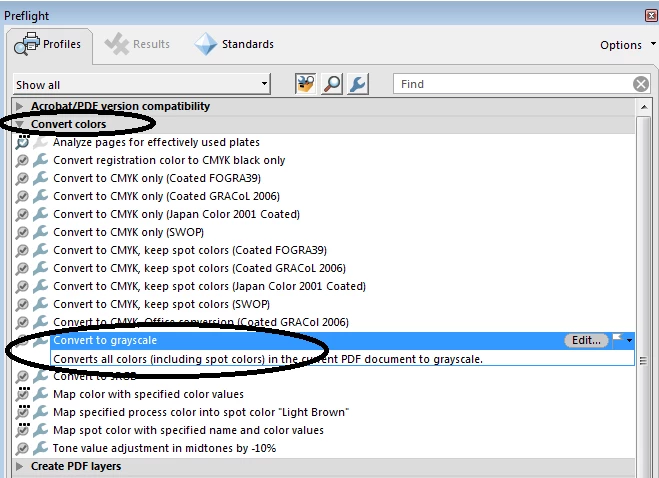
Open the PDF in Acrobat DC and choose "Print Production > Preflight" and choose Convert to grayscale under Convert Colors category.

Hope that helps.

Regards,

Anubha

7 replies

Participant
February 3, 2025

I have not had any luck with any of the solutions posted here. The "Print to PDF" option does not work when requesting grayscale, it still produces a colour PDF document. Please advise how to fix this.

Community Manager
March 6, 2025

Hi @defaultjq8f0111puwo


Sorry for the delayed response. 
If non of the above suggestions didn't work. There is likely some issue with the file. 
If possible, please attach the file, and I will take a look. 


~Tariq

s.mccrory
Known Participant
July 10, 2023

None of these suggested solutions works. I am on the latest 2023 versions of Adobe Software.

mariahweyne
Inspiring
July 10, 2023

Try this


Participant
August 12, 2023

You are my hero! Thank you so much for providing and up-to-date and simple solution. 

Participant
April 18, 2021

I tried all of these options, but none of them worked. What worked for me to get a monochrome image (black and white, no grey) was the following:

1. Open the PDF in Photoshop in RGB mode

2. Use the Image->Adjustments->Black and White and set all the values to -200

3. Adjust the levels with Image->Adjustments->Levels and drag the leftmost slider all the way to the right.

4. Save as Photoshop PDF


joeg65656140
Participating Frequently
October 9, 2017

Is there a way to convert specific pages?

Dov Isaacs
Legend
October 9, 2017

Somewhat of a kludge, but extract the pages you want to convert as a separate PDF file. Convert them to grayscale with Preflight. Then import them back into the original PDF file and delete the color versions of those pages.

          - Dov

- Dov Isaacs, former Adobe Principal Scientist (April 30, 1990 - May 30, 2021)
LCoughlinIIB
Participant
March 15, 2023

I have a document that has mostly black text but a few items that are green on the same page. When I go into Preflight I can see that when the document prints it is using all of the colors to create black which is eating up a massive amount of color toner cartridges. Is there any way to make the black on the page print black and not processed black while allowing the small amounts of color print in color??

Inspiring
June 16, 2017

IS there a way to only convert certain pages? I noticed when you select preflight only pages the analyze and fix option goes away. Also how do you get to this forum from the Adobe Forums page? I had to google the question and find the forum that way. Otherwise on the main site I keep getting redirected to a non support forum.

ShubusAuthor
Participant
June 15, 2015

That did it! Options have moved around a bit in the DC version. 

Anubha Goel
Community Manager
Community Manager
June 16, 2015

Hi Shubus

That's great

Thanks for your reply.

Regards,

Anubha

ShubusAuthor
Participant
June 16, 2015

While this does get me a great greayscale image, I must lament the inability to produce a decent black & white (NOT grayscale) pdf.  The workaround of converting to a 300dpi "tiff" file still works of course, but the loss of resolution is very noticeable.

Outside of Photoshop, I'm not aware of a solution to this yet, but at least grayscale is fine.

Anubha Goel
Community Manager
Anubha GoelCommunity ManagerCorrect answer
Community Manager
June 15, 2015

Hey shubus,

We would certainly help you.

Open the PDF in Acrobat DC and choose "Print Production > Preflight" and choose Convert to grayscale under Convert Colors category.

Hope that helps.

Regards,

Anubha

Participant
December 26, 2017

Any possibility this answer can be updated to the 2017 version - my options don't match and, although I figured it out eventually, an updated screen shot showing the current interface would help others.

try67
Community Expert
Community Expert
December 26, 2017

I don't think it changed much, and you can post screenshots yourself of the new location, if you wish...