



mycc3
Known Participant
Jan 24, 2020 7:34 PM UTC
Answered

Acrobat Pro DC + Win10: shortcuts for switching between tabs

Hi,

the usual shortcuts ctrl-tab or ctrl-f6 do not work for switching between opened PDF files in Acrobat Pro DC (Win10).


Are there other ones? Assigning shortcuts is not possible, or? As it is in other Adobe programs.


thanks!

mycc
This topic is closed to new replies. Start a new post to keep the conversation going.
myccCorrect answer
Inspiring
Nov 3, 2022 10:09 AM UTC

Yes, I miss this "essential" hotkey in Acrobat (Pro), too.

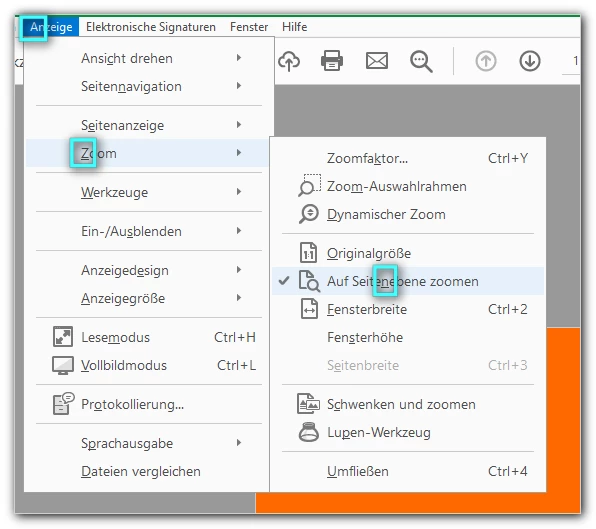
But I have been using a workaround for several years. I have several hotkeys defined in an autohotkey script for different programs and situations. In Acrobat Pro, »my« hotkey CTRL-0 runs a very, very simple 😉 "macro" → it simply calls the menu item:


#IfWinActive, Adobe Acrobat Pro
{
		;# Ganze Seite anzeigen
		^0::
		; Acrobat 9: Send, !aze
		Send, !azn
		return
}


5 replies

Klingspor
Inspiring
Nov 11, 2020 6:11 AM UTC

What I would highly appreciate is the shortcuts to be induvidually assignable, as in other Adobe programs like InDesign, Illustrator or Photoshop. I mostly miss the STRG+0 shortcut to get a display of the entire page instantly. 

Translate
myccCorrect answer
Inspiring
Nov 3, 2022 10:09 AM UTC

Yes, I miss this "essential" hotkey in Acrobat (Pro), too.

But I have been using a workaround for several years. I have several hotkeys defined in an autohotkey script for different programs and situations. In Acrobat Pro, »my« hotkey CTRL-0 runs a very, very simple 😉 "macro" → it simply calls the menu item:


#IfWinActive, Adobe Acrobat Pro
{
		;# Ganze Seite anzeigen
		^0::
		; Acrobat 9: Send, !aze
		Send, !azn
		return
}


Translate
ls_rbls
Community Expert
Community Expert
Nov 3, 2022 4:06 PM UTC

Thank you!

Translate
Technical Generalist
ls_rbls
Community Expert
Community Expert
Jan 25, 2020 3:57 PM UTC

Hi,


Ctrl+Tab works on my end in Windows 10 as long as all the documents are opened in their respective tabs in the same Acorabat workspace.


If my PDFs  are opened individually in separate windows use task switching instead,  Alt+Tab. 


F6 by itself with the aid of the arrow keys will cycle the the pointer through menu items on each toolbar and the main document. 


Maybe updating the keyboard drivers to restore the layout that was working before, or, checking if the keyboard layout changed during a recent windows update and rollback to the prior layout can do the trick.


In any case here is a complete list of all Acrobat keyboard shortcuts: https://helpx.adobe.com/acrobat/using/keyboard-shortcuts.html

Translate
Technical Generalist
ls_rbls
Community Expert
Community Expert
Jan 26, 2020 2:55 AM UTC

MORE UPDATED INFO FROM ANOTHER THREAD


Hi,


Just today another user was asking a similar question.


If the Tab key doesn't work when it is used by itself, use the F6 key, tapping on the F6 key by itself will cycle the mouse pointer through all toolbars and the document.


When using the F6 key  and select a toolbar, you move through the toolbar icons with  the aid of the arrow keys (left, right, up, or down).


Tapping on the arrow keys will cycle through the active toolbars menu items one by one.


When tapping the F6  key to move around all of the toolbars available in the Acrobat workspace, when it reaches the last available toolbar of your Acrobat workspace, it will jump into the document, allowing  the user to navigate in the PDF form with the aid of the arrow keys, Home, End, PageUp, PageDown, etc.


It is also possible, that the keyboard layout changed during a system update.


NOTE: See also in Edit, Preferences, Accessibility-->>>Other Accessibility Options verify if checking or unchecking "Use document structure for tab order when no explicit tab order is specified"  and " Show Portfolios in Files mode".


Most important, to be able to really use your  F6 keyboard shortcut effectively, you'll need to also modify Ease of Access in Windows (left Alt+Shift keys pressed together with NumLock key) select to turn on Mouse Keys.

Translate
Technical Generalist