Participant
April 26, 2020
Answered

Acrobat X Pro - Working with Links Changing Properties

  • April 26, 2020
  • 1 reply
  • 1566 views

I'm a relatively new user.


I have document pages that have multiple links that need to point to the same document elswhere in a different folder.


Is there a way to choose all these links in one page, change their properties (assign the same Page x of x) all at once or am I stuck with editing each link property one by one?


TIA - Paul O.

Correct answer paulo57509

I found a way how to select all the identical links and change their properties (....go to a page in another document) without having to change each link one at a time.


1.  Open Tools menu and choose Link.

2.  Hold Ctrl + left click on the links I want to edit.

3.  Place cursor over one of the chosen links in step 2.

4.  Right click will open up a menu window.

5.  Left click on Properties - the Link Properties window will open.

6.  Make desired changes.

7.  Click OK (as required).


I hope this will help others.


FWIW, I tried using the method below which will not work; only the hovered link chosen in Step 3 will change after completing Step 6:


1.  Open Tools menu and choose Link.

2.  Hold Ctrl + left click on the links I want to edit.

3.  Place cursor over one of the chosen links in step 2.

4.  Double-Left click - the Link Properties window will open.

5.  Make desired changes.

6.  Click OK (as required).


Why it works one way and not the other is puzzling.


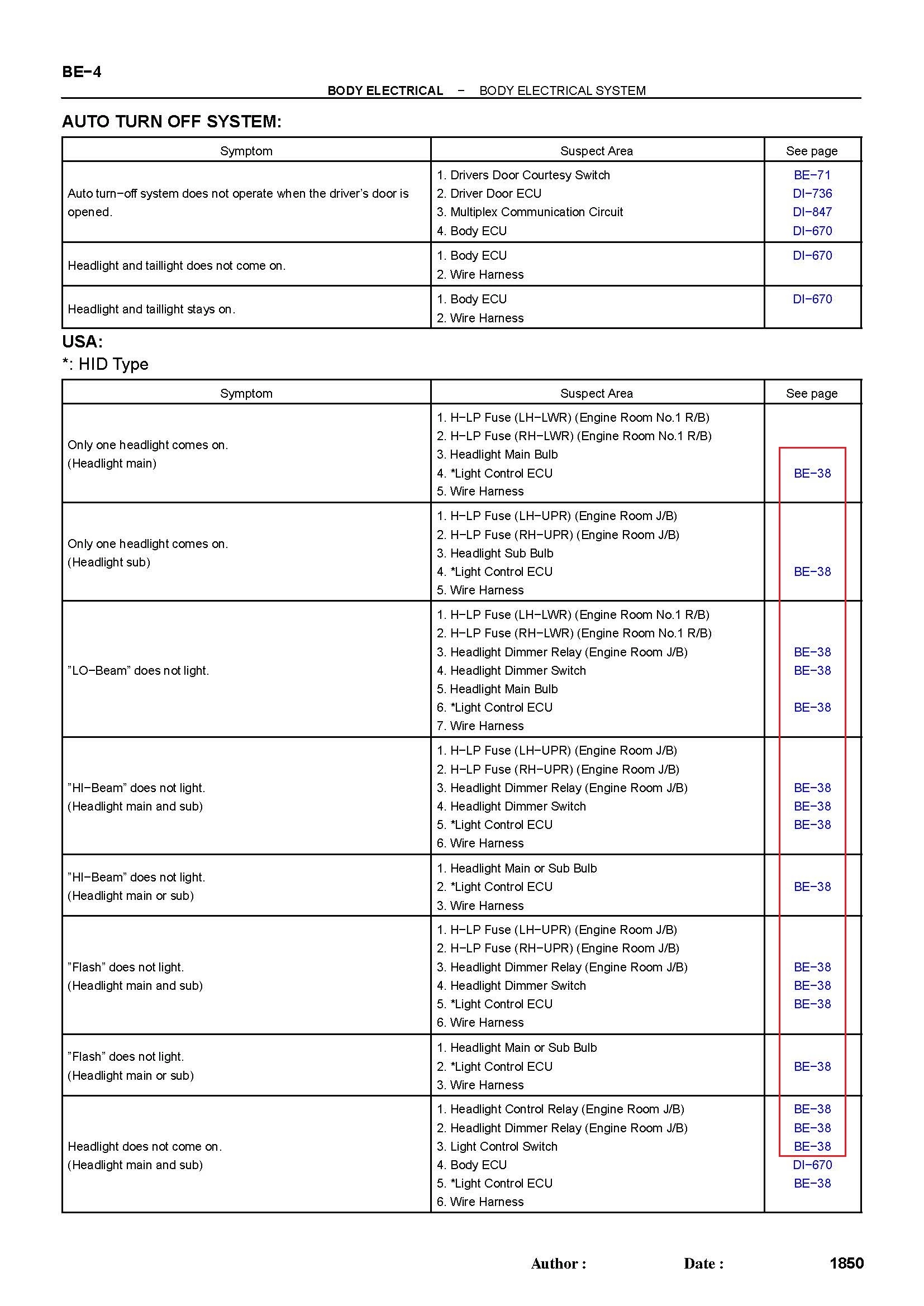
Example of 1/2319 pages I had to review and edit:
1 reply

try67
Community Expert
Community Expert
April 26, 2020

In Acrobat you can't edit all the links at the same time, unfortunately. I would recommend editing one link, deleting the rest, and then copy and paste it in the places, instead of editing all of them.

paulo57509AuthorCorrect answer
Participant
May 4, 2020

I found a way how to select all the identical links and change their properties (....go to a page in another document) without having to change each link one at a time.


1.  Open Tools menu and choose Link.

2.  Hold Ctrl + left click on the links I want to edit.

3.  Place cursor over one of the chosen links in step 2.

4.  Right click will open up a menu window.

5.  Left click on Properties - the Link Properties window will open.

6.  Make desired changes.

7.  Click OK (as required).


I hope this will help others.


FWIW, I tried using the method below which will not work; only the hovered link chosen in Step 3 will change after completing Step 6:


1.  Open Tools menu and choose Link.

2.  Hold Ctrl + left click on the links I want to edit.

3.  Place cursor over one of the chosen links in step 2.

4.  Double-Left click - the Link Properties window will open.

5.  Make desired changes.

6.  Click OK (as required).


Why it works one way and not the other is puzzling.


Example of 1/2319 pages I had to review and edit:

Participating Frequently
June 16, 2025

Bless you for this!!!

