Participant
April 1, 2021
Question

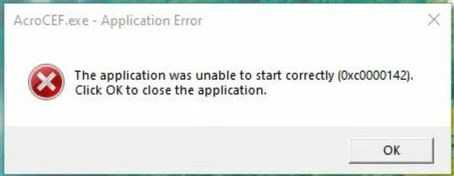
AcroCEF.exe: The application was unable to start correctly (0xc0000142).

  • April 1, 2021
  • 1 reply
  • 5173 views

Hello,


Good day everyone.


I have a user who has an issue whereby whenever he opens a PDF file with Adobe Acrobat DC, it keeps having the same "not responding" issue after perhaps a few seconds to a minute after opening it. And it will be "not responding" forever.
However, this issue already resolved after we applied with this solution.
https://helpx.adobe.com/x-productkb/policy-pricing/activation-network-issues.html

User no longer have the "not responding" issue when opening and working with PDF files.


However, it seems there is an error keeps showing everytime when he startup the computer. The error message is AcroCEF.exe - Application Error: The application was unable to start correctly (0xc0000142). 

I tried repairing and also re-installing Adobe but the issue somehow still persists.

Any other advice for this? I have also attached the error message.


1 reply

Participant
April 3, 2025

Hi !


I have the same problem, I tried repair but it didn't work...

Did you find a solution ?

S_S
Community Manager
Community Manager
April 7, 2025

Hi @romain_9802,


Hope you are doing well. Sorry for the trouble.


Have you tried opening the application as administrator? To do so, you can right-click the app icon and click "Run as Administrator."

Also, are you trying to open the application directly or opening a PDF file?


If this does not work, please share a few pieces of information for further investigation:

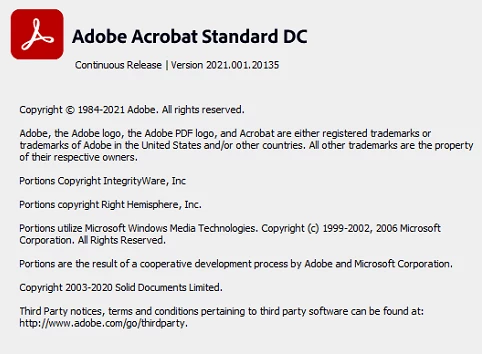
1. The app version you are on;

2. The OS details.

3. Logs from your machine: https://adobe.ly/4l1gBRA. Please make sure Procmon is selected. You can upload logs using this tool and share your Unique log ID with us. 


Another step to try would be to launch the app in Compatibility mode. To do so, right-click the app icon> properties> compatibility> check the checkbox saying "Run the app in compatibility mode for"> select Windows 8> click Apply> click OK.


Look forward to hearing from you.


Regards,
Souvik.