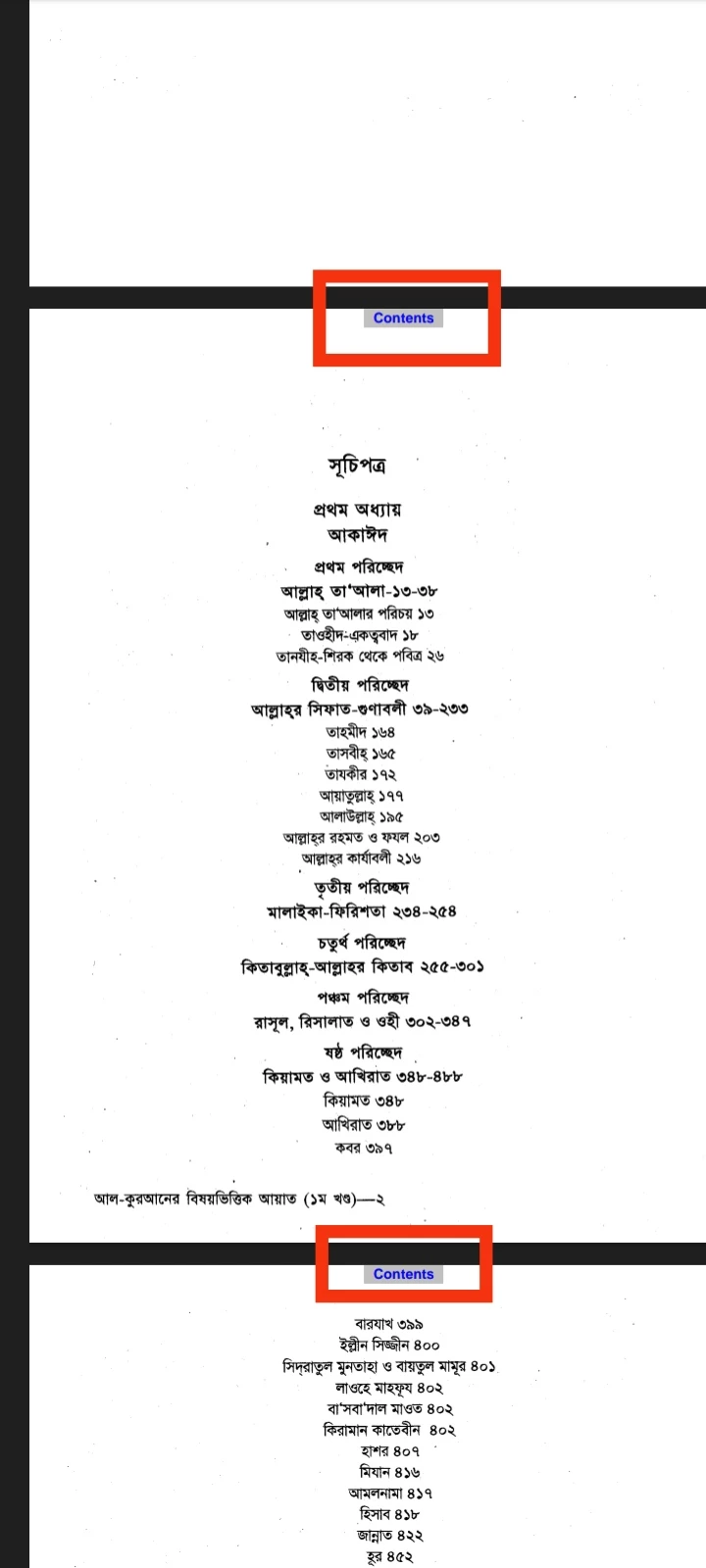
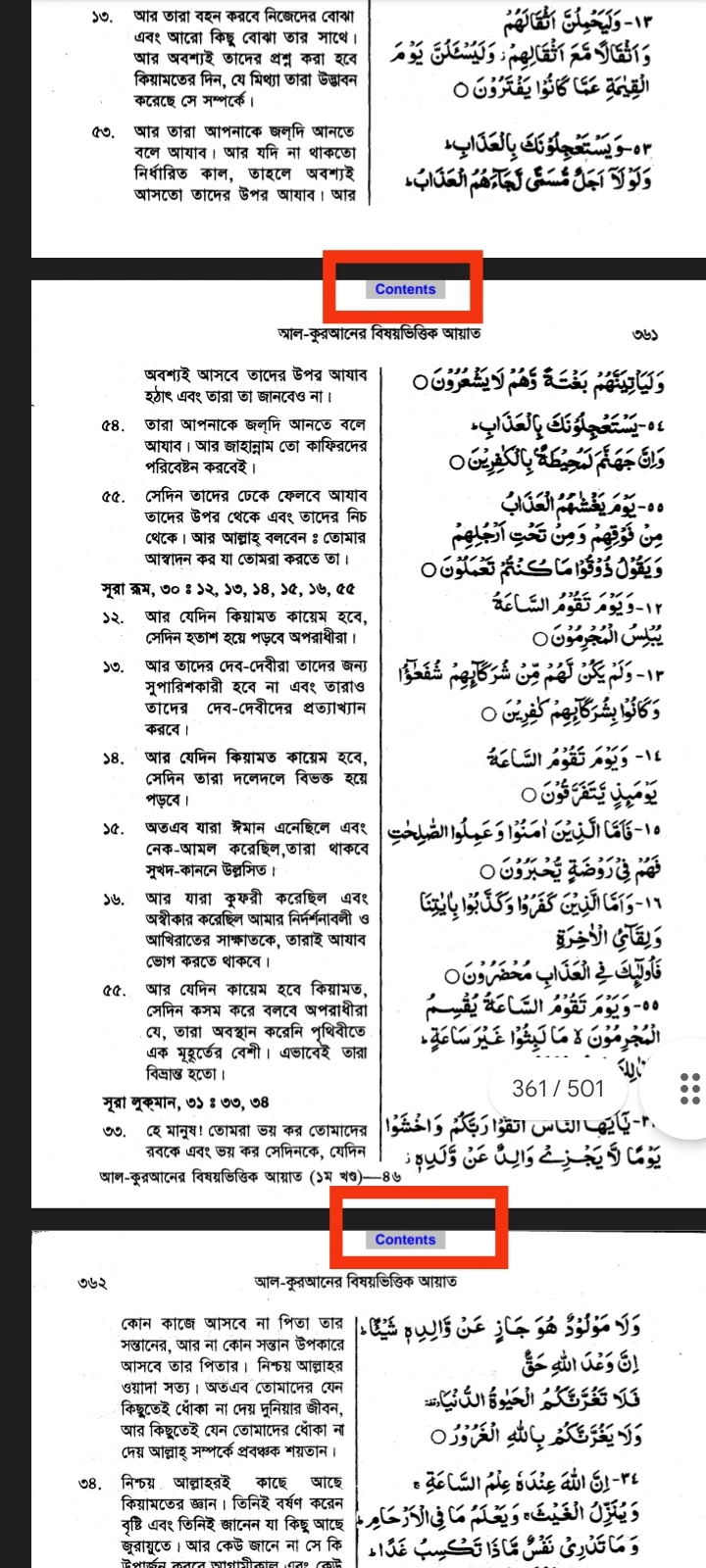
Create a "Button Link" for where it says ‘Contents’ instead of a regular Text Link.
Procedure:
1. Open up the PDF in Adobe Acrobat Pro DC.
2. Select "Tools".
3. Click on "Rich Media" in Create & Edit section.
4. Select "Add Button".
5. Drag & Make a Button Shape.
[Click on anywhere on the document on one of the pages to add it there.]
6. Give the button a name in "Field Name"
7. Press Enter.
8. Click on "All Properties".
Or, Click on "Add Object" & Double Click on the button.
Or, Click on "Add Object" & Click the Right Mouse.
A pop up button properties will appear.
9. Click on "Options".
10. Set the "Label only" for the button & Write in Label box "Content"
11. Click the "Actions" tab.
12. Specify which page you want to link the button to.
Select Action: Go to a page view.
13. Click on "Add..."
Scroll & Go the page of 'contents' & then click on "Set Link" pop up box.
14. Click on "Close".
[You can change the border color, Fill Color, Text Color & Font Size in "Appearence" Tab]
15. Right Click on the button, and click on "Duplicate Across Pages"
Click on "From"
Write the page number _ to _.
Then click on "OK"
16. Tab "Close" on the Tab.
[You can delete the button anytime using "Rich Media" → "Select Object" → Right Click on the Button & Then Click "Delete"]
I hope this helps! But The Button only Works in which app supports Interactive PDF. Use Adobe Softwares always. Google Drive may not work the Button.



 AdChoices