Participant
February 5, 2020
Answered

Adding a signature field on a form, for use on ipad

  • February 5, 2020
  • 1 reply
  • 4525 views

Greetings all.  I've created a form using Acrobat DC.  One of the form fields is to be a signature, but I'm not looking for an e-signature.  I'm using the form on an iPad and want to be able to sign with a finger on the iPad.  If I'm on the computer, it comes up as a e-signature, but on the iPad, it doesn't have any action.  Any help is greatly appreciated.


This topic has been closed for replies.
Correct answer ls_rbls

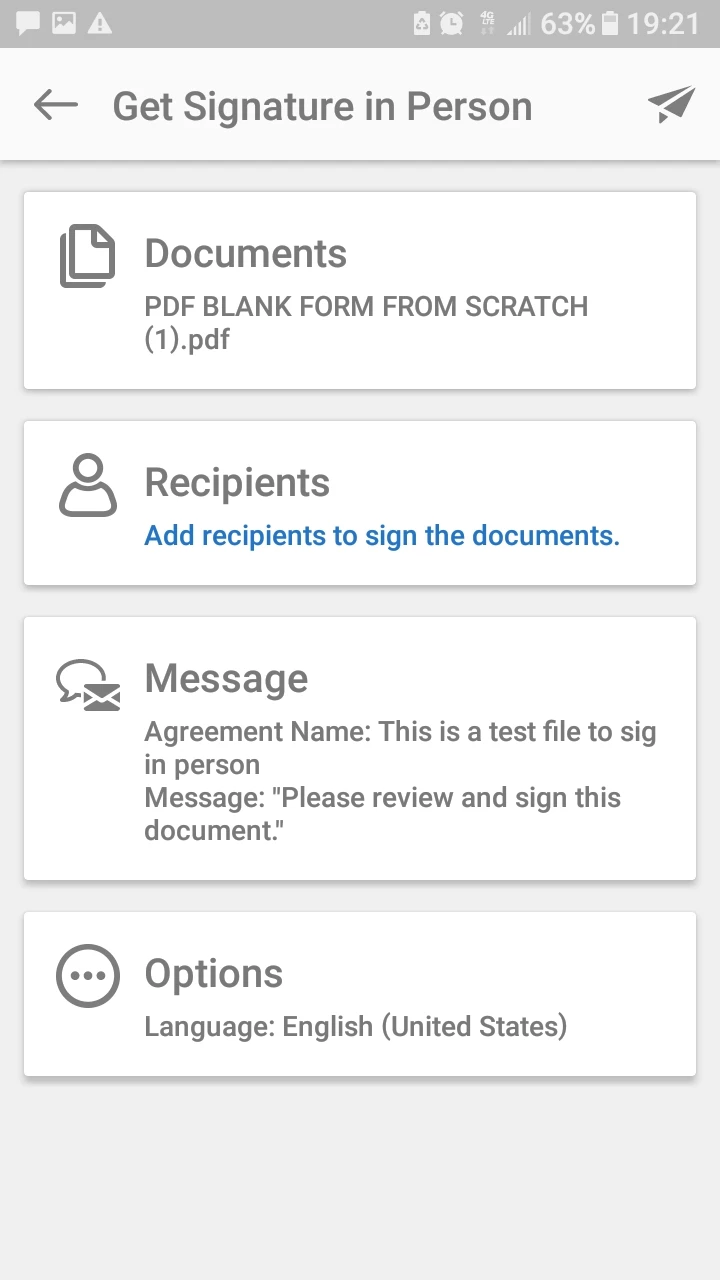
This is how the workflow should look like:


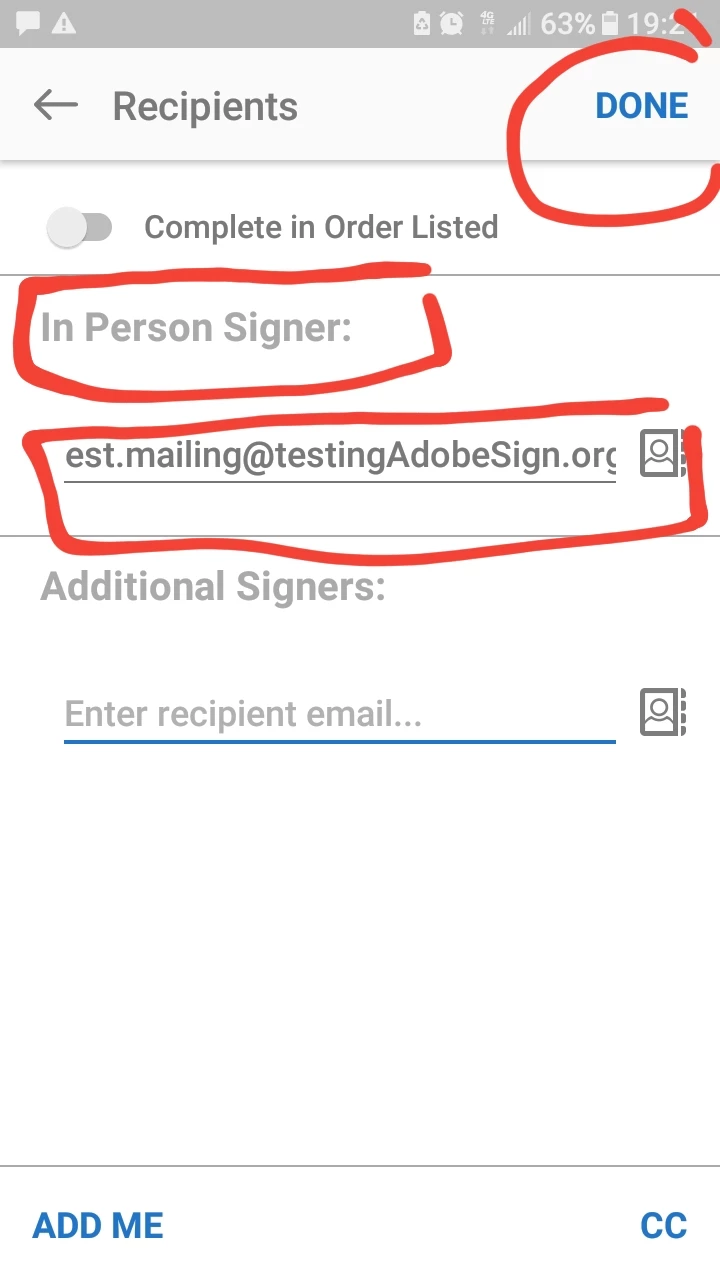
  • When you open the Adobe Sign app it will present you with a very straight forward Wizard. 
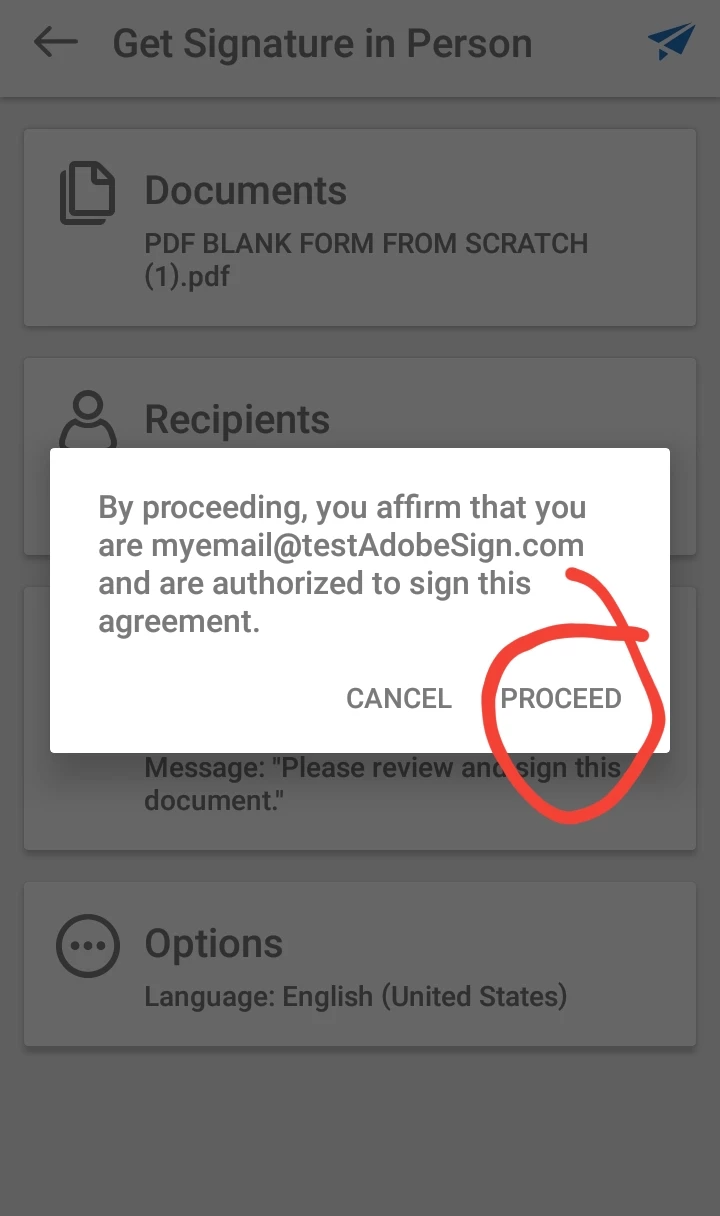
  • so you upload a file, select signing recipients, and signing method. In my case I used sign in person to make tgis example easier to illustrate.


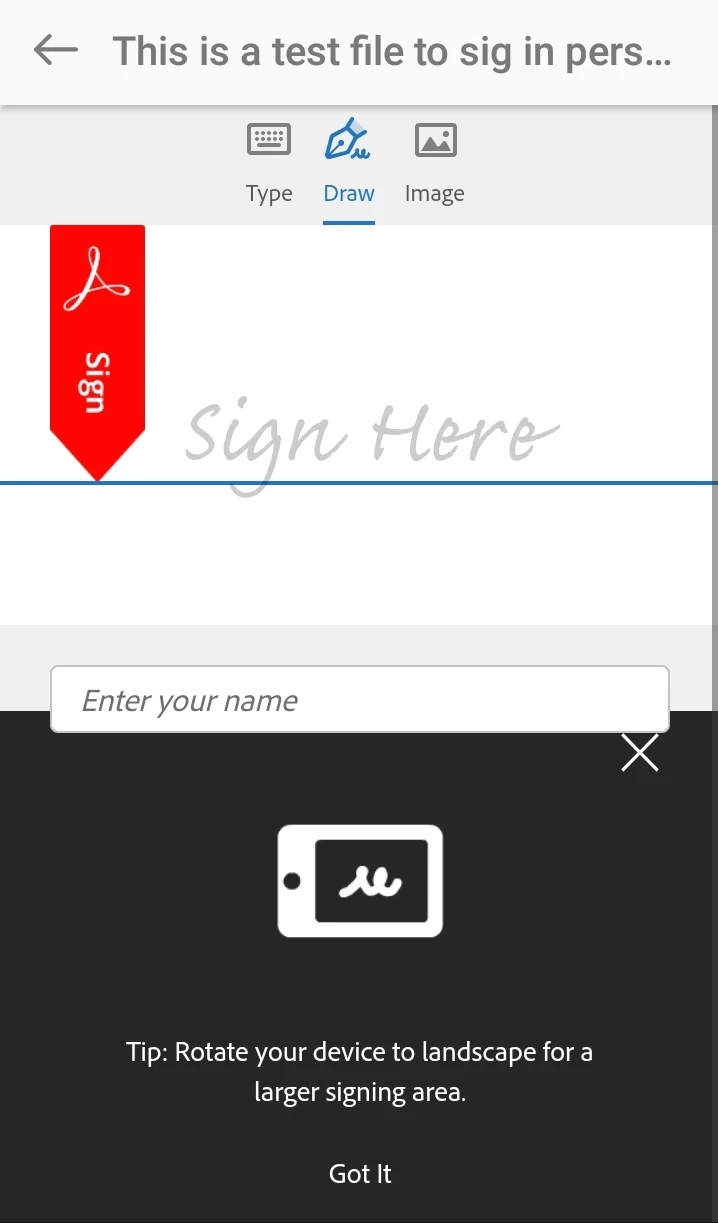
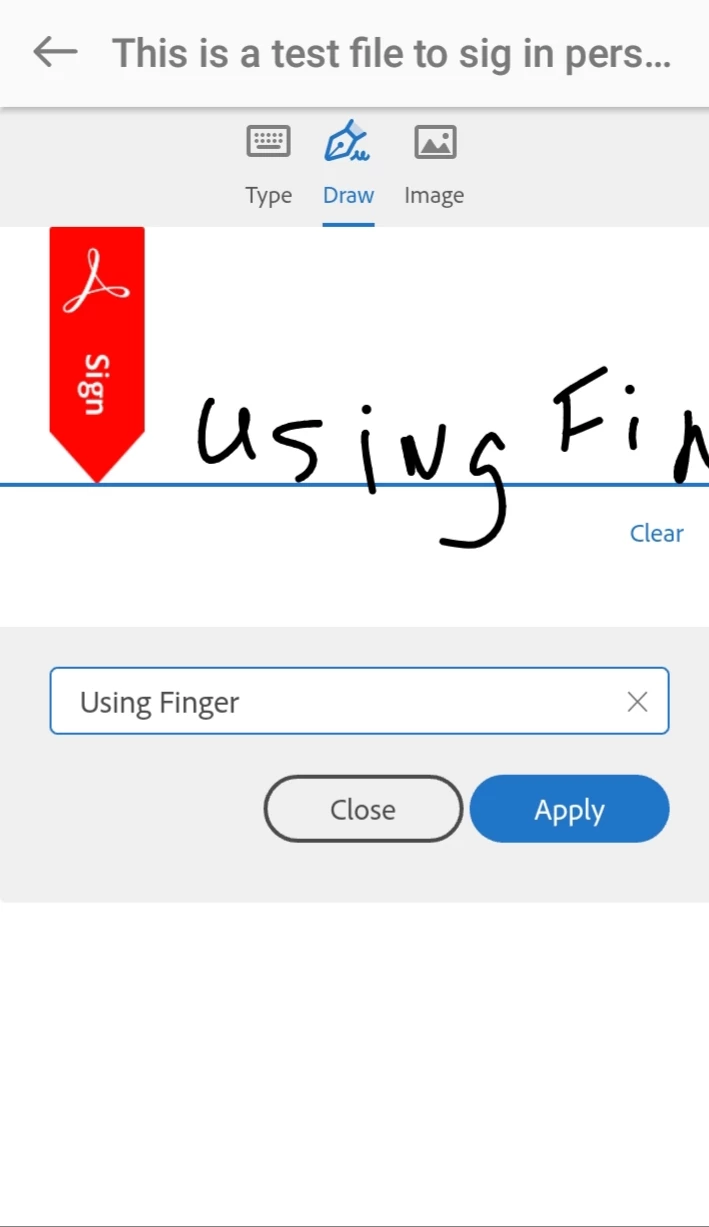
  • After you click Proceed, the wizard will take you directly to the actual signing process. See below:


  • When you tap on sign the process is cometed


1 reply

ls_rbls
Community Expert
Community Expert
February 6, 2020

Are you using Fill & Sign or Adobe Sign?


Also, are you referring to signature  fields for a digital signature (not the same as electronic signature)?


If you have a form that will employ the use of form fields to allow the user to sign with a smart card or a self-signed certificate you won't be able to utilize it in the mobile version.


But if you have a paid subscription with Acrobat Pro DC, you can unleash a few more signing features in your workflow using the Adobe Sign tool.


Now, if on the other  hand, you do have a  paid subscription, and you have not created a form with digital signature form fields, and you wish to have the ability to use  the Fill & Sign  tool in your mobile app, make sure that you're signed in  with your AdobeID in the mobile app.

Participant
February 7, 2020

I think I've tried both.  Originally, the field was set up as a Digital Signature, but that didn't work on the iPad, and if I was on the PC, it just wanted to use a Digital ID.  So then I converted it to an Adobe Sign Form, in which case it seems like it is just a Text Box.  It simply brings up the keyboard on the iPad.  There is no signature input.


I am using a paid subscription with Acrobat Pro DC.  I don't want to use the Digital ID.  I'm just looking to have a field on the form that when selected, the user can sign with a finger on the iPad.

ls_rbls
Community Expert
Community Expert
February 8, 2020

Yes, you're absolutely right. You should be able to use Fill & Sign in iPad.


It allows to insert an image, type in , or wet signature using the touch screen.


So I think you need to use Adobe Sign to set the signing workflow. 


With the Adobe Sign tool it allows you to select your signing recipients in a specific signing order or any order.


With this tool you can add signing recipients with their email address and insert the signature block and other data blocks for them.


When the user receives the email notification and opens the document, they can input their signature with the Fill & Sign tool.


Just make sure that when you edit your PDF, to remove the current digital signature fields.


Then open up the Sign tool. The wizard will guide you through the creation of signing blocks and adding signing recipients.