Participant
March 29, 2016
Answered

Adding color background to a text box in a PDF

  • March 29, 2016
  • 4 replies
  • 190313 views

Hello,

How do I add a color background to a text box in a PDF doc using Adobe Acrobat Pro DC? I want the color specifically added to the box not the rest of the page.

Thanks!

Correct answer try67

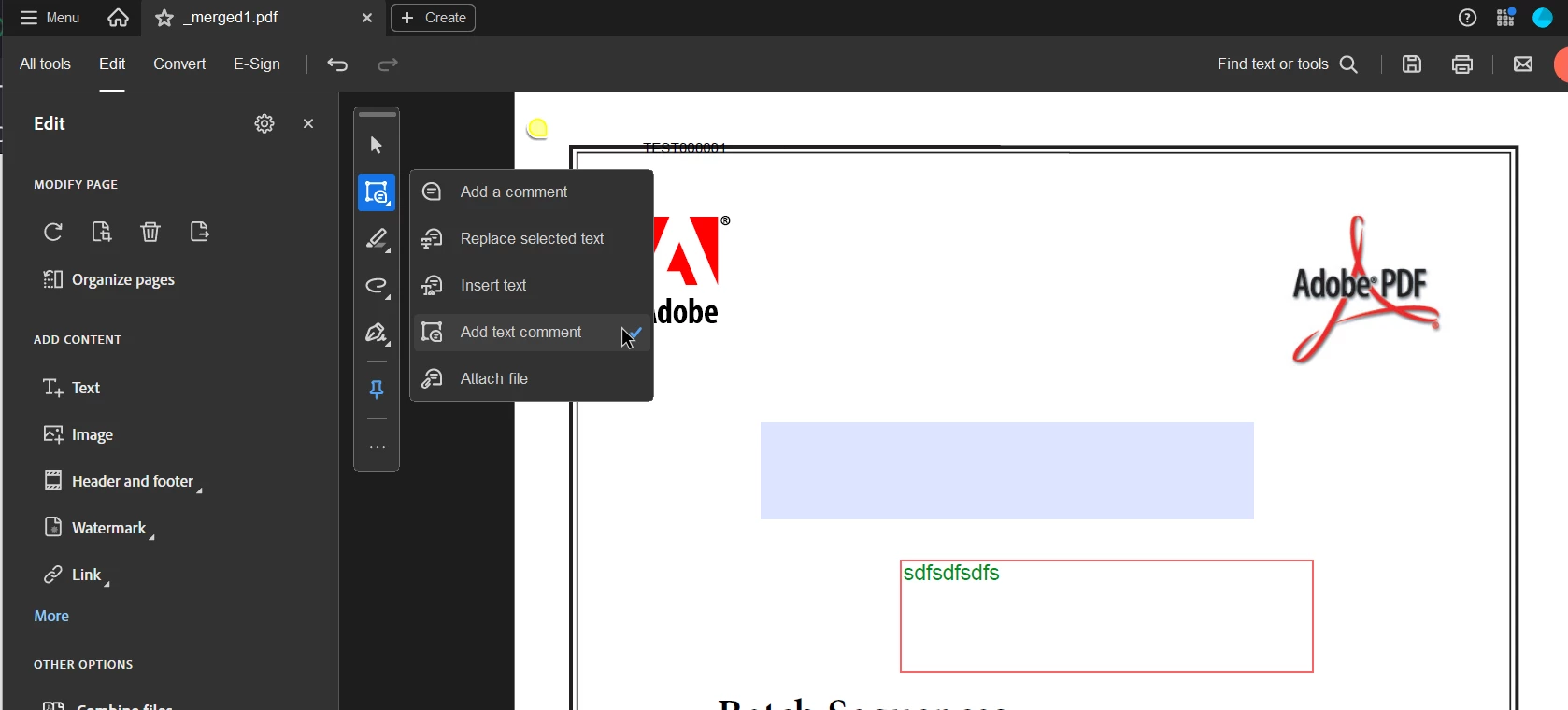
That tool is used to fill in form fields. To edit their fill color you would need to go to Prepare Form mode, then right-click them, select Properties and then look under the Appearance tab. An easier option might be to use the Add Text Comment tool:


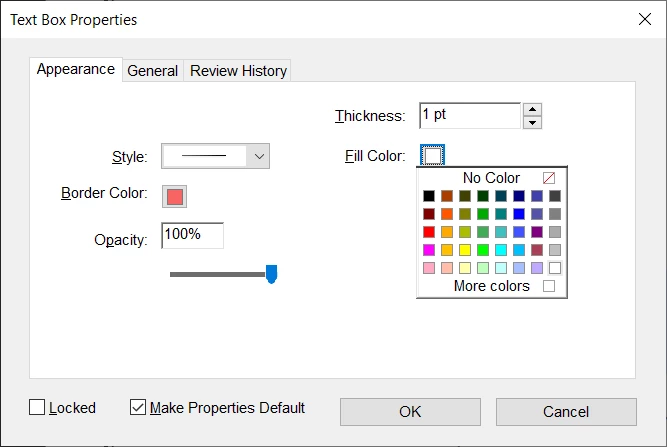
Then when you add the text, select the box around it, right-click it and select Properties and you’ll find an Appearance tab there as well with that option. If you tick the “Make Properties Default” box in that dialog, any new comments of that type you will add will have the fill color already pre-selected:


4 replies

Demus
Participant
April 17, 2026

I used the text box tool under the basic tool bar,


Demus
Participant
April 17, 2026

Hi, I have the same question about adding background color on the text box, when I created a rectangle shape filled with color, it looks like it won’t let me bring the shape behind the text box, as I placed the text box in front of the colored shape, the text is covered by the shape color. can you help me to solve this problem? Thank you, 

Demus, 

Meenakshi_Negi
Legend
March 29, 2016
Participant
February 28, 2022

But how do I add text above it?  No amount of "Sending to back" or "Bring to Front" seems to bring the text in front of the box.

Participant
June 26, 2023

any solutions for this?

Thanks

try67
Community Expert
Community Expert
March 29, 2016

There are various kinds of "text boxes" that you can add to a PDF. What exact tool were you using to add it?

Participant
March 29, 2016

I used the comment tool with the different shapes it has to draw.

try67
Community Expert
Community Expert
March 29, 2016

Using the same tool, click the shape you've created and press Ctrl+E. It will open the Properties Bar.

In it you'll find the option to set the shape's fill color, as well as other settings.

Here's how it should look like: