
Participant
March 29, 2025
Question

Adobe Acrobat: handtekening in "formulier voorbereiden" | Adobe Acrobat: Signature in "Prepare Form"

  • March 29, 2025
  • 2 replies
  • 403 views

Dutch | English below

Hallo,


Graag wil ik een invulformulier maken met daarin een vak waarin iemand anders een handtekening kan zetten. 


Met Adobe Acrobat heb ik een formulier gemaakt middels "Een formulier voorbereiden". Ik kan een handtekeningvak toevoegen (zie screenshot). 

Als ik het formulier download in PDF kan ik er geen handtekening inzetten. Ik kan alleen tekst typen. Dit maakt niet uit of ik kies voor "Signature" of "Signature Block".
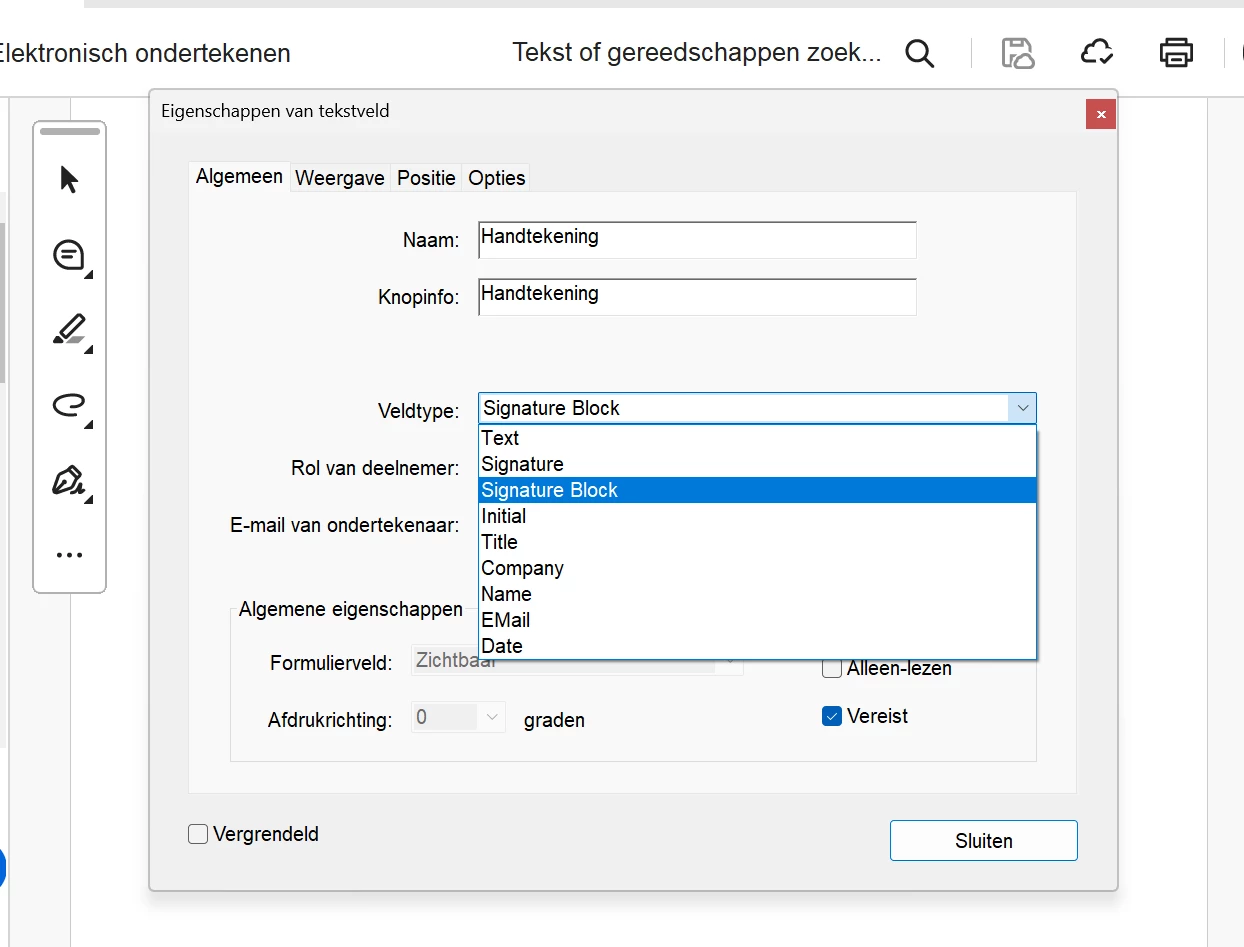
Graag hoor ik of iemand een oplossing hiervoor heeft. Ik wil namelijk het formulier toevoegen in een mail naar klanten en niet telkens ook nog elke klant een aanvraag moeten sturen voor "elektronisch tekenen". 


Alvast dank!

___________________

Hello,

I would like to create a form with a box in which someone else can sign. 

I have created a form with Adobe Acrobat using "A prepare form". I can add a signature box (see screenshot). 

When I download the form in PDF, I cannot enter a signature. I can only type text. This does not matter whether I choose "Signature" or "Signature Block".

I would like to hear if someone has a solution for this. I want the form to be added to an email to customers and not have to have every customer send a request for "electronic signing". 

Thanks in advance!

2 replies

Bernd Alheit
Community Expert
Community Expert
March 31, 2025

Convert the file to a AcroForm:

AnandSri
Community Manager
Community Manager
March 31, 2025

Hello!


I hope you are doing well.


It looks like you're having trouble adding a signature field in Adobe Acrobat's "Prepare Form" tool. Here are some steps to help resolve this issue:

  1. Use Adobe Sign: Convert your form to an Adobe Sign form. This ensures compatibility with signature fields.

    • Open your PDF in Acrobat.
    • Go to Tools > Prepare Form.
    • Click on More in the right panel and select Convert to Adobe Sign form. Adobe article: Formulieren maken met Acrobat
  2. Add Signature Field:

    • In the Prepare Form tool, click on the Signature Field icon.
    • Place the signature field where you want it in the form. Adobe article: Signing PDFs in Adobe Acrobat
  3. Save and Distribute:

    • Save the form and distribute it via email or Adobe Document Cloud. This allows recipients to sign electronically without needing additional requests. Adobe article: Signing PDFs in Adobe Acrobat

Update Adobe Acrobat

  • Outdated versions may lack features, check for any pending updates from the Menu > help > check for updates, install the updates, restart the app and the machine, and check. For more information, see this: https://adobe.ly/4lacLpt

  • Restart the app and the machine after installing the latest update.

Add the Signature Field Correctly

  • In Prepare Form mode:

    1. Click Add a Field (top toolbar).

    2. Select Digital Signature from the dropdown.

    3. Draw the field on the PDF. Adobe article: https://adobe.ly/3FPaIHm

Set Field Properties:

  • Double-click the signature field to open its properties.

  • In the "General" tab, provide a name and tooltip for the field.​

  • In the "Signed" tab, define actions upon signing, such as marking fields as read-only.

Let us know how it goes.

Thanks,

Anand Sri.

Participant
April 8, 2025

Hello Anand Sri,

Thank you for your response.

Unfortunately, it has not worked yet.
I think I have created the form in the way you indicated in your message.

When I open the form in PDF, I can only type in the signature box and I cannot place a signature.
Hopefully you have another idea.
Thanks for thinking along.
Kind regards,
Ester van den Broek


AnandSri
Community Manager
Community Manager
June 5, 2025

Hello @ester_1549!


I hope you're doing well. We apologize for the delayed response. Have you tried the suggestion from our community product expert to convert the form to an AcroForm? If not, please try once.

Also Check and Correct the Field Type


Open the PDF in Adobe Acrobat (not Reader).

Go to All Tools > Prepare Form.

Locate the signature box you created.

Right-click the field and choose Properties.

Under the General tab, ensure the Field Type is set to "Digital Signature", not "Text".

If it’s currently a text field, you will need to:

    • Delete the current field.

    • Click “Add a digital signature field” from the toolbar (it may look like a pen icon).

    • Place it again where the signature is needed.


  • Once saved and reopened in Acrobat or Reader, the user should see the “Click to sign” prompt in that field rather than just a blinking cursor.

  • If you want users to sign using Adobe Acrobat Sign (cloud-based signature), ensure the “Request Signatures” workflow is used instead.

Thanks,

Anand Sri.