luisv20399914
Known Participant
June 6, 2017
Answered

Adobe Acrobat Pro How to make buttons invisible?

  • June 6, 2017
  • 2 replies
  • 10273 views

I'm working on a PDF with some simple interactive elements (show/hiding layers mostly). However, when I create the buttons with the Prepare Form option, I'm still seeing the black bar and boxes on the selected button area.
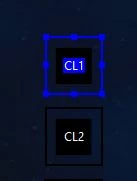
I made sure to set all of the properties in the appearance tab to no fill and no border but they're still showing up.

Is there any way to make these completely invisible yet still fully interactive (on click)?

This topic has been closed for replies.
Correct answer Dave__M

Thank you for the quick reply Dave.

I have made sure all of the buttons are set to none on border and fill

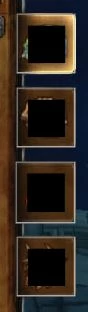
Here is a quick example of what I'm looking for vs. what I'm seeing:

What the image currently looks like (with no buttons coded in)

And here's what the image looks like after adding the buttons and exiting preview mode:


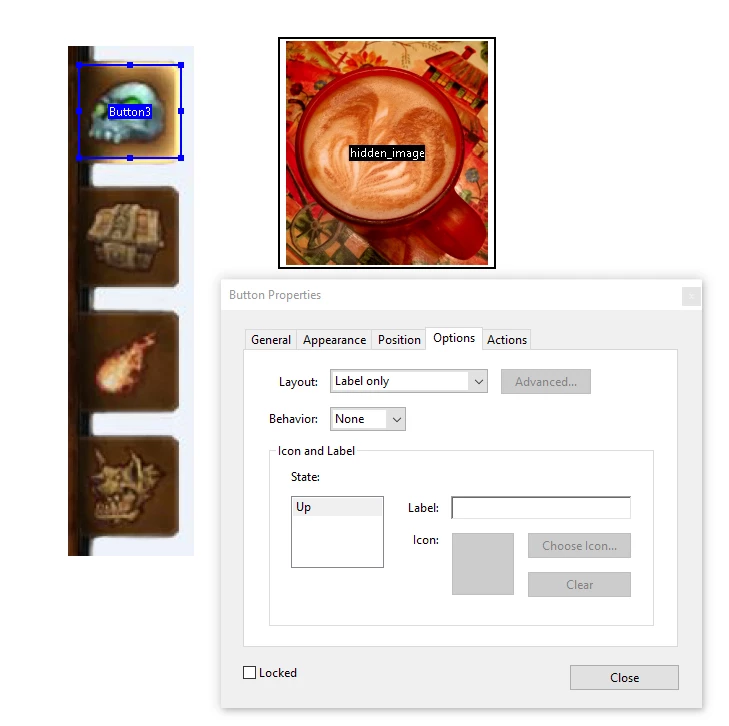
OK - I took your image, and slapped it onto a Word doc, and converted it to PDF.  I opened the Form tools, and created a button over the (your) image.  I also made another button, and filled it with an image, and designated it as Hidden.  To do this, you must designate it as an Icon Only on the Options tab.  For the button over your image, I designated it as a Label Only (just a text button), but left the Label field blank on the Options tab.

Using this method, I am getting truly invisible buttons.  Try this technique (if it is different than you have tried before) and see if it works.

My best,

Dave

2 replies

luisv20399914
Known Participant
June 12, 2017

Does anyone know the Java script code to make this work or am I just missing something entirely?

try67
Community Expert
Community Expert
June 12, 2017

You'll need to share the file with us for further help, as it's not clear what you're seeing, exactly...

luisv20399914
Known Participant
June 14, 2017

Unfortunately, the file contains some sensitive information.

Is there anything else I can do to further illustrate my issue?

Bernd Alheit
Community Expert
Community Expert
June 6, 2017

Exit the edit mode.

luisv20399914
Known Participant
June 6, 2017

I have, this is what it looks like now on the PDF.