


Participant
May 19, 2025
Answered

Adobe Acrobat Table Cell Properties - Row Span of More Than 1 Creates Errors

  • May 19, 2025
  • 3 replies
  • 394 views

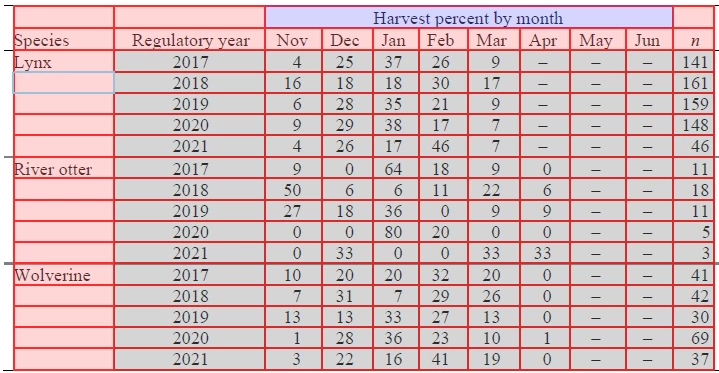
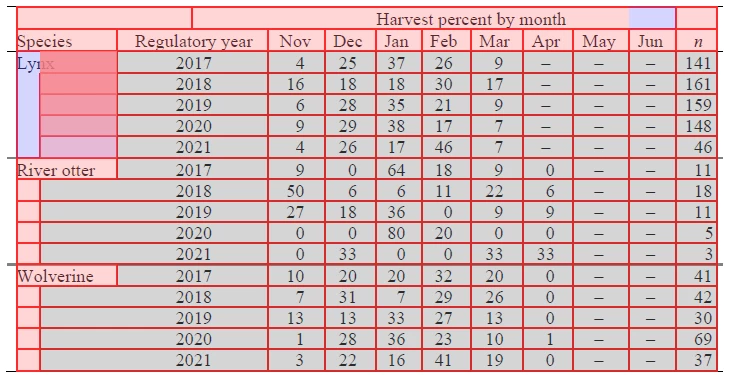
When I set the row span for the Lynx, River otter, and Wolverine cells to anything more than "1," the reading order messes up. 


How can I set the row span for each of these cells to 5?


Before:
 

After setting the "Lynx" cell to a row span of "5."
 

Please advise.


    Correct answer June38275960qyt4


    For future reference, these are the instructions helped me achieve what I was trying to do.


    • Open the Tags panel:
      View > Show/Hide > Navigation Panes > Tags

    • Expand the structure:

      • Find your <Table> tag.

      • Expand it to see rows (<TR>), cells (<TD> or <TH>), and so on.

    • Locate the "Species" cells (e.g., Lynx, River otter, Wolverine):

      • Each of these should only appear once in the table, and their cell (<TD> or <TH>) should appear only once per 5-row block.

    • Delete redundant cells:

      • Acrobat doesn’t remove the extra "row-spanned" cells from the tag tree, so they still exist and confuse screen readers.

      • Delete the extra “Lynx,” “River otter,” and “Wolverine” cells that show up in rows 2–5 of their group. Only the top cell in each group should remain.

    • Reorder child tags if needed:

      • Make sure each <TR> (table row) still has the correct number of child <TD> or <TH> tags.

      • Each row should reflect its correct cells excluding the spanned cell, which will already be counted by the rowspan.


    3 replies

    June38275960qyt4AuthorCorrect answer
    Participant
    May 28, 2025


    For future reference, these are the instructions helped me achieve what I was trying to do.


    • Open the Tags panel:
      View > Show/Hide > Navigation Panes > Tags

    • Expand the structure:

      • Find your <Table> tag.

      • Expand it to see rows (<TR>), cells (<TD> or <TH>), and so on.

    • Locate the "Species" cells (e.g., Lynx, River otter, Wolverine):

      • Each of these should only appear once in the table, and their cell (<TD> or <TH>) should appear only once per 5-row block.

    • Delete redundant cells:

      • Acrobat doesn’t remove the extra "row-spanned" cells from the tag tree, so they still exist and confuse screen readers.

      • Delete the extra “Lynx,” “River otter,” and “Wolverine” cells that show up in rows 2–5 of their group. Only the top cell in each group should remain.

    • Reorder child tags if needed:

      • Make sure each <TR> (table row) still has the correct number of child <TD> or <TH> tags.

      • Each row should reflect its correct cells excluding the spanned cell, which will already be counted by the rowspan.


    try67
    Community Expert
    Community Expert
    May 19, 2025

    Acrobat doesn't have a tool for editing tables, namely because tables as a concept don't exist in PDF files.

    If you want to do such global changes you really ought to do them in the original file, and then create a new PDF from it.

    kglad
    Community Expert
    Community Expert
    May 19, 2025

    in the future, to find the best place to post your message, use the list here, https://community.adobe.com/

    p.s. i don't think the adobe website, and forums in particular, are easy to navigate, so don't spend a lot of time searching that forum list. do your best and we'll move the post (like this one has already been moved) if it helps you get responses.


    <"moved from using the community">