


Inspiring
May 22, 2025
Answered

Adobe Pro Create a PDF from any format not working with Office 365

  • May 22, 2025
  • 2 replies
  • 1533 views

Hello everyone,

I recently encountered an issue with the import function for Adobe Pro to convert Word/Excel documents into a PDF. This is happening with multiple people. We are on Windows 11 Enterprise, Adobe Acrobat Pro 64-bit (checked for updates), and running on Microsoft 365 Apps for Enterprise.


Previosuly we were on Office 2019. Using the import function within Adobe would work flawlessly, allowing to browse and select Word/Excel files and it would convert to PDF. However, ever since we upgraded to 365 Apps, we now encounter an error:
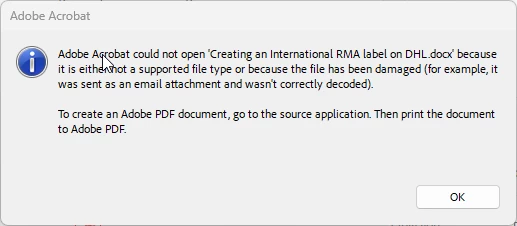
At first, I thought it was just that specific document. It turns out, it happens to all Excel/Word documents. I even tried creating a new document and would encounter the same error. I have tried installing the 32-bit of Adobe and re-installing Adobe, this did not work. The Acrobat PDF Maker add-in for Word/Excel is active. I disabled and re-enabled, this did not help. 


Opening the Word/Excel document and using the the "Create and Share Adobe PDF" function works, as well as going to print and saving the files as PDF. It seems it is only when trying to import the documents through Adobe is when this issue occurs. I am not sure if there is a registry that needs to be updated or a trust center setting within the 365 applications. All help/suggestions would be greatly appreciated. 

Correct answer aarchambault4300

@aarchambault4300


Thanks for the video. 
Could you tell me if you saved the file after adding the sample text or data to the sample Word doc and Excel file in the video? If not, please try saving the documents again with sample text and data. And then try again. 

If the issue is still reproducible, let me know; we may need to set up a meeting to discuss this further. Kindly share your Timezone and work hours via DM so we can arrange a meeting via MS Teams.


~Tariq


@Tariq Ahmad Hey Tariq, just an update on this. We determined the cause to be a corrupted profile. Once we re-created the profile, the PDF conversion function through the Adobe application worked again.

2 replies

Community Manager
May 23, 2025

Hi @aarchambault4300 


Thanks for sharing the details—this does sound like a frustrating issue, in addition to what @Meenakshi Negi has mentioned. 

One possible cause could be that the source Office file is stored on a network drive or cloud-synced location (like OneDrive, SharePoint, or a mapped network folder). Acrobat can sometimes run into issues accessing or converting files from these locations due to:

  • File access or locking delays
  • Sync or versioning conflicts
  • Limitations in how Acrobat handles temporary files during conversion


Here’s what you can try:

  1. Copy the file to your local desktop.
  2. Open Acrobat and go to File > Create > PDF from File, then select the local version.
  3. If this works, it confirms the issue is related to the file’s network/cloud location.
  4. Also, make sure both Microsoft Office and Adobe Acrobat Pro are fully up to date, and try using the Acrobat add-in from within Word/Excel (Acrobat > Create PDF) as an alternative path.


If the issue still persists, try disabling protected mode at startup. This suggestion is for testing only: 

To disable protected mode, you'll typically navigate to the application's settings, usually under "Options" or "Preferences," then find the "Protected View" or "Security (Enhanced)" section. Uncheck any options that enable protected mode and apply the changes. 


If you are still experiencing the issue, help us with the following details:

  1. Acrobat version installed:  https://adobe.ly/3PQQ7nE
  2. OS name and version.
  3. Screen recording showing the problem. 


Let us know how that goes or if you’re seeing any specific error messages — happy to help troubleshoot further!


~Tariq

Inspiring
June 2, 2025

Hi Tariq, thanks for your reply.

This issue is happening with all files, wether they are on the Cloud, on our network, or even local computer. I attempted to create a brand new file (excel and word) on the local computer and made sure it was not being synced to the cloud, and the issue persisted.  As mentioned in the original post, the Adobe Ad-in in Excel and Word works fine. Issue seems to be only with Adobe. 


I attempted your suggestion to disable protected view, this did not work unfortunately. 


Adobe Acrobat: 25.001.20474

Windows 11 Enterprise Ver 24H2 - OS Build: 26100.4061

365 Apps: 2505, Build 18827.20128


I will record a video and upload it shortly

Meenakshi Negi
Community Manager
Community Manager
May 23, 2025

Hi aarchambault4300,


Thank you for reaching out, and sorry about the trouble.


It seems that something has changed after you updated to Microsoft 365 Apps for Enterprise. Please confirm if the issue occurs on the work machine. 

Please check and try exporting files that you might have received via email or saved somewhere. Check if you get the same error. Also, check if the files from other formats (except Excel/Word) convert or show the same error.

Share the details of the Acrobat, MS 365 apps, and OS version.


Thanks,

Meenakshi


Inspiring
June 2, 2025

Thanks for the reply. As mentioned in the post, I tried creating a new file (both word and excel) which was saved on the local computer and not on any network drives or the cloud (OneDrive), and the issue persisted. Also tried xlsx, xls, csv files. All still running into the same issue. 

Adobe Acrobat: 25.001.20474

Windows 11 Enterprise Ver 24H2 - OS Build: 26100.4061

365 Apps: 2504, Build 18730.20186