

ETM1016
Participant
July 23, 2018
Answered

AmazonEmber-Bold not found, using Courier.

  • July 23, 2018
  • 1 reply
  • 8272 views

Cannot print to adobe pdf printer.  Opens up notepad with this error.

%%[ ProductName: Distiller ]%%
AmazonEmber-Bold not found, using Courier.
AmazonEmber-Regular not found, using Courier.
%%[ Error: invalidfont; OffendingCommand: show ]%%

Stack:
( )

%%[ Flushing: rest of job (to end-of-file) will be ignored ]%%
%%[ Warning: PostScript error. No PDF file produced. ] %%
This topic has been closed for replies.
Correct answer Dov Isaacs

The message simply means that Distiller cannot find fonts, in this case both AmazonEmber-Regular and AmazonEmber-Bold, that are referenced by the PostScript generated by the PostScript driver.

One possibility for this message is that the Adobe PDF PostScript Printer Driver instance is improperly configured.

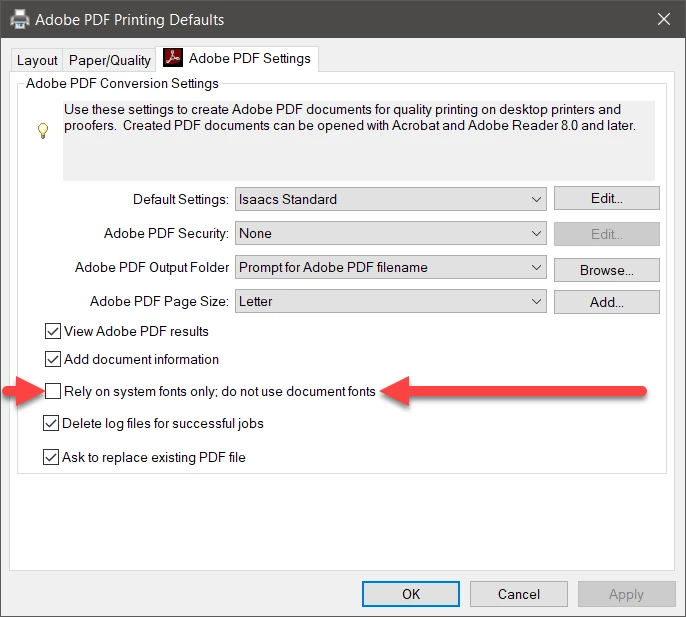
Go to the Printer Properties for Adobe PDF. Click on the Advanced tab and click on the Printing Defaults button. Then click on the Adobe PDF Settings tab. In this dialog, make sure that the Rely on system fonts only; do not use document fonts option is unchecked per below:

Then press OK. Then go to the General tab, press Preferences, and then repeat the same scenario with its Adobe PDF Settings.

Then press OK.

Restart the application that you are printing from and problem should be resolved.

          - Dov

1 reply

Dov Isaacs
Dov IsaacsCorrect answer
Legend
July 23, 2018

The message simply means that Distiller cannot find fonts, in this case both AmazonEmber-Regular and AmazonEmber-Bold, that are referenced by the PostScript generated by the PostScript driver.

One possibility for this message is that the Adobe PDF PostScript Printer Driver instance is improperly configured.

Go to the Printer Properties for Adobe PDF. Click on the Advanced tab and click on the Printing Defaults button. Then click on the Adobe PDF Settings tab. In this dialog, make sure that the Rely on system fonts only; do not use document fonts option is unchecked per below:

Then press OK. Then go to the General tab, press Preferences, and then repeat the same scenario with its Adobe PDF Settings.

Then press OK.

Restart the application that you are printing from and problem should be resolved.

          - Dov

- Dov Isaacs, former Adobe Principal Scientist (April 30, 1990 - May 30, 2021)