flip!
Participant
December 12, 2017
Answered

An incorrect structure was found in the pdf file

  • December 12, 2017
  • 7 replies
  • 149575 views

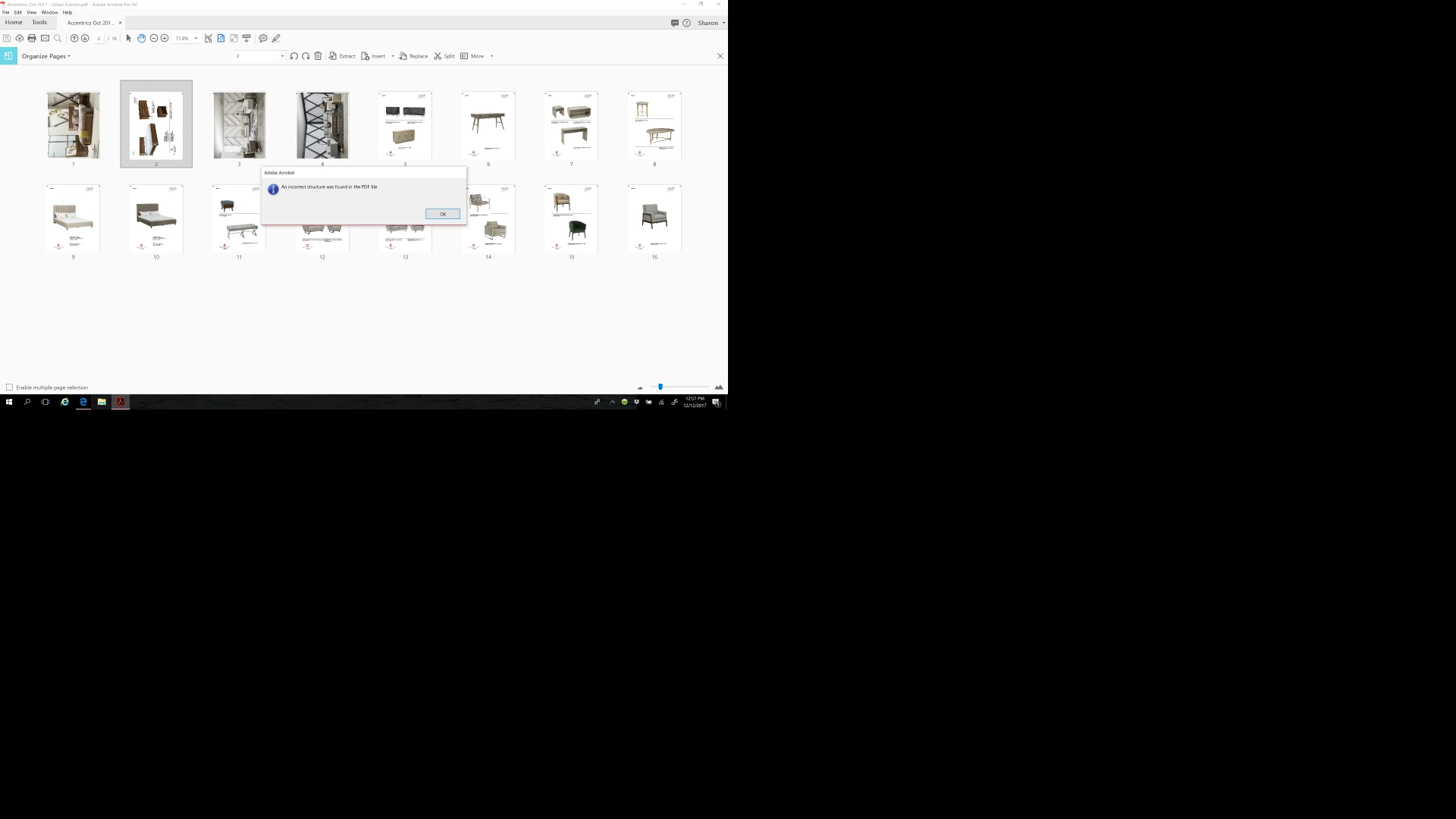
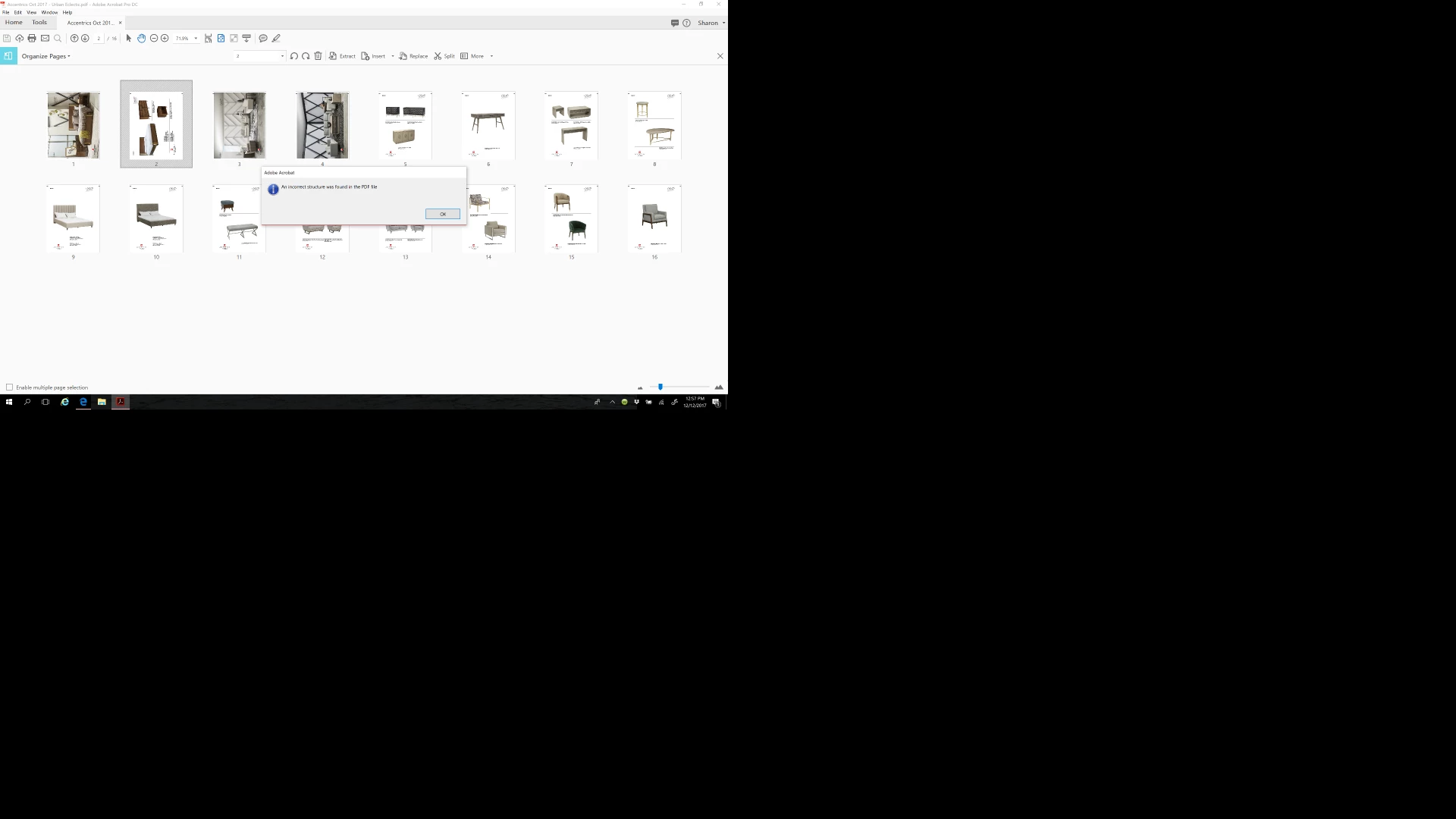
I am trying to move one page in the thumbnails view of a 16 page pdf. When I drag and drop the page I get this error:

"An incorrect structure was found in the pdf file" and it will not move the page.

What can I do to fix this without starting over?

I am using Adobe Acrobat Pro DC

Thanks
Correct answer Cari Jansen

Are you able to save a copy?

or maybe try the following (not sure if that works, but anything is worth a try I guess, I found this on acrobatusers.com for a similar issue in Acrobat XI Pro):

  1. Launch Acrobat, but do not open any files
  2. Choose File > Create > Combine Files into a Single PDF
  3. Click Add Files
  4. Navigate to the PDF that's causing issues, select it and click Add Files.
  5. Click Combine, Binder1.pdf is created
  6. File > Save As

Now try and see if you an move the pages around in this PDF. (fingers crossed)

7 replies

RobertHaydenCo
Known Participant
January 31, 2024

I know this is a late reply, but this was the 1st post I found when looking for the same issue. All of the sudden, my Acrobat Pro has been throwing up that same error on this one document. I found 2 fast simple workarounds.

Workaround 1: Extract the page(s) you want, make sure to check the box "Delete Pages After Extracting". This will remove the pages from the PDF with the error. Then, from the new PDF that was just created, Click & Drag the page(s) back into the location you need.

Workaround 2: Rather than moving the page(s) - by clicking and dragging them, select the page(s) then hold the Control Key (CTRL) and copy them. Oddly enough, it lets me copy, but not move. Not sure why, but it worked. From there just delete the oringinal page(s) and you're good.

Participant
October 12, 2023

Works just fine. You saved me!!

Participant
August 25, 2022

If I had the original files I would have tried making a new binder but that wasn't an option in this case. 


You can also open the file in your Chrome browser and use their native "print to pdf" option omitting the trouble pages. That's what I did. Sorry Adobe.

Known Participant
August 7, 2019

I get this error ALL THE TIME. It's not just one file, it's with many files -- and I'll add that 99% of those are generated by InDesign.

I generally can rebuild a file from the ground up, per Carl's "fix," but the problem is, I'm assembling PDF from multiple documents, and want to update as components are corrected. (These are album packages, so I'll have four to six different files -- a jacket, insert, labels, sticker, sticker placement, etc. and often I'll need to update a package PDF when only one of those elements has changes.)

So per another comment above I deleted all tags and the document seemed to "behave." Only one incident, so I'm reticent to believe this is a cure-all, but I'll try it henceforth.

Of course this raises the question, What are tags and why did my document have several dozen? Again, all were files I generated from InDesign (CC2015). I didn't put the tags there, and wouldn't know how to if I were inclined.

Participant
June 9, 2021

Tags are used so that Accessible Technology (AT) can make sense of them. People with disabilities rely on these tags to navigate through the document. An untagged document would be completely inaccessible. 


Participant
October 23, 2018

I've just encountered this problem as well. I attempted Cari's suggestion and it didn't solve the problem. I was able to print the PDF to PDF and solve the issue though.

Participating Frequently
September 19, 2019
The Print to PDF solution solved the problem for me. Awesome suggestion,....thank you !!!!!!
michellebeyer
Participant
February 28, 2018

Here is a guide on how to delete tags for those who need it.

How do I remove tags from a PDF document?

biancad46609800
Participant
June 18, 2018

Thank you! This resolved the problem!

Cari JansenCorrect answer
Legend
December 16, 2017

Are you able to save a copy?

or maybe try the following (not sure if that works, but anything is worth a try I guess, I found this on acrobatusers.com for a similar issue in Acrobat XI Pro):

  1. Launch Acrobat, but do not open any files
  2. Choose File > Create > Combine Files into a Single PDF
  3. Click Add Files
  4. Navigate to the PDF that's causing issues, select it and click Add Files.
  5. Click Combine, Binder1.pdf is created
  6. File > Save As

Now try and see if you an move the pages around in this PDF. (fingers crossed)

Participant
February 16, 2018

I did not have luck with this. Seems like a silly question, but how do I know which file caused the issue? I'm thinking its an excel file I PDF, but I've tried this combine approach twice and still getting the same issue if I try to edit the PDF or move pages through thumbnails.

Legend
February 17, 2018

This is usually bad tagging (accessibility info) in the file and can be fixed by deleting all tags.