



Jacob38641654dtzp
Participant
February 26, 2026
Question

Auto-tag document tool bug

  • February 26, 2026
  • 2 replies
  • 32 views

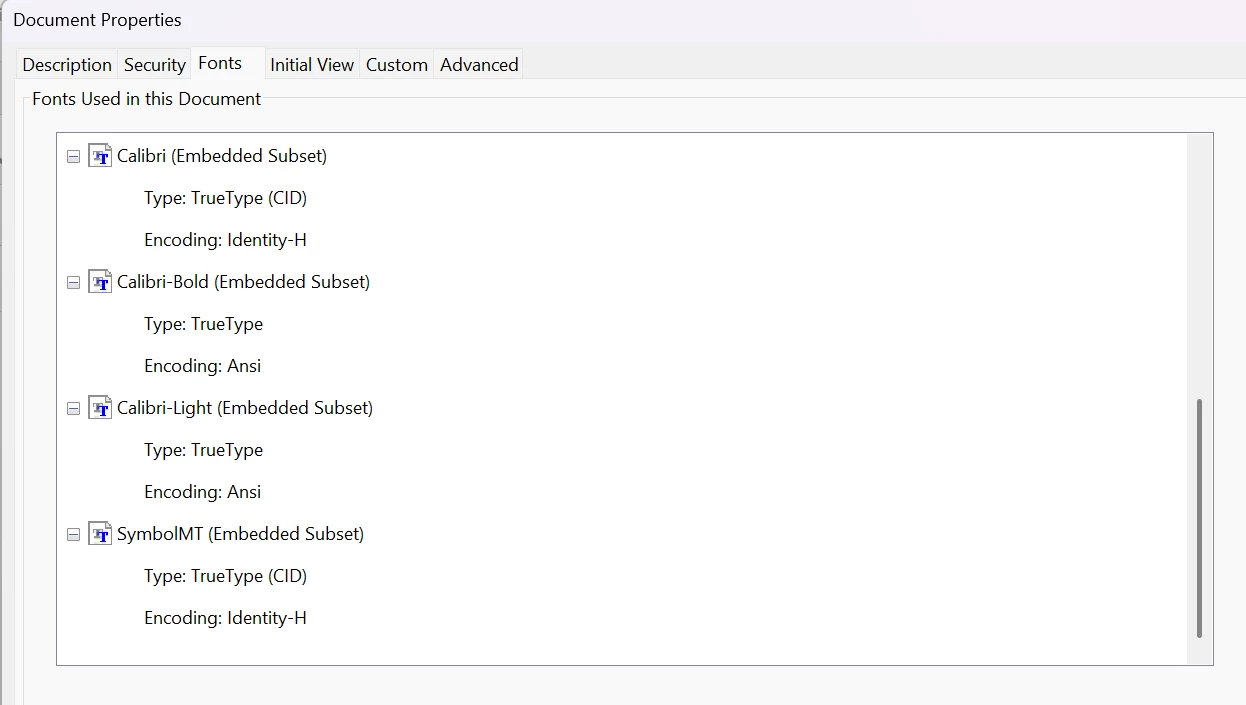
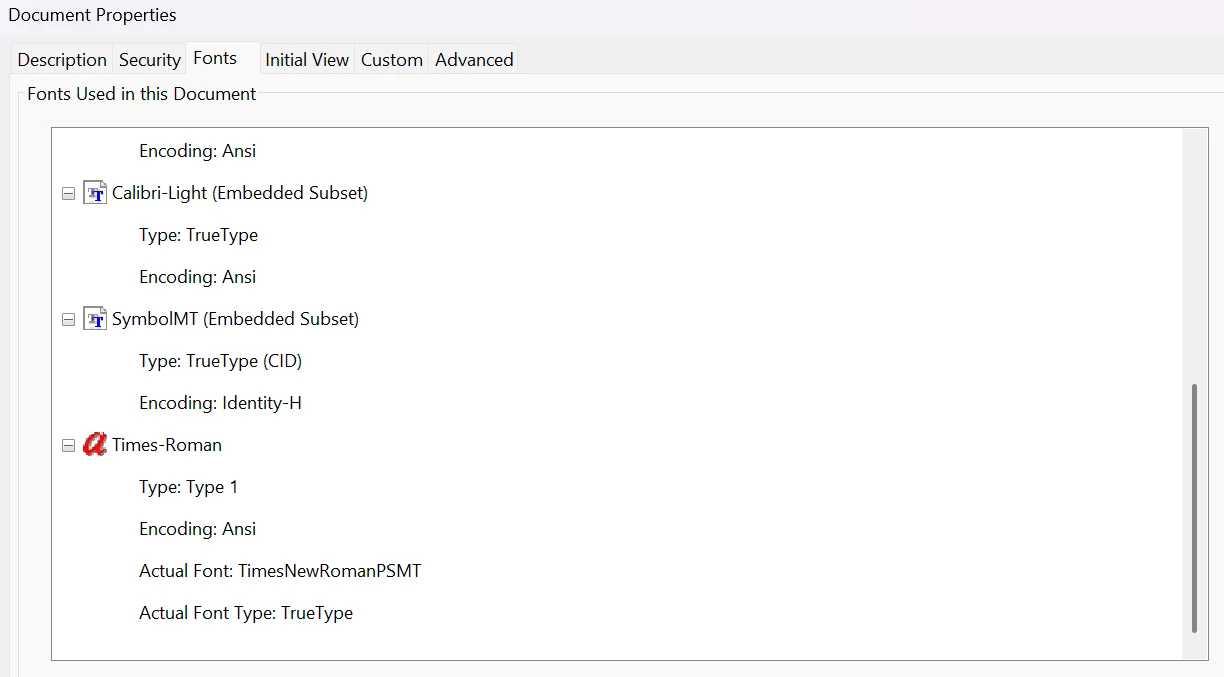
When auto-tagging a document with the auto-tag document function it appears to tag certain formatting elements in a different font from the original document. I currently have a document fully in the Aptos font family but when auto tagging it and then checking the embedded fonts somehow Times New Roman appears as an “unembedded” font causing it to flag as an error in CommonLook. This is an issue. First screen shot is before auto-tag, second screenshot with the Times New Roman is after auto-tag. Where is this coming from?
 

    2 replies

    AnandSri
    Legend
    February 26, 2026

    Hello ​@Jacob38641654dtzp 


    I hope you are doing well, and thank you for the detailed information.


    Please note that Auto‑tagging does not change the authoring font of your content. However, during Auto‑tag, Acrobat rebuilds the tag structure and underlying text objects to create accessible content. If any text object references a font that is not embedded (or cannot be embedded due to font permissions), Acrobat will list that font separately in Document Properties > Fonts.


    Auto‑tagging analyzes font style, spacing, and structure to infer headings and lists.
    If list bullets or the spacing after bullets are represented internally as separate text objects (for example, spacing characters), those objects may reference a default serif font if no embedded font is available for that element. When that font is not embedded, it appears as Times‑Roman / Times New Roman (unembedded) in the Fonts panel, exactly as shown in your second screenshot.


    Please confirm font embedding status (before and after Auto‑tag): 

    Open the PDF File > Menu > Properties > Fonts and compare the font list before and after running Auto‑tag Document.


    Ensure fonts are embedded before accessibility work: 

    Please note that embedding fonts prevents font substitution and validation failures.
    If a font is not embedded (or embedding is restricted), validators such as CommonLook may flag it even though the visual appearance looks unchanged.


    After Auto‑tagging:

    • Re‑check Document Properties > Fonts.
    • If a font still appears as unembedded, it indicates the PDF contains a text object that references a font that cannot be embedded.

    Auto‑tagging does not intentionally change your document font. The appearance of Times New Roman after Auto‑tag indicates that some text objects (commonly list spacing or structural elements) reference a font that is not embedded.


    To verify in Acrobat Pro:

    Check the actual text objects

    • Open the PDF.
    • Go to All Tools > Print Production > Output Preview.
    • Use the Object Inspector and click the list text and bullet spacing.
    • Confirm the visible text still reports Aptos (or your embedded font).


    Review tagging

    • Go to All Tools > Accessibility > Reading Order.
    • Inspect the list structure.
    • Confirm bullets and list items are properly tagged as List / L / LI elements.


    Recommendation would be creating tagged PDFs directly from Word.

    From Word:

    1. Use built-in Heading styles.

    2. Use proper Bulleted List formatting.

    3. Save as PDF using:


    Use Preflight:

    1. All Tools > Print Production > Preflight

    2. Search for profile: Embed missing fonts

    3. Run the fixup


    Also, ensure you have the latest build of Acrobat version: 25.001.21223. Planned update. Feb 17, 2026.


    Let us know how it goes.

    Regards,

    Anand Sri

    Jacob38641654dtzp
    Participant
    February 26, 2026

    Important to note, the elements I have in the Word document before converting to PDF are a Heading level 1 and a bulleted list. The auto-tag function appears to take the spaces after the bullets and changes them to Times Roman.