



JR Boulay
Community Expert
Community Expert
January 17, 2024
Answered

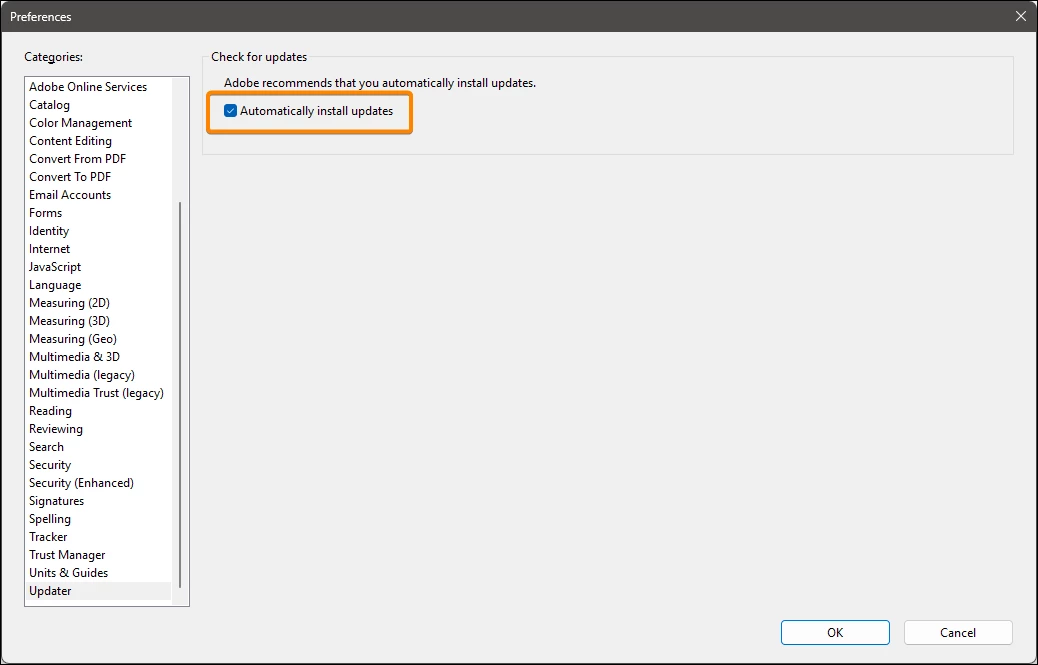
Automatically install updates

  • January 17, 2024
  • 1 reply
  • 1497 views

I'm looking for expert advice because I've been unchecking this option after every update for over 3 years*, as it reactivates it every time.
But it's not enough, it keeps checking again and again, even between two updates, which isn't right.


Is there anything I can change in the Windows registry or somewhere else to force Acrobat to finally respect this user preference once and for all?

Thanks


* I explain why in this topic: https://community.adobe.com/t5/acrobat-discussions/crazy-and-brutal-update/m-p/11575543

This topic has been closed for replies.
Correct answer LeoUpdaterX

For Acrobat DC you can set preference by changing Mode value in the Registry path HKEY_LOCAL_MACHINE\SOFTWARE\Adobe\Adobe ARM\Legacy\Acrobat\[GUID] to one of the REG_DWORD values below

4 - check for updates but do not download

2 - download updates, but do not install

1 - manually check for updates from application "Help\Check for Updates" menu

For Acrobat 11 and earlier, set iCheck Registry value to one the above values in the Registry path

HKEY_LOCAL_MACHINE\SOFTWARE\Adobe\Adobe ARM\1.0\ARM

Note that Acrobat 11 and earlier are no longer supported.

1 reply

LeoUpdaterXCorrect answer
Participating Frequently
January 18, 2024

For Acrobat DC you can set preference by changing Mode value in the Registry path HKEY_LOCAL_MACHINE\SOFTWARE\Adobe\Adobe ARM\Legacy\Acrobat\[GUID] to one of the REG_DWORD values below

4 - check for updates but do not download

2 - download updates, but do not install

1 - manually check for updates from application "Help\Check for Updates" menu

For Acrobat 11 and earlier, set iCheck Registry value to one the above values in the Registry path

HKEY_LOCAL_MACHINE\SOFTWARE\Adobe\Adobe ARM\1.0\ARM

Note that Acrobat 11 and earlier are no longer supported.

JR Boulay
Community Expert
JR BoulayCommunity ExpertAuthor
Community Expert
January 18, 2024

Thank you

Acrobate du PDF, InDesigner et Photoshopographe