


Inspiring
January 28, 2026
Answered

Batch rotate Pdf/A with action wizard

  • January 28, 2026
  • 4 replies
  • 147 views

Using Acrobat 2020 Pro I'd like to be able to rotate a batch of pdf/a files counterclockwise 90°. I tried a couple of PreFlight options both the standard menu options and the print production extensive menus. Honestly there are so many options I don't really know how to configure it correctly. It seems daunting for such an easy task. The standard menu preflight did not work it seemed to skip the rotation for all the files during the action wizard.
    Correct answer Luke Jennings3

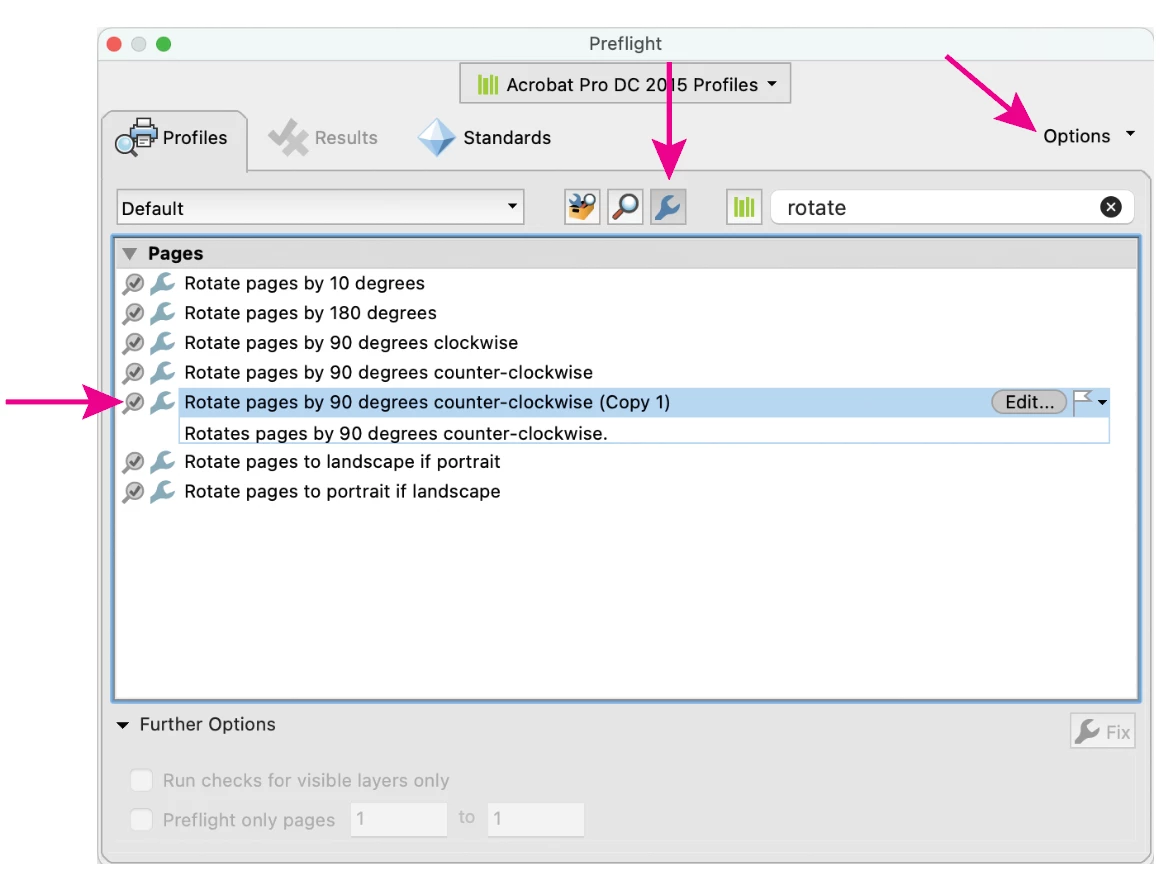
    You might need to duplicate an existing preflight fixup (from the small “Options” menu), export it, then re-import it back into Acrobat in order for the Action Wizard to see it. Do you need step by step instructions for making an action? Once your action is working, apply it to a folder of pdfs.


    4 replies

    dpoagAuthor
    Inspiring
    February 4, 2026

    Update: I found this information and it appears that it allows the Action Wizard to work. Do you see any pitfalls to setting the PDF/A View Mode to Never?
     

    Pro-Tip: Global Setting for Easier Editing

    If you frequently edit PDF/A files manually, you can stop the Blue Ribbon from appearing entirely by disabling the "Read-Only" protection globally:

    • Go to Edit > Preferences > Documents.
    • Set PDF/A View Mode to Never.
    • Note: This allows your Action Wizard to run without hitting the PDF/A "wall," but it does not technically remove the PDF/A metadata like the Preflight step above does. 
    EmilyhNqpe
    Participant
    February 4, 2026

    The key takeaway is that the Action Wizard can’t always see built-in preflight fixups unless you duplicate and re-import them. Once that’s done, the rotation works as expected across a whole folder. It’s not obvious at all, so the frustration makes sense. Having a working action set up does save time in the long run, but Adobe definitely doesn’t make the setup very intuitive for basic batch tasks.

    dpoagAuthor
    Inspiring
    February 4, 2026

    Thank you for the feedback. I have duplicated / exported / imported the Rotate Counter Clockwise fixup and added it to an Action Wizard but I still get the “dimensions of this page are out-of-range. Page content may be truncated” message. With some research I tried adding fixups like “Set TrimBox to CropBox”, “Set CropBox to TrimBox”, “Auto-correct nesting of page geometry boxes” in different orders before the rotation step but the error persists. Remember I’m dealing with a pdf/a and I need to keep it that way or create an action wizard that removes pdf/a rotates, then adds the pdf/a back in. I just don’t want to have to rename each file back to it’s original name. I appreciate any additional ideas.

    dpoagAuthor
    Inspiring
    February 3, 2026

    I really appreciate your suggestion. I’ve played around with exporting and importing a couple of different rotation tools within the print production pre-flight profiles. The two main results I’m getting when creating action wizards are 1) Opens and closes each file and appears to be “doing something” but doesn’t actually rotate each file or 2) Rotates the first document -90 but stops with this error: The dimensions of this league are out of range. Page content might be truncated. I've played with it enough to where I couldn’t tell you exactly which of the scenarios produced either of the two results. Any thoughts?


    Luke Jennings3
    Community Expert
    Luke Jennings3Community ExpertCorrect answer
    Community Expert
    January 28, 2026

    You might need to duplicate an existing preflight fixup (from the small “Options” menu), export it, then re-import it back into Acrobat in order for the Action Wizard to see it. Do you need step by step instructions for making an action? Once your action is working, apply it to a folder of pdfs.