
Benchmarking request for Acrobat Pro Optical Character Reader on Apple Silicon
I was curious about the performance of the Optical Character Reader (OCR) in Adobe Acrobat Pro on Apple Silicon, so I created a quick benchmark and posted it on another site. Two users reponded, one with an M1 Max and another with an M1 Ultra, and got times of 45 s and 36 s, respectively, meaning the Ultra was 45/36 => 25% faster. However, AFAIK, the OCR is single-threaded, and doesn't use the GPU, so it's surprising there is a difference, since both devices have the same single-threaded CPU performance [Each repeated the benchmark three times and go the same time to within < 1 s.]
So I was wondering if anyone here who has an Apple Silicon Mac would be willing to repeat the benchmark and post your results here. The benchmark instructions are below.
Please post:
Machine:
OS:
Acrobat Pro Version:
Runtime:
Here are their results:
Machine: Apple M1 Max 16" MacBook Pro
OS: MacOS 13.2.1
Acrobat Pro Version: 2022.003.20314
Runtime: 45 s
Machine: Apple Mac Studio Ultra/64GB RAM/M1/20-core CPU, 48-core GPU
OS: MacOS 13.2.1
Acrobat Pro Version: 2022.003.20314
Runtime: 36 s
Here are the steps:
[It looks complicated because I've laboriously indicated every step, but it should take under a minute to click through everything.]
0) Ensure no other significant active tasks are running.
1) In Safari (or the browser of your choice), go to this .gov website, which shows a recent Apple patent application:
https://image-ppubs.uspto.gov/dirsearch-public/print/downloadPdf/20230050061
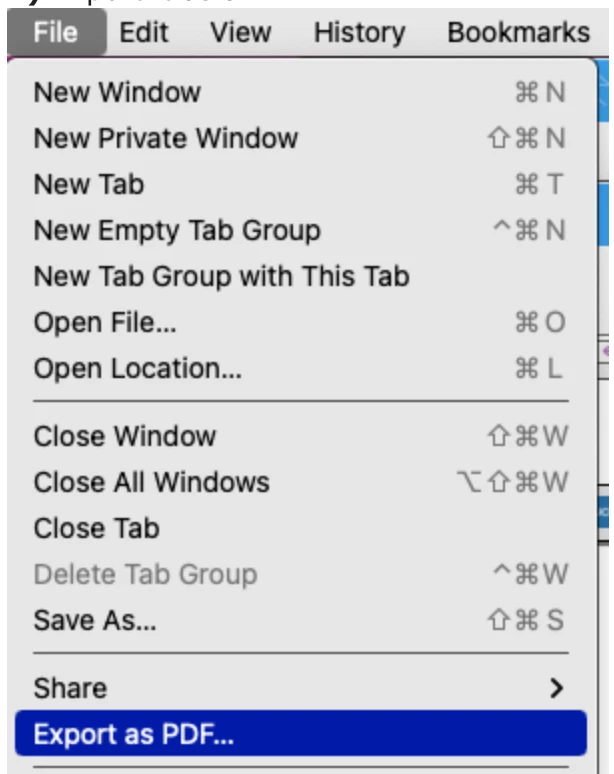
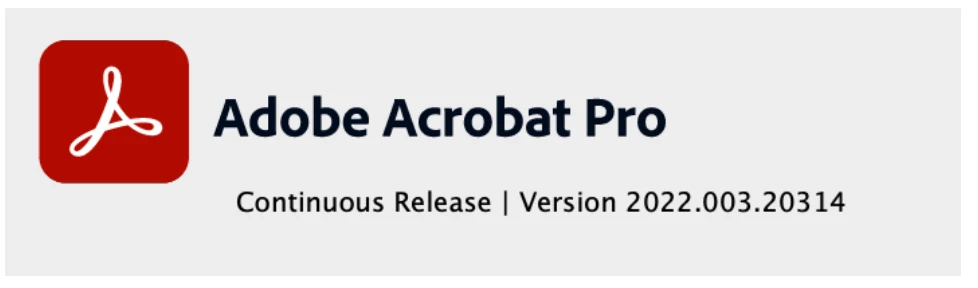
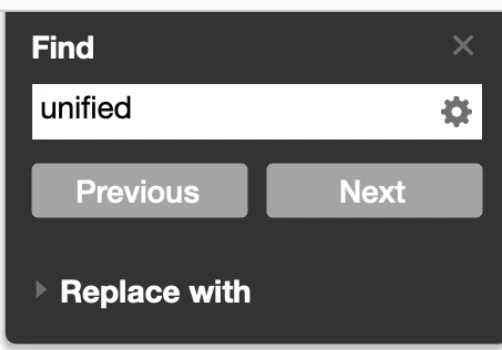
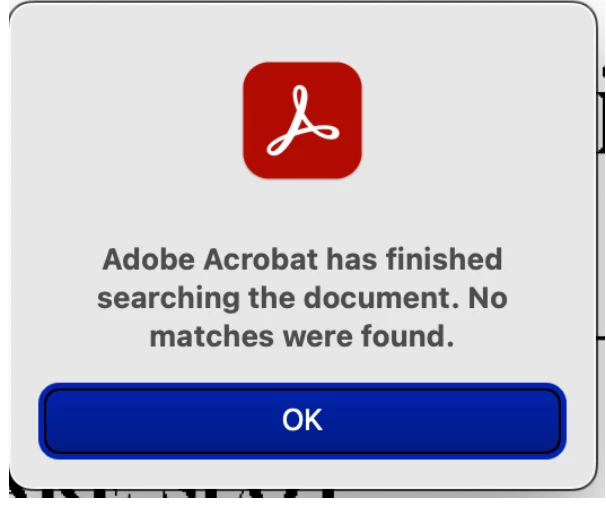
4) Do CMD-F and then enter “unified” in the search box, and hit “Next” (there are no instances of this, so it will be forced to search the entire document):
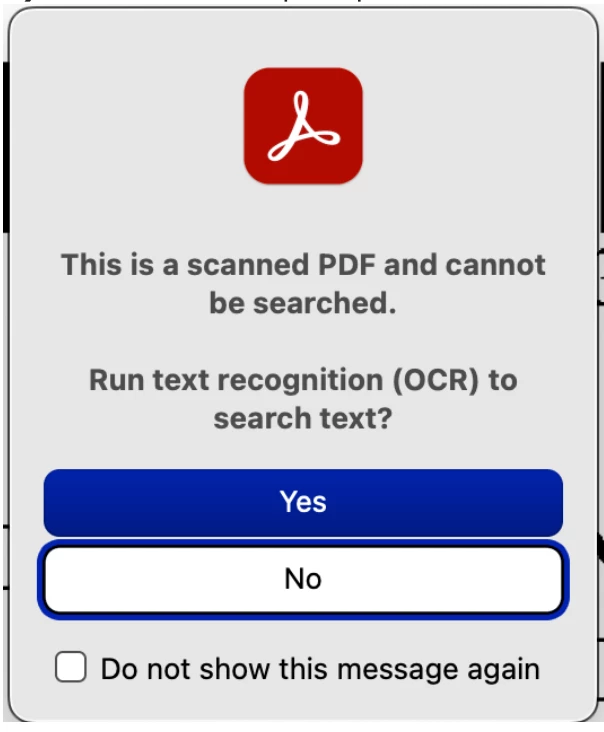
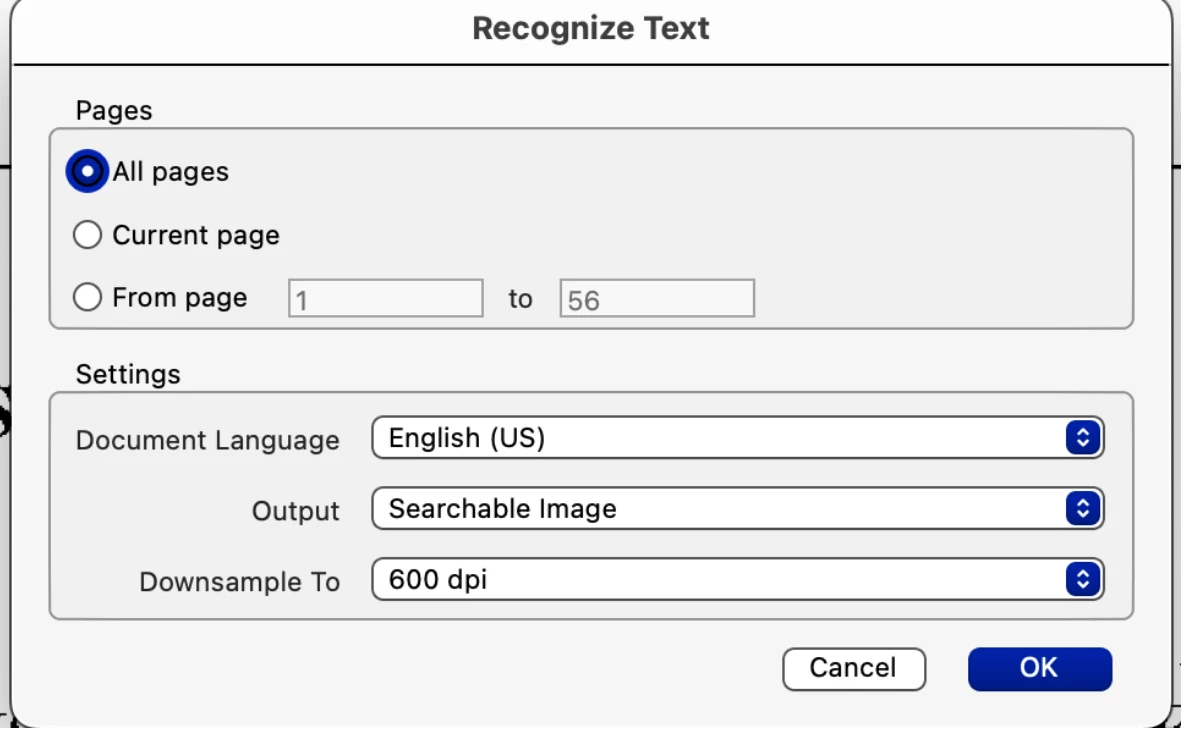
5) You will see this prompt. Hit “Yes”



 AdChoices