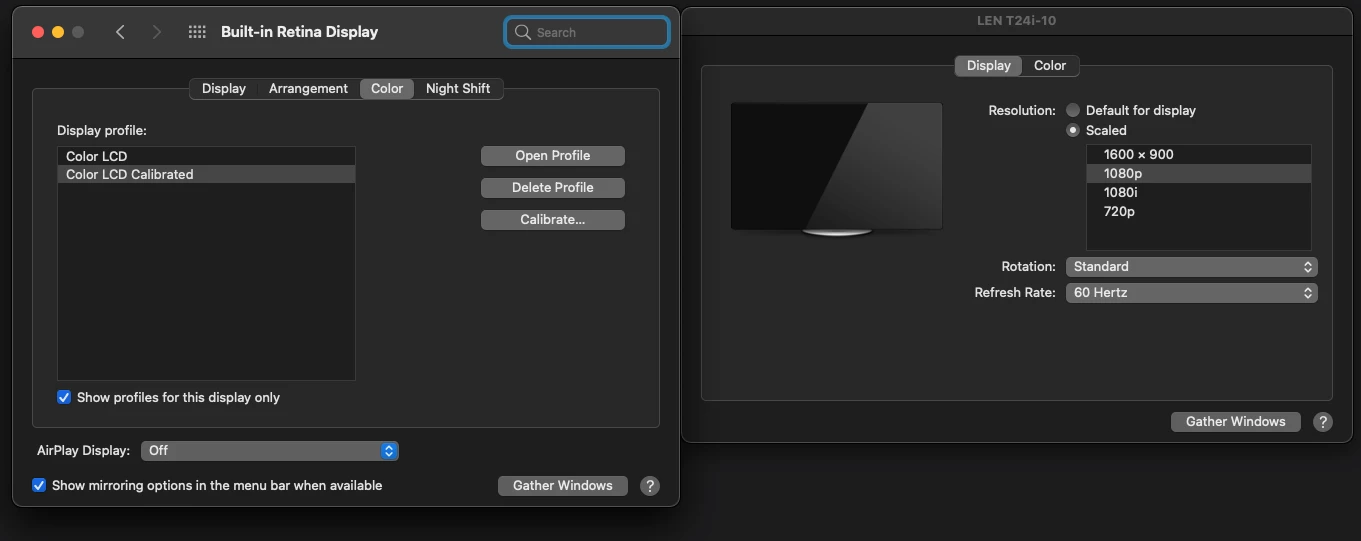
@Ying Chueh36222189vrz7 I totally agree with @Dave Creamer of IDEAS is to look at the display settings on your MAC. I myself have a secondary screen right above my MacBook Pro, and I have different resolutions for certain displays may it be for home or work.
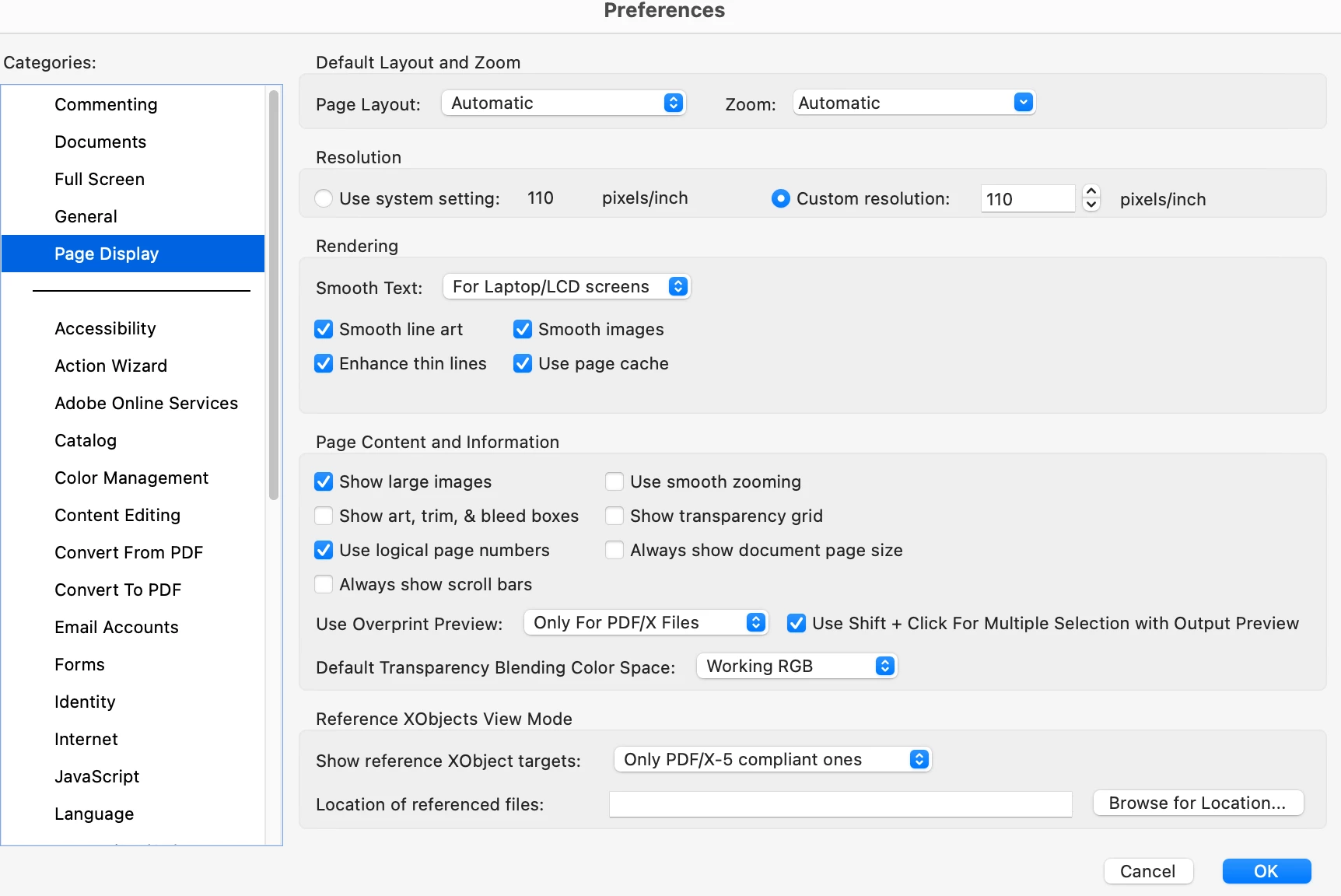
Another work-around just in case this doesn't work, is to adjust the display settings within Adobe Acrobat itself. In you case, the application struggles to properly rescale or render content when switching between different display resolutions. You can try navigating to Adobe Acrobat > Preferences > Page Display and ensuring that the "Enhance thin lines" and "Smooth images" options are either checked or unchecked (try toggling them to see if it makes a difference).
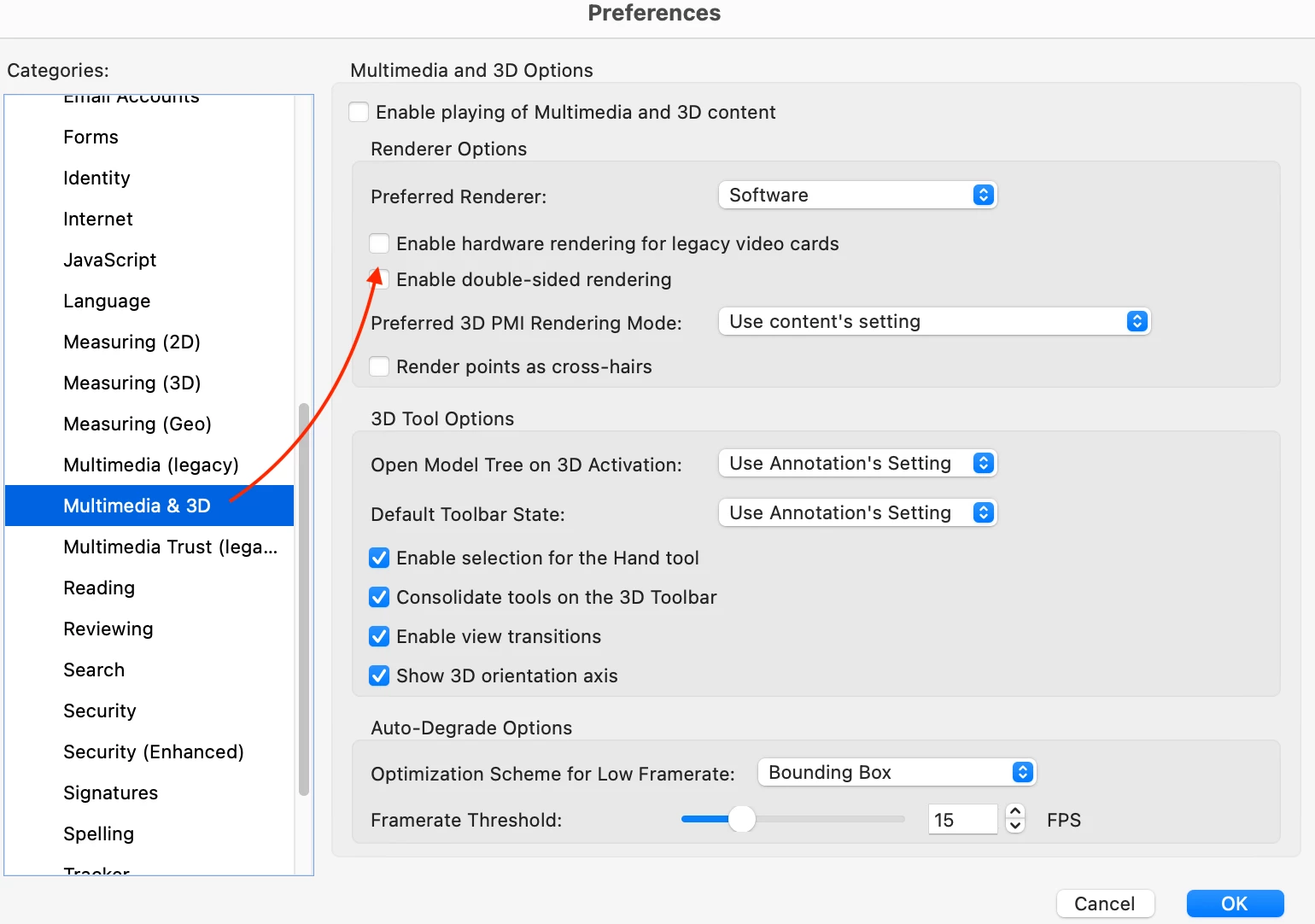
While it might not directly address 2D blurring, try setting this to "Software" instead of any hardware-accelerated options. Also, ensure "Enable hardware rendering for legacy video cards" is unchecked to see if that resolves the blurring.
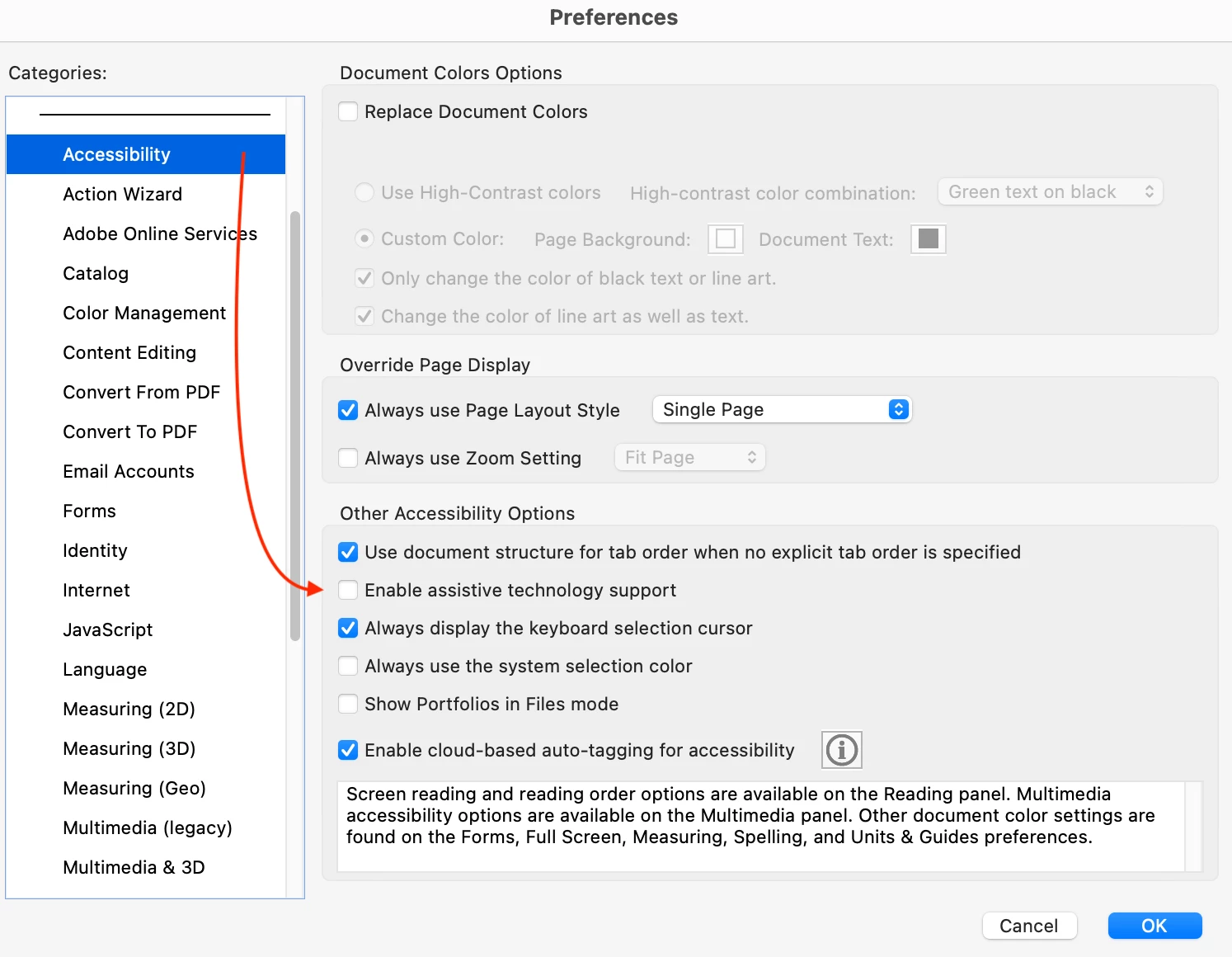
Although it seems unrelated, sometimes accessibility settings can affect rendering. Go to Adobe Acrobat Pro > Preferences > Accessibility and try unchecking "Enable assistive technology support.
Hopefully, changing these display and rendering-related settings, you might find the combination that resolves the blurring issue on your external monitor and prevents it from persisting after disconnection. Remember to restart Adobe Acrobat after making each changes to see if they take effect. Try one change, and restart Acorbat. If that doesn't work, change another change and restart. It might be a combination of changes!




 AdChoices