


Participant
December 17, 2024
Question

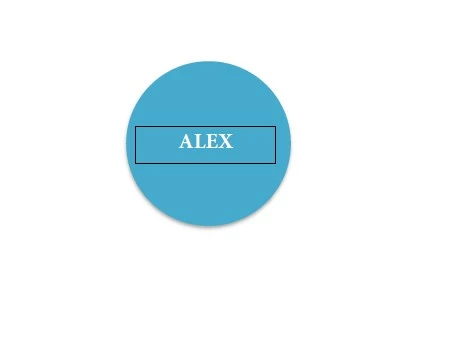
Border around text box appears when converting to pdf

  • December 17, 2024
  • 2 replies
  • 1195 views

I converted my word document to pdf and black borders appear around text boxes which are on top of an object (circle), see screenshot. I did this a couple of weeks ago and only the text appeared. Now, borders appear where they shouldn't be there. Any idea what happened and how to solve this? I already tried to remove them and add them again but it's still the same. As it's for the layout of a book which needs a small revision, I can't start the document all over again.

n.
2 replies

Participant
July 16, 2025

Having a similar issue. Text box has "Shape Fill" and "Shape Outline" set to "No Fill/No Outline," however Acrobat conversion adds outline to the boxes.

AnandSri
Legend
August 21, 2025

Hello @travis_7087


I hope you are doing well, and we are sorry for the delayed response.


Could you please share more details about the issue? Is this issue occurring with all PDFs, or is it specific to just one? Did you create the PDF using Acrobat, or was it generated through another application, like MS Word? Are you on a Windows machine, or a Mac, and what is the version? 

When converting documents (e.g., Word or PowerPoint) to PDF using Adobe Acrobat, text boxes set to “No Fill” and “No Outline” may unexpectedly display outlines in the resulting PDF. This behavior is typically due to how Acrobat interprets shape properties during conversion, especially when using PDFMaker or exporting from Office applications.


Use PDFMaker Settings

Ensure you're using the correct conversion settings in PDFMaker:

  • In Word or PowerPoint, go to Acrobat > Preferences.
  • Under Settings, check “Convert all shapes to images”. This prevents Acrobat from reinterpreting shape properties and preserves the visual fidelity of “No Fill/No Outline” boxes.

Flatten the Document

Before conversion, flatten the document to remove editable layers:

  • Save the document as a PDF.
  • Open it in Acrobat.
  • Go to Print Production > Flattener Preview, and apply flattening to remove editable shape outlines.

Post-Conversion Editing

If outlines still appear:

  • Open the PDF in Acrobat.
  • Use Edit PDF > Select Object Tool to manually remove or adjust the outlines.

Please ensure you have the latest version of Acrobat installed on the machine: 25.001.20630, Planned update, Aug 18, 2025. Check for any pending updates from the Menu > help > check for updates, install the updates, restart the app and the machine, and try again.


If the issue persists, please share a sample PDF file, the source file from which the PDF was generated, the current OS version, and a small video recording for further investigation.

Thanks,

Anand Sri.

Meet Acrobat Studio

Participant
November 18, 2025

I don't see the option under Acrobat settings in Word to  “Convert all shapes to images”.

Participant
December 17, 2024
Screenshot_2024-12-17_140815.jpg