
BUG: Incorrect "Always show document page size" behavior
In New Acrobat Reader interface, the option Menu → Preferences → Page Display → Always show document page size doesn’t work properly:
1. If the option is Checked, the following bug happens:
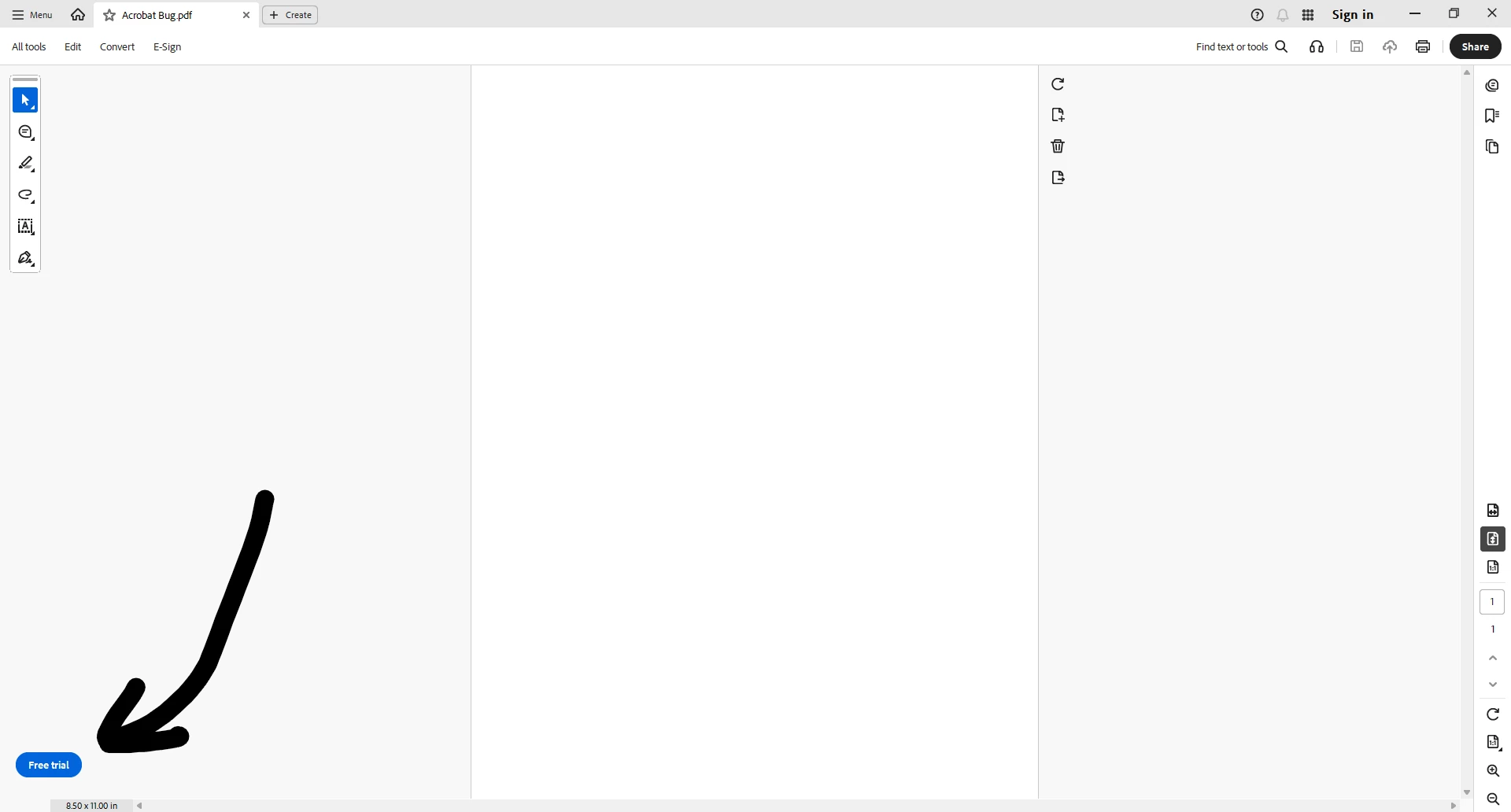
→ the page size and horizontal scroll bar to the bottom doesn’t reach the left side of the screen if Fit to width, Fit height, or Actual size view modes are selected (see screenshot below);
→ manually choosing custom view modes (50%, 200%, etc.) eliminates the bug and make the page size and horizontal scroll bar reach the left side of the screen properly.
2. If the option is Unchecked, another bug happens that can be reproduced as follows:
→ Open a PDF file;
→ In “Menu->Preferences->Page Display”, uncheck “Always show document size page”;
→ In “Menu->Preferences->Documents”, check “Restore last view settings when reopening document”;
→ In the right-side panel, click “Resize the page to fit vertically within the window”;
→ Close the PDF file;
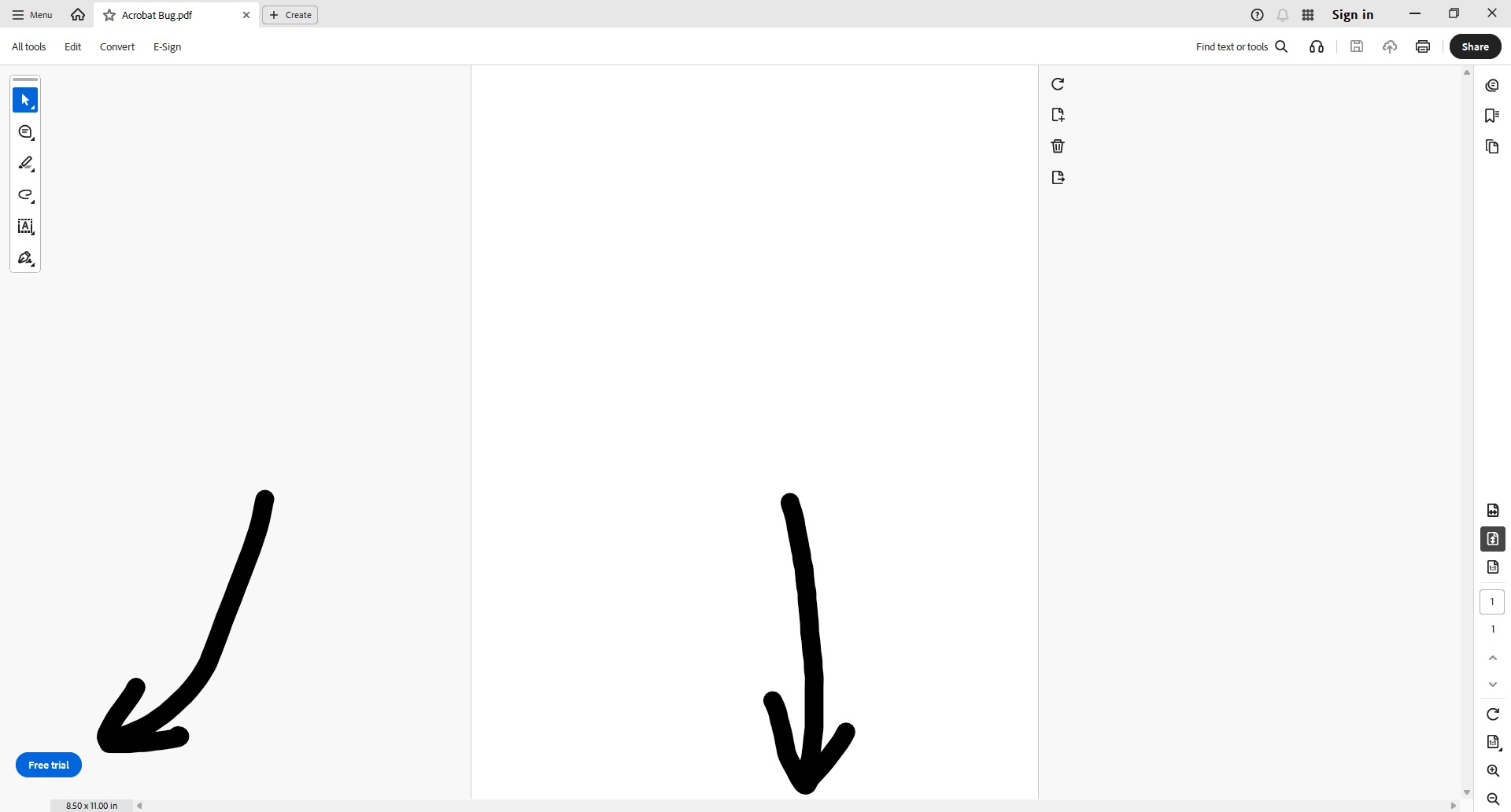
→ Open the PDF again and see that the static page size and empty horizontal scroll bar are still present in the bottom left corner of the screen.
→ Please remove the empty horizontal bar to the bottom where the page size in contained. It should be shown only when pages are zoomed in this mode.


 AdChoices