Answered
Can Acrobat pro delete completed contract records?
Can Acrobat pro delete completed contract records?
like the link https://helpx.adobe.com/tw/sign/admin/assets/gdpr-agreement.html
the link is forAcrobat Sign not Acrobat
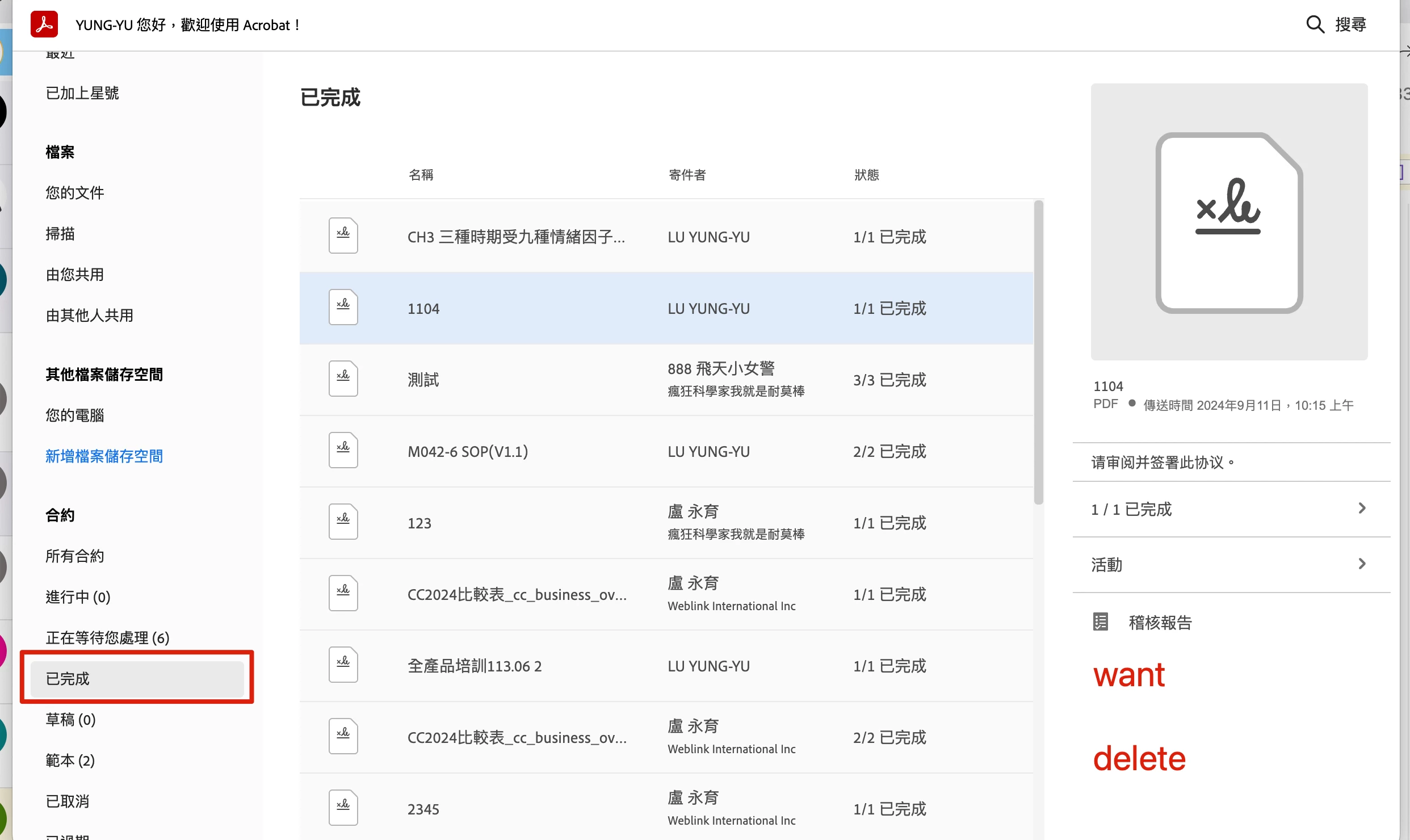

Can Acrobat pro delete completed contract records?
like the link https://helpx.adobe.com/tw/sign/admin/assets/gdpr-agreement.html
the link is forAcrobat Sign not Acrobat
Thank you for reaching out.
You can delete the document. However, it is not possible from within the Acrobat desktop application. You have to use the Acrobat web application to remove the document completely. Please use the steps suggested below:
1. Open the link: https://adobe.ly/3FKwDzF
2. Sign in using your Adobe ID and password.
3. Click on the profile icon in the top right corner of the application window.
4. Select settings.
5. In the Setting window, scroll down till E-Sign settings and click on Edit settings.
6. Go to the Privacy tab and search the document using the email address used in the transaction.
7. Select the document from the list and click on the trash icon next to it.
That will permanently remove the document from the Acrobat Sign server.
Let us know how it goes.
Thanks,
Meenakshi
Already have an account? Login
No account yet? Create an account
Enter your E-mail address. We'll send you an e-mail with instructions to reset your password.


 AdChoices