Participant
March 20, 2024
Answered

Can't embed mystery font

  • March 20, 2024
  • 1 reply
  • 529 views

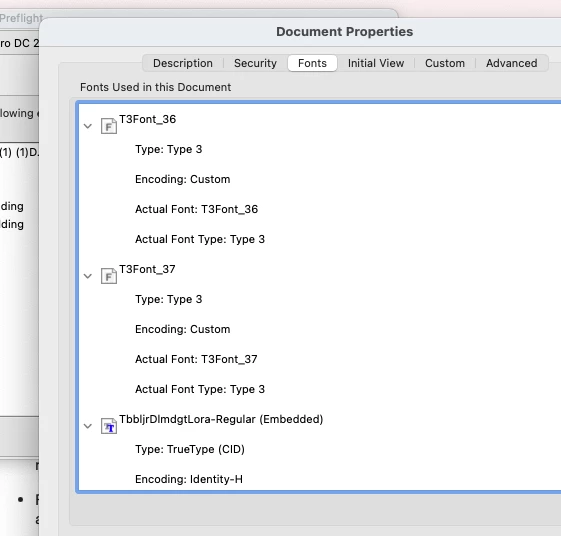
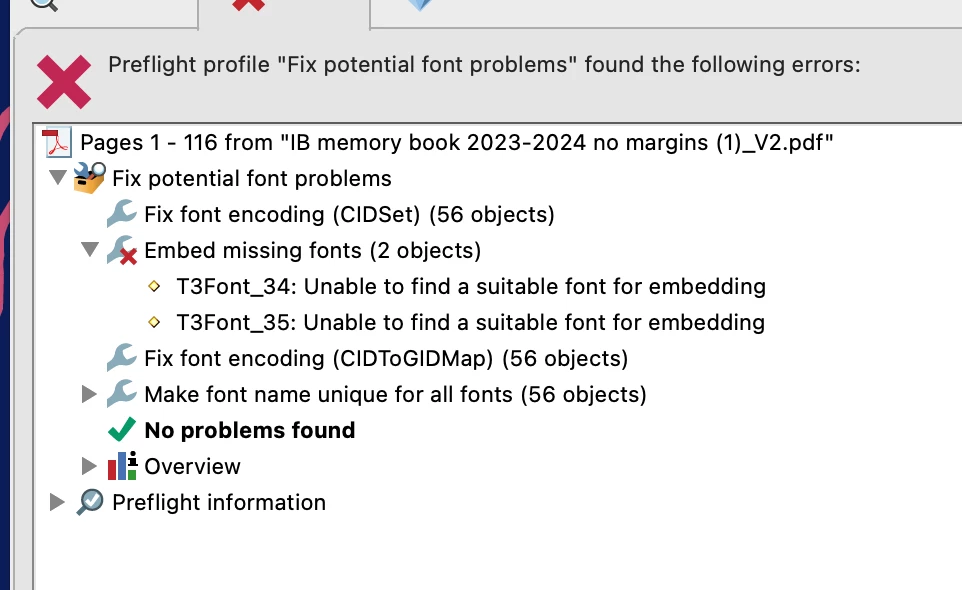
I was sent a pdf and asked to embed the font.  I did so but was unable to embed 2 fonts.


 How am I supposed to know what font and where the font is located in the 100 plus page pdf so that I can change it?  I've run the fix in preflight and it error out, I'm assumeing, on these mytery fonts.


This topic has been closed for replies.
Correct answer Erik27799692j0vs

I figured it out because of how big my brains are.  


I ran a preflight custom check.


1) Create a new Custom preflight profile Advanced|Preflight|Options|Create New Preflight Profile

2) Give the profile a name (Fontfinder, say)

3) In the left window of the dialog click "Custom checks"

4) In the right window of the dialog below the blank box click the plus symbol to create a new check and include in current profile

5) Click "Font" in the Group, find the property "Font type is Type 3". Select this and click "Add"

6) The pane below now has more options. Click on the drop down options and select "is true"

7) Click OK and then OK in the Edit Profile Dialog

😎 Run the profile on your PDF


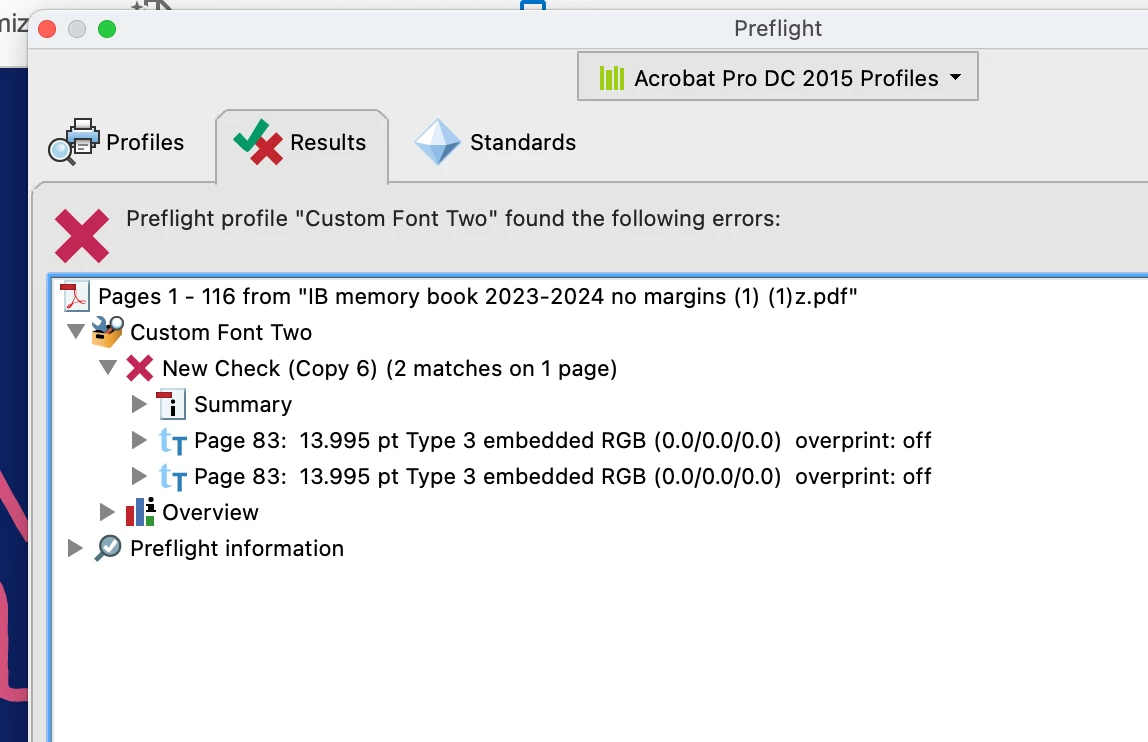
The following report will show you what page the font is located on. 
 

(thunk) sorry my head just fell to the desk on account of my big brains.  😉



1 reply

Amal.
Community Manager
Community Manager
March 20, 2024

Hi @Erik27799692j0vs 


Hope you are doing well and thanks for reaching out.


Please try to save the PDF as 'Optimized PDF' and follow the steps listed below and see if that works:


  1. Open the PDF in Acrobat Pro
  2. Go to the Hamburger menu at the top left corner > Save as other > Optimized PDF
  3. Under Fonts tab, check for the umembeded fonts and try to retain them and click OK 


Let us know how it goes.


~Amal

Participant
March 20, 2024

Thank for the reply.  Unfortunatly there were no font's listed in either coloum to Retain or unemmbed.  

Erik27799692j0vsAuthorCorrect answer
Participant
March 20, 2024

I figured it out because of how big my brains are.  


I ran a preflight custom check.


1) Create a new Custom preflight profile Advanced|Preflight|Options|Create New Preflight Profile

2) Give the profile a name (Fontfinder, say)

3) In the left window of the dialog click "Custom checks"

4) In the right window of the dialog below the blank box click the plus symbol to create a new check and include in current profile

5) Click "Font" in the Group, find the property "Font type is Type 3". Select this and click "Add"

6) The pane below now has more options. Click on the drop down options and select "is true"

7) Click OK and then OK in the Edit Profile Dialog

😎 Run the profile on your PDF


The following report will show you what page the font is located on. 


(thunk) sorry my head just fell to the desk on account of my big brains.  😉