Participant
August 25, 2025
Answered

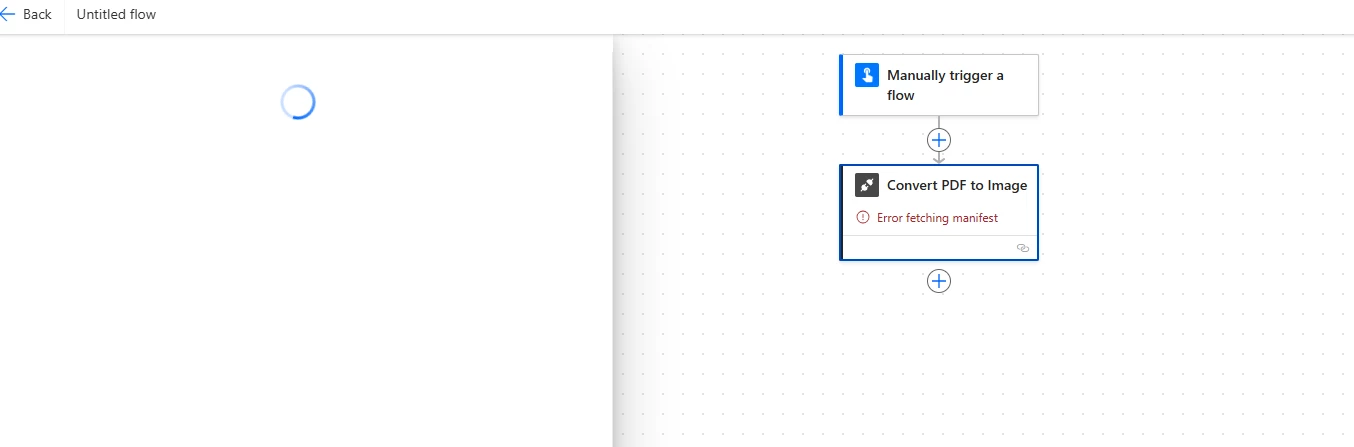
Cannot add/edit any Adobe connector in Microsoft Power Automate flows

  • August 25, 2025
  • 1 reply
  • 332 views

It errors with "Error fetching manifest". And loading the edit pannel forever.


It's not only happening to me, but to users across different Microsoft tenants.

Correct answer creative explorer

@dirk_0687 it's a known issue on both Microsoft and Adobe. There is no direct solution you can implement yourself to fix it permanently. The problem lies with the connector's manifest file, which is essentially a blueprint that tells Power Automate how to interact with the Adobe service. When Power Automate tries to fetch this manifest and fails, it cannot load the action panel, resulting in a perpetual loading state and the "Error fetching manifest" message.


There is no permanent fix you can apply, some users have found temporary workarounds that may help you get your flow working...

  • Clearing your browser's cache, cookies and history can sometimes resolve issues with web applications. It's a simple step that's worth trying.
  • The issue might be specific to a browser. Try using a different browser (e.g., if you're on Chrome, try Edge or Firefox) to see if the connector loads correctly.
  • Try to re-authenticate your Adobe connection in Power Automate by going to Data > Connections, finding your Adobe connector, and re-authenticating it. This can sometimes refresh the connection and resolve the problem.
  • Instead of editing an existing flow, try creating a new one from scratch. Some users have reported that creating a new flow and adding the Adobe action from there can sometimes bypass the error.
  • And if that fails, report to Microsoft  as well! 

 

1 reply

creative explorer
Community Expert
creative explorerCommunity ExpertCorrect answer
Community Expert
August 27, 2025

@dirk_0687 it's a known issue on both Microsoft and Adobe. There is no direct solution you can implement yourself to fix it permanently. The problem lies with the connector's manifest file, which is essentially a blueprint that tells Power Automate how to interact with the Adobe service. When Power Automate tries to fetch this manifest and fails, it cannot load the action panel, resulting in a perpetual loading state and the "Error fetching manifest" message.


There is no permanent fix you can apply, some users have found temporary workarounds that may help you get your flow working...

  • Clearing your browser's cache, cookies and history can sometimes resolve issues with web applications. It's a simple step that's worth trying.
  • The issue might be specific to a browser. Try using a different browser (e.g., if you're on Chrome, try Edge or Firefox) to see if the connector loads correctly.
  • Try to re-authenticate your Adobe connection in Power Automate by going to Data > Connections, finding your Adobe connector, and re-authenticating it. This can sometimes refresh the connection and resolve the problem.
  • Instead of editing an existing flow, try creating a new one from scratch. Some users have reported that creating a new flow and adding the Adobe action from there can sometimes bypass the error.
  • And if that fails, report to Microsoft  as well! 

 

m