
November 4, 2015
Answered

Cannot save PDF as image (JPEG, PNG, etc.) "Error attempting to write to file. This may be due to insufficient disk space"

  • November 4, 2015
  • 8 replies
  • 35537 views

System Specs

OS X El Capitan

Version 10.11.1

MacBook Pro (Retina, 15-inch, Early 2013)

2.8 GHz Intel Core i7

16 GB 1600 MHz DDR3

Macintosh HD

Intel HD Graphics 4000 1536 MB

Adobe Acrobat XI

Architecture: i386

Build: 11.0.13.17

AGM: 4.28.145

CoolType: 5.11.141

JP2K: 2.0.0.32097

When trying to save any PDF to an image format, the message "Error attempting to write to file. This may be due to insufficient disk space" appears.
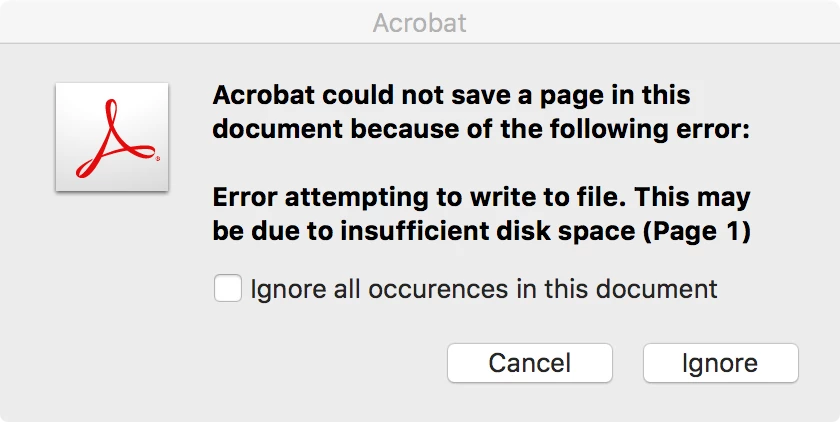
However, there is more than enough disk space to accommodate the image file.

I have noticed error reports similar to mine with increasing frequency on this forum. All of them have yet to be addressed.

Problem Exporting from PDF to image files

Cannot export to jpeg - disk may be locked or full

Problem Exporting from PDF to image files

Acrobat X Pro Error when Save As JPEG: Insufficient Disk Space to Perform Operation

Acrobat will no longer covert PDF to PNG format

Problem with saving a PDF file as JPEG

Error attempting to write to file. This may be due to insufficient disk space (Page 1)

This seems to be a problem independent of operating system or product version. What is going on and when can we expect a fix? The fact that Adobe cannot save PDFs to other file formats has been an ongoing frustration of myself and my colleagues for quite some time. I would be very grateful to know a method to rectify the error so that we no longer have to rely on third party software to do the job your product is supposed to do.

Also, if anybody out there is in the same boat, I encourage you to speak up. I also encourage other people to try to save PDFs as images and report whether you encounter the same issue.

Correct answer abhissha

Hi Geoffrey,

Thank you for highlighting this issue. Let me check few more details regarding this problem with Acrobat.

In the meantime please try this:

Open PDF in Acrobat

Go to File > Export To > Image > JPEG

From the Save As dialog click on Settings button at the bottom

From the Color Management pane

Click on the drop down for RGB

Select Off & Ok

Save the file as JPEG

Let me know if this works.

Thanks,

Abhishek

8 replies

Inspiring
January 9, 2025

Unfortunately none of these solutions work for me. I've tried with and without color profiles, in different and the same folders (parent and child), saving as JPEG or PNG, copying the file to another drive and exporting there… any other suggestions? 


Sequoia 15.1.1 

120 GB free space on SSD 

Architecture: arm64

Processor: Apple M1 Pro

Build: 24.5.20320.0

AGM: 7.1.9

CoolType: 9.1.0

JP2K: 4.0.2.54782

Participant
December 12, 2024

This happened to me and after doing some research, all I needed to do was save the JPEG file into the same folder the PDF was in. 

barbarabancroft
Participant
September 9, 2021

Thank you for asking the question. I had the same issue. Saving it in a different folder worked, as a jpg and as a png. Very odd. Not sure who gave this suggestion first so I am thanking you for asking the question and getting all the responses.

bb

Participant
March 5, 2021

I got this same error in Adobe Acrobat Pro 2017 when trying to export as PNG.  What fixed it for me was to go into the export settings and set Color Management > RGB: to Off instead of Embed Profile.

Participant
March 25, 2021

Same issue.  I just downloaded and subscribed using the free intro.  Boss asked for ability to save as .png.  The Adobe Acrobat DC Pro cannot do this in any folder.  I looked for settings | Color Management, but found those commands only in Edit | Preferences | Color Management.  No option to turn RGB to "Off".


I turned the Color Management to "Adobe RGB (1998)" and that made it work.

Participant
September 6, 2017

Hi, for some reason it saves into the dropbox with no problem at all. Hope that helps Adobe to find the problem.

Participant
August 25, 2016

There is NO EXPORT TO in the most recent version of Acrobat. It no longer exists (on Mac). My only export options are to Word and I hate Word and need image files not Word files. I am on deadline for a job, and I can't even do it on my older computer with old versions because that keyboard no longer works (which is why new computer and updated Adobe programs in the first place. There are other Acrobat issues as well. Not happy at all with this.

paulj94772874
Participant
October 17, 2016

I have the same problem with a MAC - macOS Sierra - There is a 'save as' option on the drop down menu from [file]; a side menu then offers image and choosing JPEG has worked for me until today. After that it gave me the same message as you had. Have tried the remedies suggested above but none worked

Participant
March 26, 2020

I concur.  The workaround that proved most consistent for me was saving the file in a parent folder.  Otherwise, with the above solutions, it only worked if I waited about 10-15 mins between documents. 

Participant
November 10, 2015

I am running into the same issue.  I tried the fix Abhishek provided but it didn't work.  Any solution would be greatly appreciated. 

abhissha
Community Manager
abhisshaCommunity ManagerCorrect answer
Community Manager
November 5, 2015

Hi Geoffrey,

Thank you for highlighting this issue. Let me check few more details regarding this problem with Acrobat.

In the meantime please try this:

Open PDF in Acrobat

Go to File > Export To > Image > JPEG

From the Save As dialog click on Settings button at the bottom

From the Color Management pane

Click on the drop down for RGB

Select Off & Ok

Save the file as JPEG

Let me know if this works.

Thanks,

Abhishek

November 10, 2015

Dear Abhishek,

I tried the fix you recommended. For me, it worked, but only after saving the file in a different folder.

Chrismclellan, try saving the file to a different folder first. Does that work?

Participant
April 8, 2020

Abhishek's solution worked for me in Acrobat Pro DC Version 2018.011.200.38 (April of 2020 - coronavirus era ha-ha).