



JR Boulay
Community Expert
Community Expert
February 19, 2026
Question

Cannot scan (infinite loop mode)

  • February 19, 2026
  • 1 reply
  • 0 views

Hi

I cannot scan using Acrobat Pro 25.00121111 for Mac.

My printer/scanner is connected, I can print with my Mac but I cannot scan.
This is not a problem on my PC, which is on the same desk.

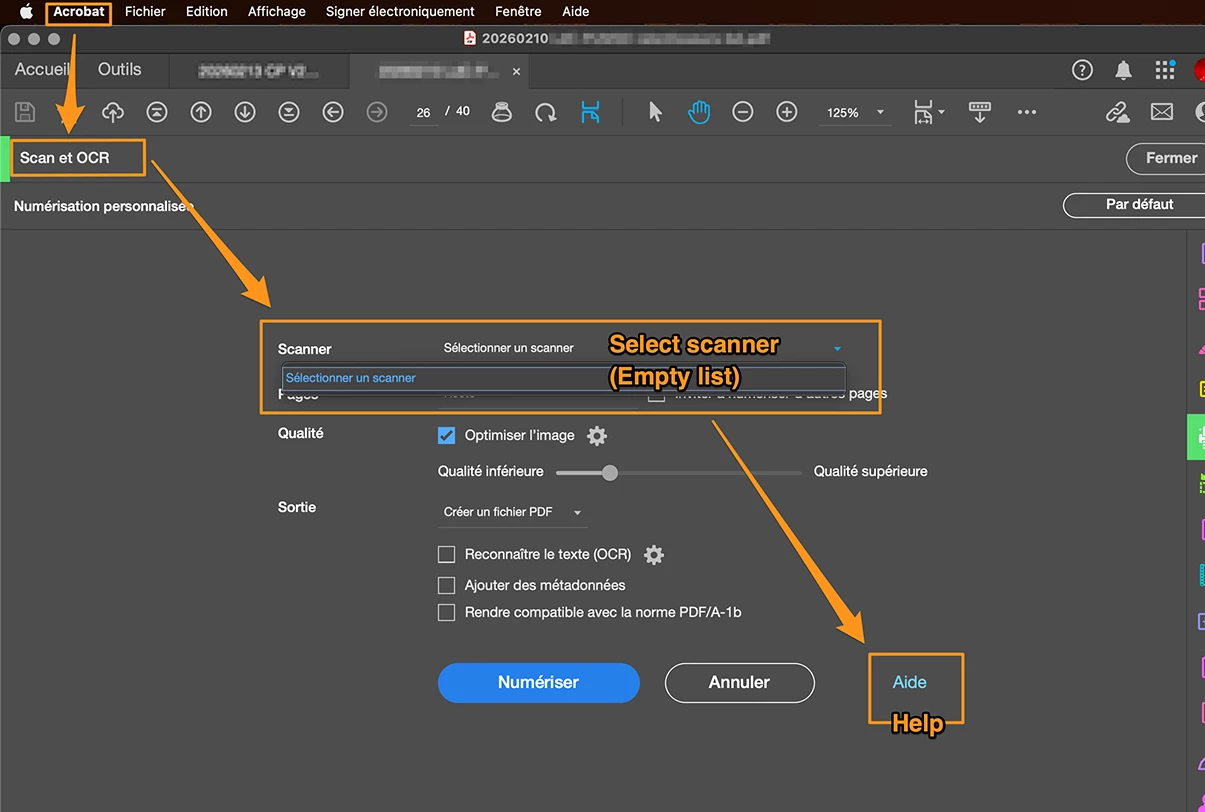
Step 1: The scanner does not appear in the list, so I click on ‘Help’.

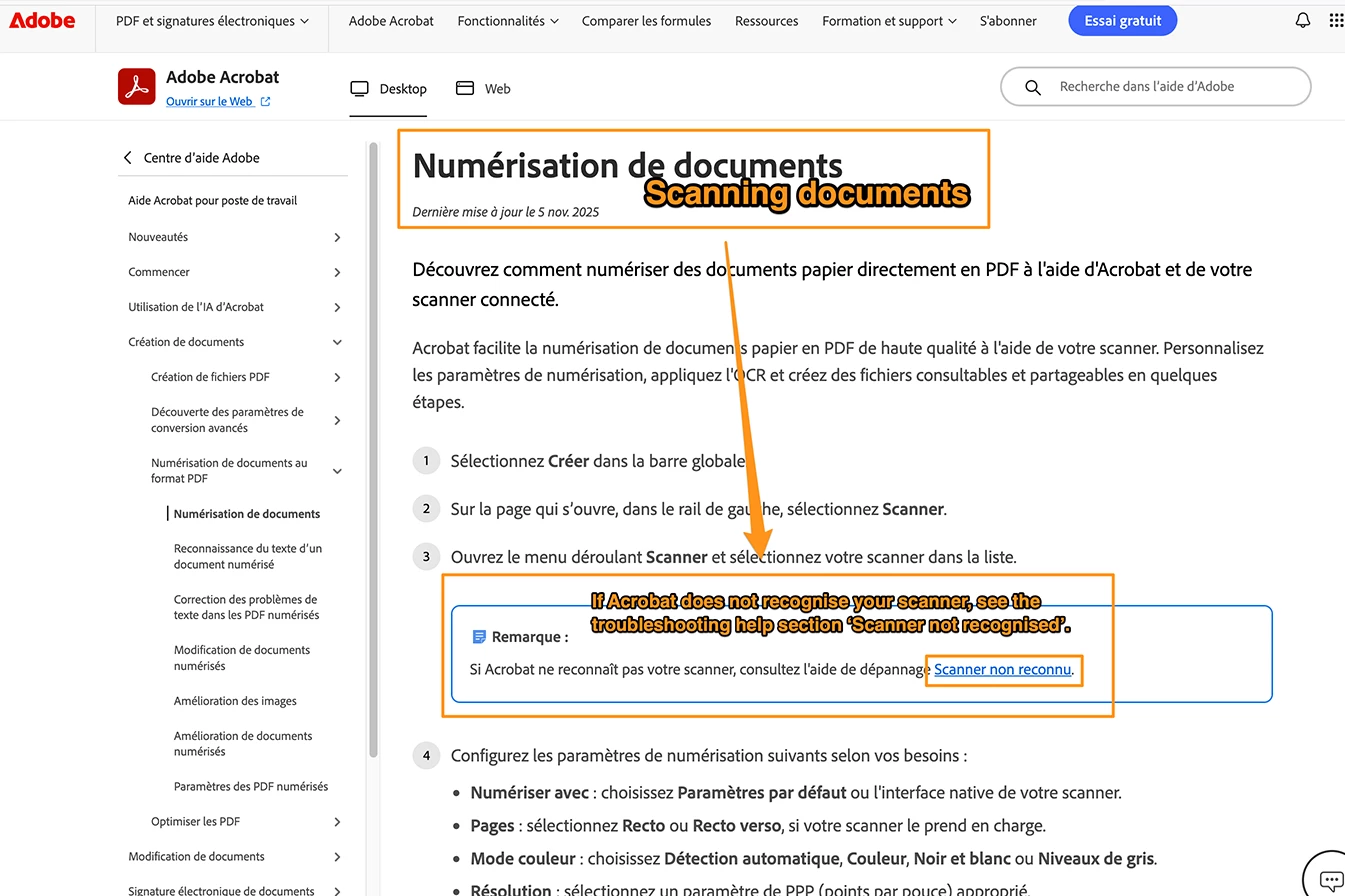
Step 2: In the help section, I click on the link ‘Scanner not recognised’.

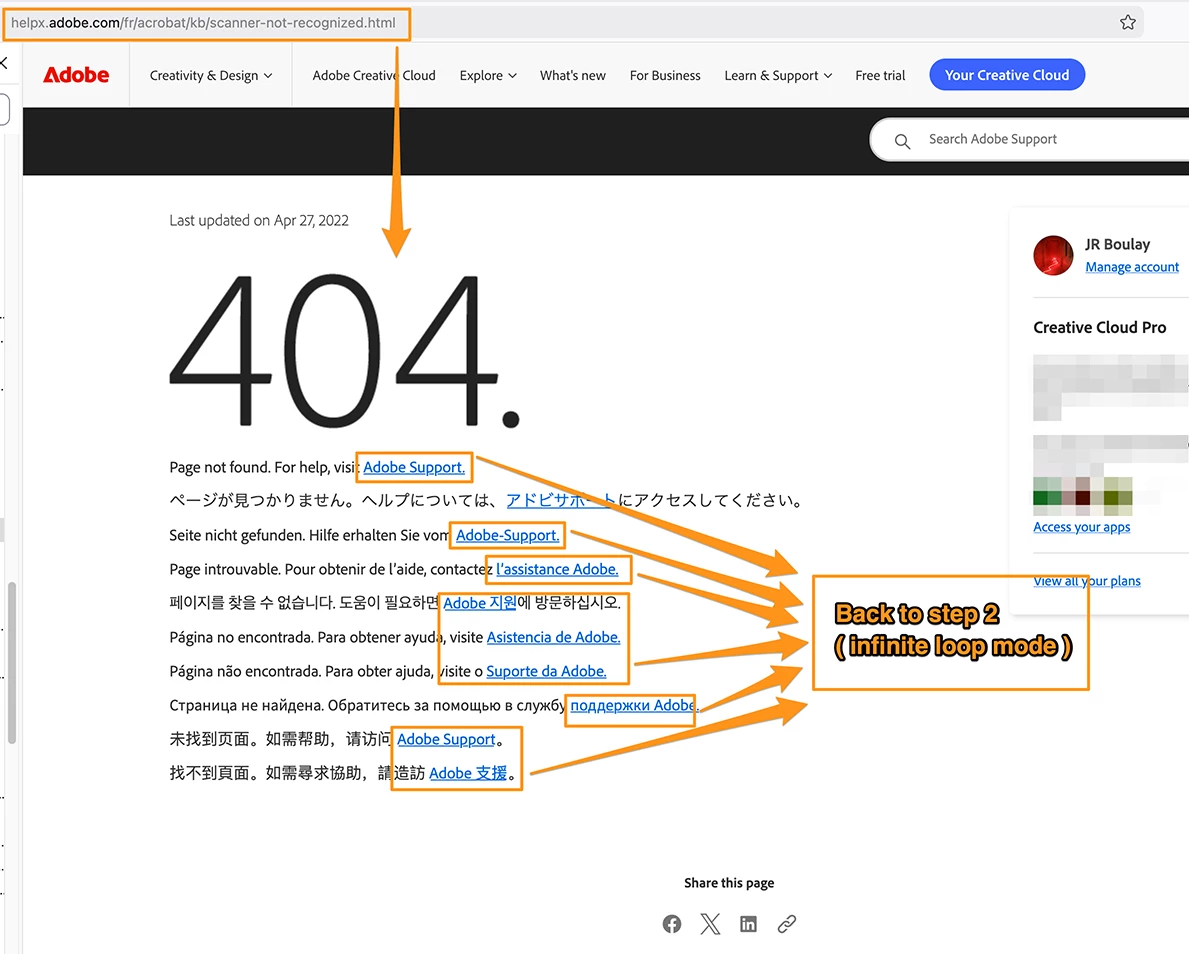
Step 3: Error 404, I click on ‘Adobe Support’.

Step 4: Back to step 2, and so on (infinite loop mode enabled).


What should I do to avoid having to use the PC every time I want to scan something?


Step 1:
 

Step 2:
 

Step 3:
 

    1 reply

    gary_sc
    Community Expert
    Community Expert
    February 19, 2026

    Acrobat cannot scan, at least not by itself. There is NO scanning function within Acrobat. Rather, Acrobat uses other software to scan. On a PC, this is done via a "linking" software called Twain. On the Mac, Twain is not allowed for the same reasons they kicked off Flash (too many potential virus issues). So, instead, they provide a limited TWAIN link to Apple's "Image Capture." 

    Unfortunately, Image Capture is a major piece of **** scanning software. It is at the bottom of the barrel in scan quality. Nonetheless, you can scan through Image Capture if you want.

    I encourage you to continue scanning, but with your scanner’s software. When doing this, save your scans in the TIF format, and leave the files on your desktop (or wherever convenient). Then, you can drag the files onto the Acrobat icon in the Dock. If you save the files as TIF images, Acrobat will automatically OCR them; there's nothing else you have to do. If you drag more than one file onto the Acrobat icon, Acrobat will ask you if you want all of these files merged into one document or to remain separate.  (If you save in any other format, the auto OCR dynamic will not happen, and you'll need to add to your workload by adding an OCR step to your activities.)

    Some extra tips and bits of information: A full-page, 300 ppi, 8-bit TIF file will be about 8 MB. (16-bit will be about 16 MB); once they are processed into a PDF, they will drop down to about 100-150 kb, so do not worry about the size. Assuming that you've done a pre-scan to set the Levels settings to get a clean image and you're doing a stack of pages from the same source, there's no need to do subsequent pre-scans. The first scan will be “document.tif.” The 2nd document will be “document (2).tif,” the third will be “document (3).tif.”, etc. When you process those in Acrobat, the first scanned page will end at the end of the PDF as the last page. You can either fix this in the "Organize Pages" or, before processing in Acrobat, change the name in the Finder for “document.tif” to “document (1).tif.*

    * There's no way around this because it is up to Finder or Explorer to name it, not the scanning software. FWIW, I use this latter approach.

    Meanwhile, if you want some tips on scanning and for better quality OCR, I wrote this Blog for Adobe a number of years ago. I hope it helps,

    https://community.adobe.com/questions-9/scanning-clean-searchable-pdfs-1278321#M89