



KazuT_G
Inspiring
August 7, 2026
Répondu

change properties of a rectangle

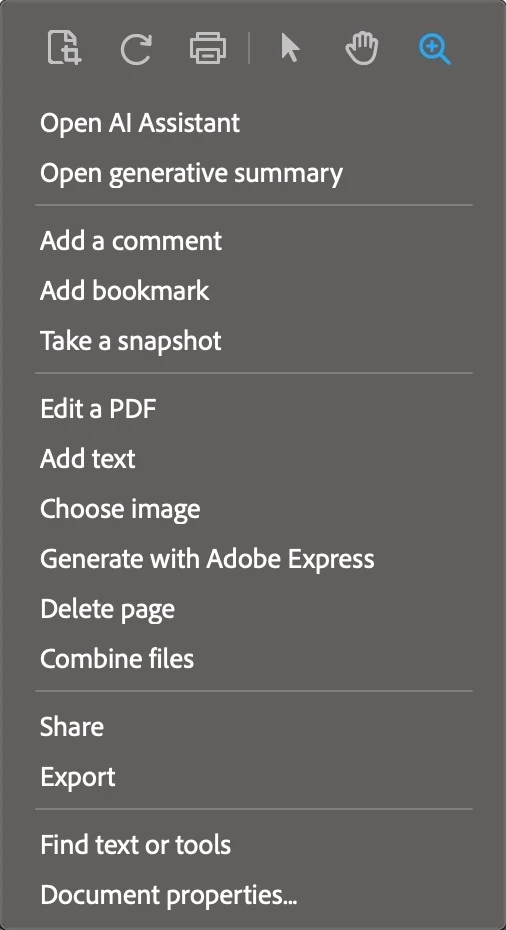
How do I change the properties of a shape (in this case, a rectangle) that I am drawing onto a .pdf in Acrobat? I selected the shape and right clicked, but there is no “Properties” option, only “Document Properties”.


P.S. How do I resize an image I’ve uploaded into a question on the Adobe forums? It used to be easy to do so, but now I can’t figure it out. The only option I seem to be able to do is “add a caption”.

 

    Meilleure réponse par Amal Jaiswal

    ​Hi @KazuT_G ,

    Hope you are doing well, and thanks for reaching out.

    On the rectangle properties: Please try a couple of things as follows, and see if that works:

    1. Select the shape with a single click first (don't right-click yet), then right-click on it to open the context menu for properties. To resize the shape itself, click it once to select it, then drag one of the corner handles that appear.

    2. If you're on the classic/legacy Acrobat interface instead, right-clicking directly on the shape's border (not the empty space around it) should bring up a Properties option. If it's not showing up there either, try clicking once to select the shape first, then right-click, since right-clicking on an unselected shape can sometimes only bring up the page-level menu.

    Hope this information will help. Let us know how it goes.  

    ~Amal

    4 commentaires

    Dave Creamer of IDEAS
    Community Expert
    Community Expert
    August 7, 2026

    Presumedly, you are referring to the comments tools. Make sure you are not in Edit A PDF mode.

    What properties are you trying to change?


    Images uploaded to the forums can’t be resized (at the moment). 

    David Creamer: Community Expert (ACI and ACE 1995-2023)
    Amal Jaiswal
    Community Manager
    Amal JaiswalCommunity ManagerRéponse
    Community Manager
    August 7, 2026

    ​Hi @KazuT_G ,

    Hope you are doing well, and thanks for reaching out.

    On the rectangle properties: Please try a couple of things as follows, and see if that works:

    1. Select the shape with a single click first (don't right-click yet), then right-click on it to open the context menu for properties. To resize the shape itself, click it once to select it, then drag one of the corner handles that appear.

    2. If you're on the classic/legacy Acrobat interface instead, right-clicking directly on the shape's border (not the empty space around it) should bring up a Properties option. If it's not showing up there either, try clicking once to select the shape first, then right-click, since right-clicking on an unselected shape can sometimes only bring up the page-level menu.

    Hope this information will help. Let us know how it goes.  

    ~Amal

    KazuT_G
    KazuT_GAuteur
    Inspiring
    August 8, 2026

    Single clicking first, then double clicking, is working.

    I was adding shapes to a .pdf yesterday, then got interrupted. It looks like the shapes I added are now baked into the .pdf. Since the .pdf is a scan of a document I no longer have, it isn’t something I can replicate. Is there a way for me to select & delete all the shapes I added to the document? It’s allowing me to delete one, but I’m having trouble deleting the other as well as deleting the text box I was working on yesterday.

    Meenakshi0101
    Community Manager
    Community Manager
    August 10, 2026

     Hi KazuT_G,

    Thanks for confirming the option works.

    To delete the shapes you added to the PDF, you can select the image and then press delete. Alternatively, you can select the shape, double-click to open the options menu, and choose the delete option.


    You can also open the comments panel and delete any comments related to the shapes you added.


    If you have any questions, please let us know.

    Thanks,

    Meenakshi