
Participant
December 4, 2024
Question

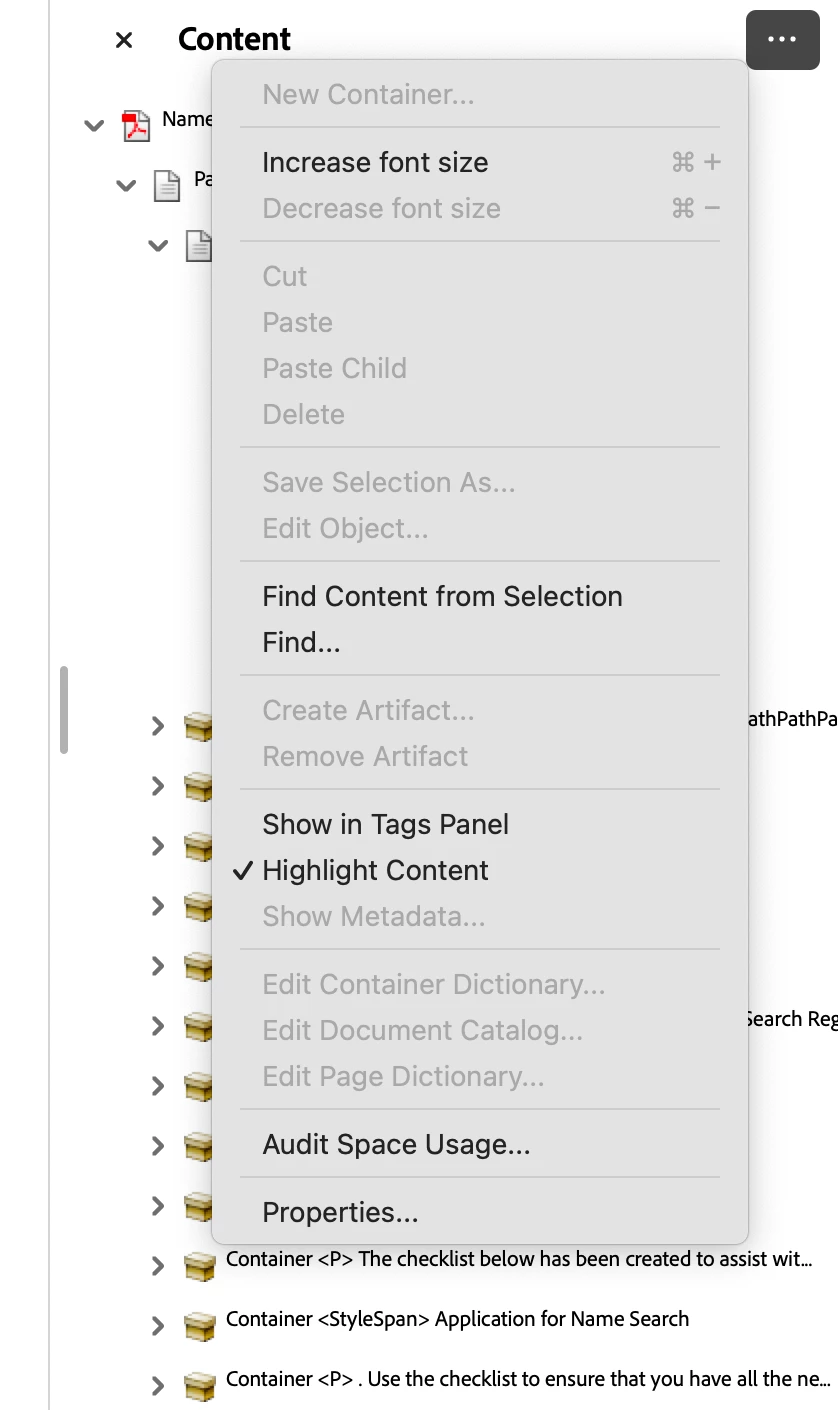
"Create Artifact" option in Content Panel Greyed Out for Annotations after Running Accessibility

  • December 4, 2024
  • 2 replies
  • 535 views

I ran my document through the accessibility checker and it identified three of my annotations (links) that weren't tagged. I followed the instructions from this help guide but when I open the annotations in the content panel and try to follow the directions and create artifact, but the option to do that was greyed out. Why is this? How do I tag my links? 
 

2 replies

Souvik Sadhu
Community Manager
Community Manager
February 26, 2025

Hi @asiya_9090,


Hope you are doing well. Sorry for the trouble, and the delayed response.


In case you are still looking for a response, here are my comments:

  1. Annotations (Links) Exist Outside the Tag Structure

    • Links are interactive elements (like form fields) and aren’t always tied to the Content panel.
    • You can’t artifact them there because annotations belong in the Tags tree, not the Content panel.
  2. Incorrect Approach: Artifacting Links

    • Links should be tagged, not marked as artifacts.
    • Artifacting is for decorative elements, not functional annotations.

Manually Tag the Links in the Tags Panel

  1. Open the Tags Panel (View > Show/Hide > Navigation Panels > Tags).
  2. Locate the untagged links (or use Find in the Tags panel).
  3. If the links aren’t tagged:
    • Right-click the surrounding text before/after the link and select "Find" > "Unmarked Links".
    • When Acrobat highlights an unmarked link, right-click it and select "Create Tag from Selection".
    • Choose <Link> as the tag type.
    • Inside the <Link> tag, add a <Label> tag (for descriptive text).

Check & Correct Link Annotations

  1. Go to "Accessibility" > "Reading Order" (Shift + Ctrl + U).
  2. Click on each link and assign the correct role.
  3. If needed, right-click the link in the Annotations Panel and check its properties.

Re-run Accessibility Checker

  • After tagging the links, re-run Accessibility Check (Full Check).
  • Verify that "Untagged annotations" no longer appear as an error.

Hope this helps.


-Souvik

Adobe Employee
December 6, 2024

Hi @asiya_9090 


Thanks for reporting the issue. Could you please confirm if you can edit the document. Would it be possible for you to share the pdf for investigation.


Regards

Ravi