


difference between jpeg compression in "Advanced Optimization" and "Optimize Scanned Pages"
Hello,
I'm trying to determine the best jpeg compression algorithm and compression factor and don't understand some of the results I'm seeing when using the "Advanced optimization" dialog vs the "Optimize Scanned Pages" dialog.
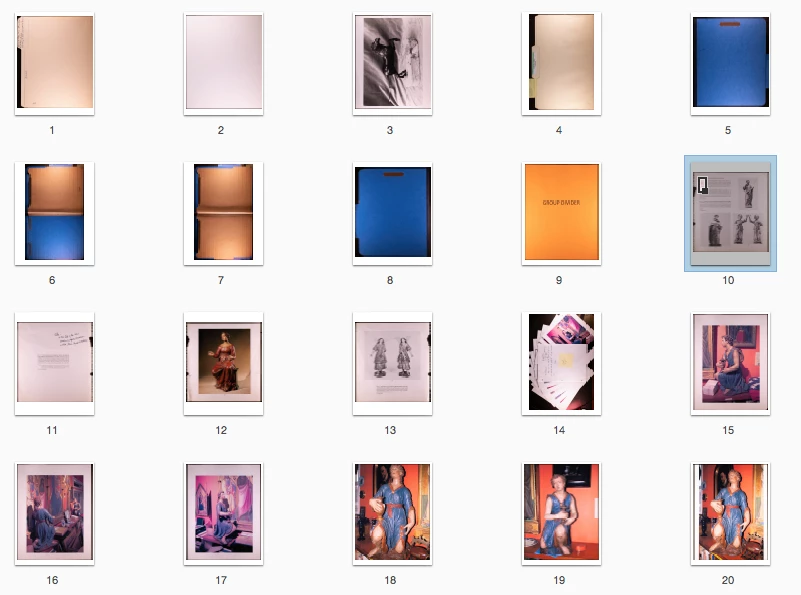
My pdf is made of basically full page pictures of art materials I am cataloging. For example, some of the pages are pictures of pages from art auction catalogs and some are photographs taken in a gallery:
When I choose to compress this file with "Advanced Optimization" with the settings shown here:
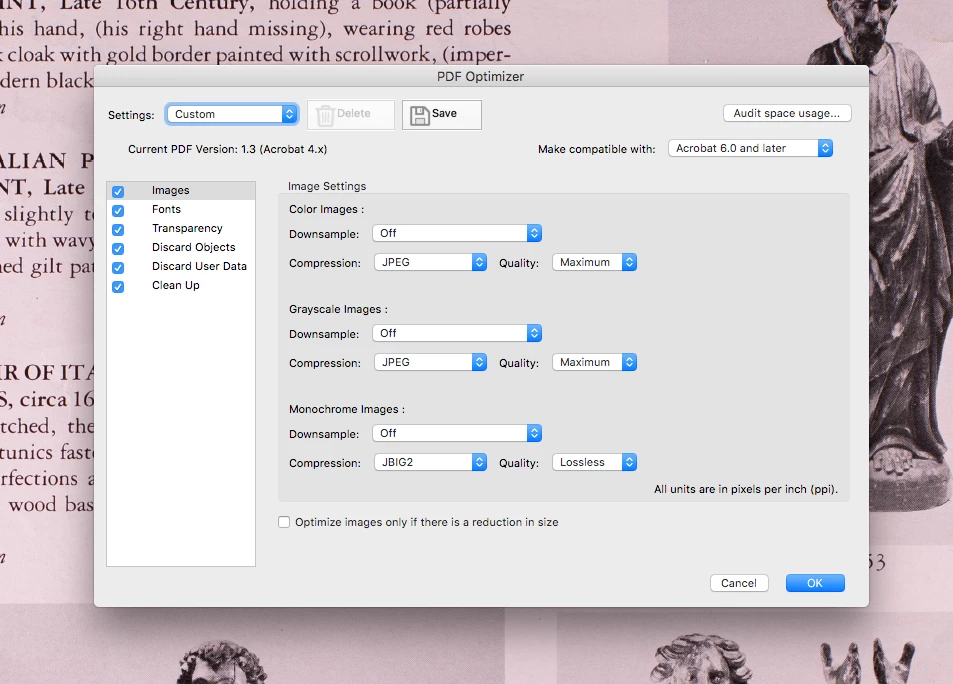
The file size reduces from 643.2MB to 66MB. And the text appears virtually untouched. This is great.
When I choose "Optimize Scanned Pages" with the settings shown here:
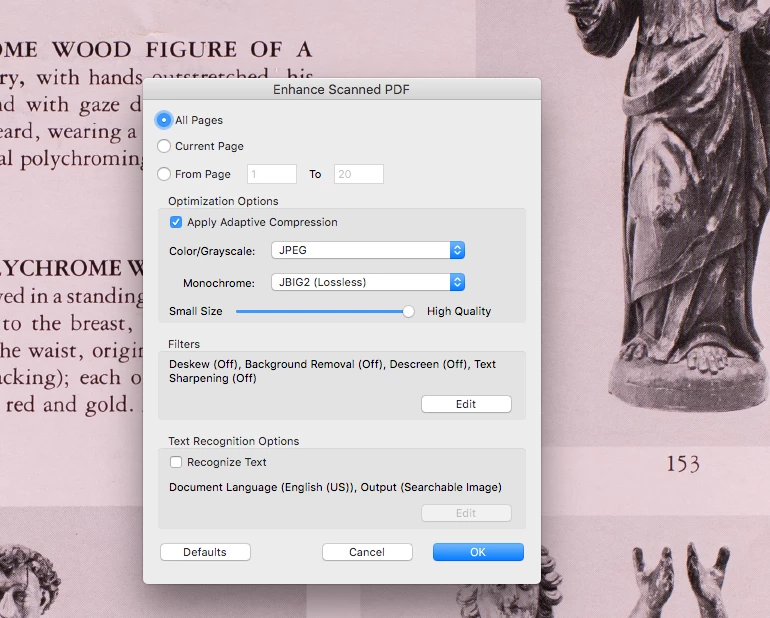
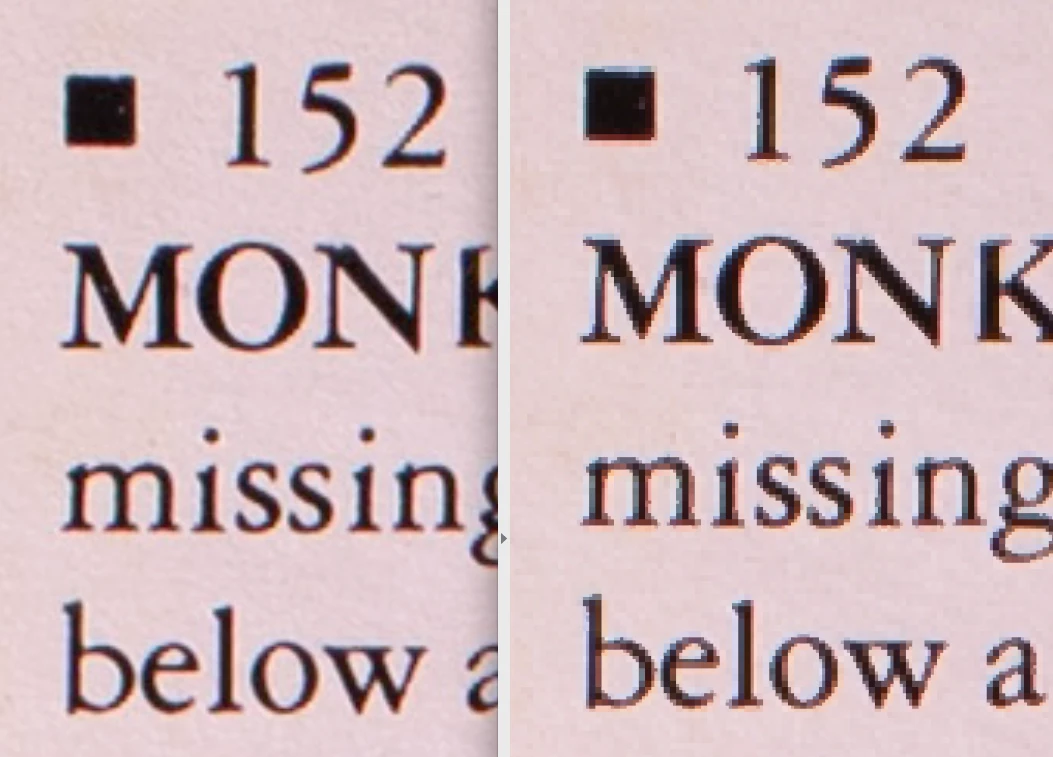
The file size only reduces from 643.2MB to 312.1MB and the text shows significant compression effects (before on left, after "Optimize Scanned Pages" with JPEG "High Quality" on the right):
Obviously, I will continue using "Advanced Optimization". However, I would like to understand what the difference is between these two dialogs and why "optimize scanned pages" performs so much worse. Also, I would like to create an Action to process a bunch of these documents, but the Action Wizard doesn't seem to allow me to choose "Advanced Optimization." So, this means I have to run this on each file manually. Any thoughs?
 AdChoices