ZombieMistress
Participant
October 23, 2018
Question

Document Review Not Working With Desktop PC Users

  • October 23, 2018
  • 1 reply
  • 580 views

Looking for some answers/help.

I created a PDF on a Mac to share with 5 reviewers. They all use desktop PCs. None of them are able to view the PDF in a web browser. Some of them do not even see the option to Review As Guest. A couple did see that option but when they tried to continue after accepting the terms the web browser didn't do anything. I have tried sending it for review to people outside of the company's network in case security measures where blocking it for some reason. Outside of the company network it was still the same thing. They could not access the PDF for review in a web browser.

Here's a kicker, I added a Mac user to that same PDF review and after trying Safari and Chrome, they were finally able to access it using Firefox while on the company network. They were able to make comments and notes while in Firefox.

I have sent this PDF for review to myself to try on my home network and when I clicked on the email link, I received this warning from Avast.
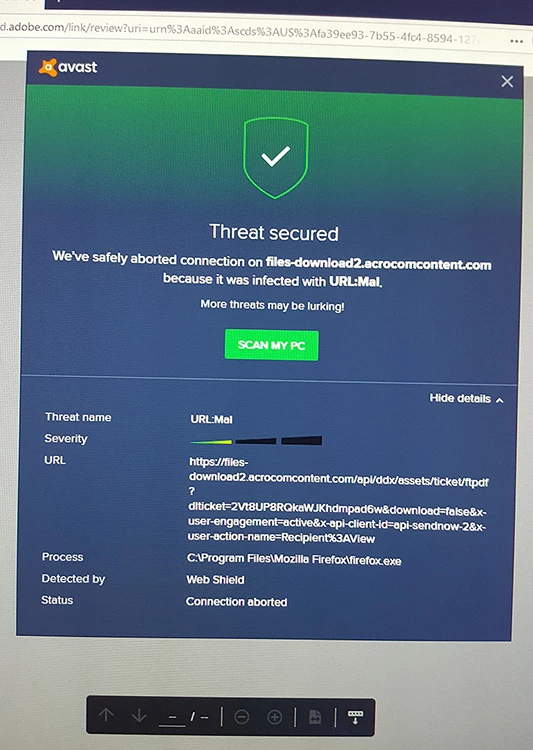
I clicked to continue on but then all the page did was stay on a "Loading" page status for over 10 minutes before I finally closed out of it.

Does anyone know why this PDF review feature does not work with PC desktops?

Is this a problem between Macs and PCs? It's in a web browser and in the Document Cloud so I wouldn't think that 's the problem.

This topic has been closed for replies.

1 reply

AkanchhaS8194121
Legend
November 21, 2018

Hi ZombieMistress,

Sorry for the delay in response.

I created a PDF on a Mac to share with 5 reviewers. They all use desktop PCs. None of them are able to view the PDF in a web browser. Some of them do not even see the option to Review As Guest. A couple did see that option but when they tried to continue after accepting the terms the web browser didn't do anything. I have tried sending it for review to people outside of the company's network in case security measures where blocking it for some reason. Outside of the company network it was still the same thing. They could not access the PDF for review in a web browser.

Looking at the detailed shared above, I believe the problem appears because of how the review was initially initiated.  The PC users are unable to view PDFs, that might be because of the internet security software installed on their computer or the work network has some firewall enabled, which is causing the trouble in connection.

Is that all the users (PC+Mac) able to review the pdf after adding the Mac user or only Mac user is able to review the pdf.

It works on Mac because of, there is no external internet security software installed (Eg. Avast,McAfee). Seems the company network is not acting as barrier as its working for other user.

Disabling the antivirus (if its installed on all the PC) temporarily  for testing purpose might help us identifying the root cause of the problem.

[Antivirus software can help protect your computer against viruses and other security threats. In most cases, you shouldn't disable your antivirus software. If you have to temporarily disable it to install or activate other software, you should re-enable it as soon as you're done.]

Regards,

Akanchha

adam_tl
Participant
November 27, 2018

Hi,

We have a problem which sounds similar. Our document controller creates the document and from Acrobat DC (on a Desktop PC) uses the "New" Send for Review option. All recipients are sent a link, which opens by default (on the company Desktop and Laptop PCs) in Internet Explorer, then click "Review in Reader" (or whatever the option text says) which opens Reader DC. Some users are then able to review the document, however for others Reader opens but the document does not.

For all users Internet Explorer then becomes frozen.

The freezing only occurs in Internet Explorer, the same link can be opened in Chrome without causing any freezing, however the issue with the document not actually opening after Reader DC opens remains.

Thank you

Adam