
Participant
October 30, 2017
Answered

Double page book spread, change to a single flowing page

  • October 30, 2017
  • 4 replies
  • 16014 views

help, please. I have a book document with two page spreads i need to reduce to single flowing pages. Anyone? I don't have the original document, Word or whatever, but inherited this from an old colleague who now requires a reprint
This topic has been closed for replies.
Correct answer Cari Jansen

If the pages are all exported as 'page spreads' from the source application, you'll need to crop the pages down to the required size.

  1. Start by duplicating all the pages in the document.   I don't think Acrobat has a 'duplicate page' command, but what you can do is the following:
    • Open the Page Thumbnails pane (View > Show/Hide > Navigation Panes)
    • Select the page to duplicate, and Option/Alt drag the page to duplicate.
    • Repeat this for each page. so that you'll end up with consecutive similar pages for each page of the document
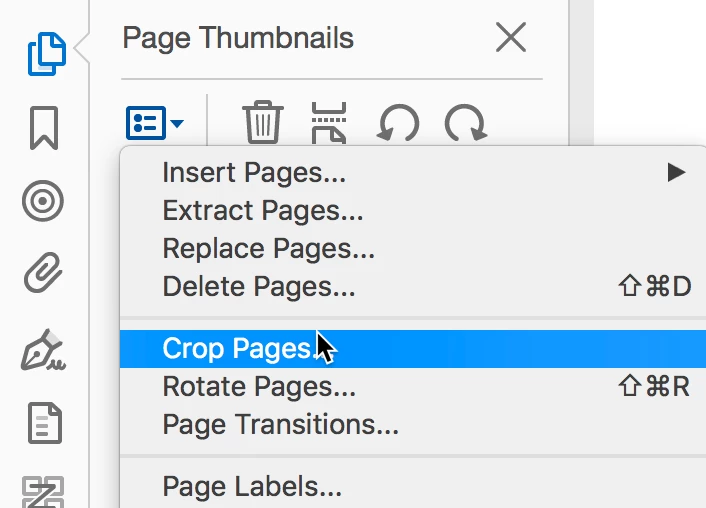
  2. From the Options menu in the Page Thumbnails pane select Crop Pages
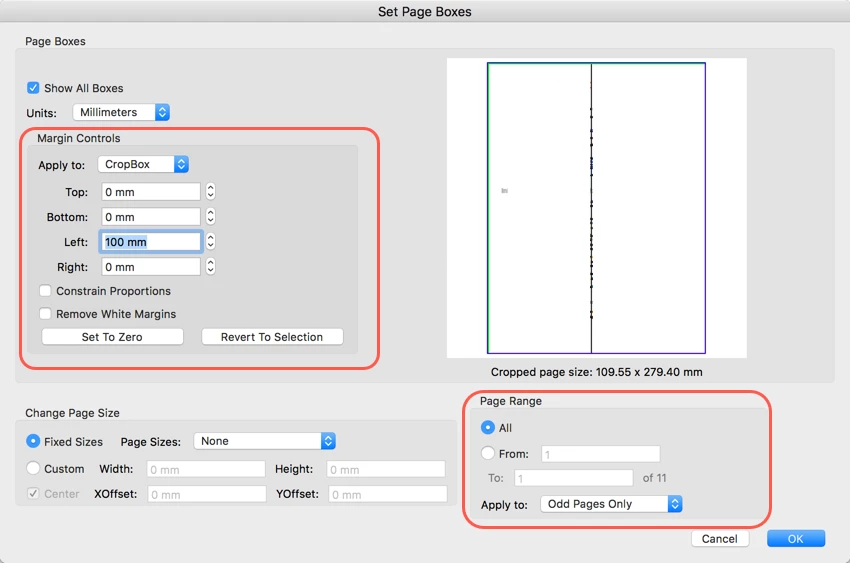
  3. In the Set Pages Boxes dialog box -- let's assume you start with ODD (right hand) pages:
    • Under Margin Controls, Select Crop Box from Apply to menu
    • Under the page thumbnail you'll see the Cropped Page size (wxh), half the width amount, and enter that in the "Left" box under Margin Controls.
    • Under Page Range, select All AND select Odd Pages Only from the Apply to menu.
    • Click OK.
  4. Repeat step 3 for the Even pages, this time setting the Right margin control and applying to the Even Pages Only.

4 replies

Participant
September 28, 2021

I had this same question. But since 2017, there is a much easier way to duplicate pages!  On the right vertical pane, click in the green organize pages icon, and then you will see all your pages.

All you need to do is click on the page you want duplicated then click the copy icon and immediately click the past icon!  That's it!  To make things easier have the copy and paste icons showing up in your navigation bar.  To do this, click view, show/hide, toolbar items, show edit tools, copy.  Do the same thing again and click paste. Viola!

Cari JansenCorrect answer
Legend
October 30, 2017

If the pages are all exported as 'page spreads' from the source application, you'll need to crop the pages down to the required size.

  1. Start by duplicating all the pages in the document.   I don't think Acrobat has a 'duplicate page' command, but what you can do is the following:
    • Open the Page Thumbnails pane (View > Show/Hide > Navigation Panes)
    • Select the page to duplicate, and Option/Alt drag the page to duplicate.
    • Repeat this for each page. so that you'll end up with consecutive similar pages for each page of the document
  2. From the Options menu in the Page Thumbnails pane select Crop Pages
  3. In the Set Pages Boxes dialog box -- let's assume you start with ODD (right hand) pages:
    • Under Margin Controls, Select Crop Box from Apply to menu
    • Under the page thumbnail you'll see the Cropped Page size (wxh), half the width amount, and enter that in the "Left" box under Margin Controls.
    • Under Page Range, select All AND select Odd Pages Only from the Apply to menu.
    • Click OK.
  4. Repeat step 3 for the Even pages, this time setting the Right margin control and applying to the Even Pages Only.
Karl Heinz  Kremer
Community Expert
Community Expert
October 30, 2017

Take a look at this script I wrote a while ago: Page Splitter Redux - KHKonsulting LLC

try67
Community Expert
Community Expert
October 30, 2017

Acrobat can't really do that. You need to export the file to another format

(Word, InDesign, etc.), edit it, and then create a new PDF.