
Participant
July 25, 2025
Question

Error and black Screen Freeze Issue when Viewing PDF in Adobe Acrobat Reader

OS : Windows 11 24H2
Adobe Verison : Latest  version

I am currently using Adobe Acrobat Reader, and when trying to open a specific PDF file, I encounter the following error message:


"There is an error on this page. Acrobat may not be able to display the page correctly. Please contact the PDF creator to resolve the issue."
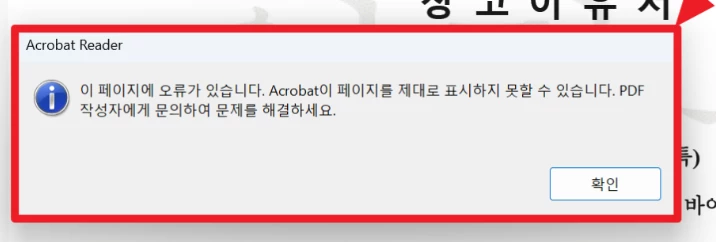
 

After this error message appears, the screen turns black after some time, and eventually, the PC becomes unresponsive.
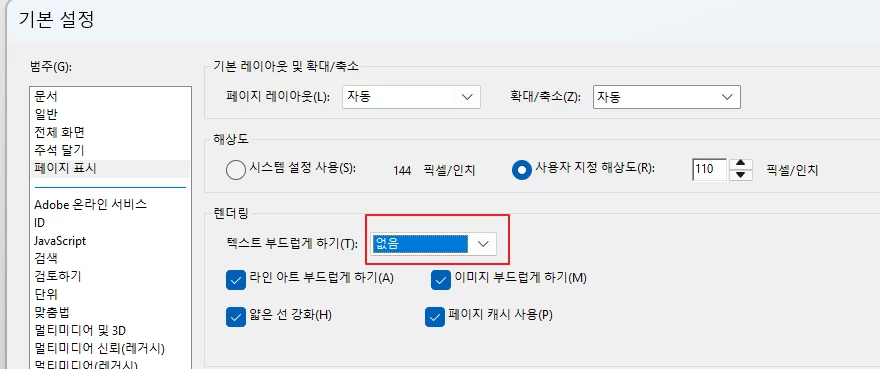
Upon testing, I found that when the "Smooth Text" rendering option is set to 'None', the issue does not occur. However, this may be a temporary workaround, and further investigation is still ongoing.
 

Additionally, the phrase "There is an error on this page" is a direct translation, and there may be different interpretations of it. Please take that into consideration.


For reference, when opening the same PDF file in Chrome browser, this issue does not occur.


I would appreciate any insights on why this issue is happening and if there is a solution to resolve it.


Thank you.

1 commentaire

Amal.
Community Manager
Community Manager
July 25, 2025

Hi there 


Hope you are doing well and thanks for reaching out. We are sorry for the trouble you are experiencing. 


As described, you are getting the error: 'There is an error on this page. Acrobat may not be able to display the page correctly. Please contact the PDF creator to resolve the issue.' when trying to open the specific PDF file and thanks for testing the troubleshooting steps to turn off the smooth line under Preferences > Page Display as a workaround. 


This kind of error and black screen freeze typically happens due to graphics compatibility or outdated components. Here are a few more steps you can try:


1. Update Acrobat Reader to version 25.01.20577 : Go to Help > Check for Updates and install any available updates.

After updating, restart your computer.

2. Repair Installation (Win Only): In Acrobat, go to Help > Repair Installation.

3. Try Compatibility Mode (Windows):

  • Right-click the Acrobat shortcut > Properties > Compatibility tab.
  • Try checking “Run this program in compatibility mode” for an earlier Windows version.


4. Check for Display Driver Updates:

Outdated GPU drivers can also cause display issues. Visit your graphics card manufacturer’s site (Intel, NVIDIA, AMD) to download the latest drivers and reboot the computer once and check.


Let us know how it goes