


Participant
February 9, 2023
Answered

Error Preflight when saving as PDF/A on Windows 11

  • February 9, 2023
  • 3 replies
  • 7596 views

When trying to save as a PDF/A file in Acrobat Pro DC it throws an error.


Assertion failed in file D:\T\Plugins\Preflight\src_pdfToolbox\pdfInspektorBatch\_Imp\PIBatchAVConversion.cpp, line #566:"CPreflightDlgManager::getDefaultPRCs(state,progbar)"
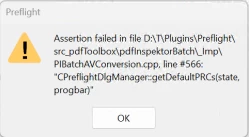
 

I been in contact with support who confirms this is a bug and given me several workarounds to try which we have tried without success. However I can't find any more information on the issue and the issue is urgent. This does not occur on Windows 10 but on Windows 11.


We have tried:

  • Reinstalling, repairing and updating
  • Installing an older version
  • Unchecked "Enable Protected Mode At Startup" and "Run in Appcontainer"
  • Deleting registry keys Adobe Acrobat, Acrobat Arm, Acrobat Distiller, PDF settings.


I have tried on 2 different machines with Acrobat Pro and Windows 11 and it throws the same error.


On the 2nd machine, unchecking "Enable protected mode at startup" enables me to save the PDF as a PDF/A but sometimes gives the error "Document has been saved, but could not be converted according to the selected standard profile: Convert to PDF/A".


Is this being worked on by Adobe? Has anyone found a solution?
Correct answer divyasin

Save as PDF/A uses the Preflight conversion to save the document to required compliant standard. If you use Preflight Tool (All Tools-->Print Production-->Preflight) , most likely you would see some issues either in profiles loading blank or the issue you reported above. It appears to be some issue with Preflight Profiles getting corrupted or facing issue during install. Please try this suggested workaround and let me know if this resolves the issue :


  1. Disable the sandbox feature in Acrobat (under Preferences > Security (Enhanced) > Enable Protected Mode at startup (Preview)) , Quit Acrobat and Restart.
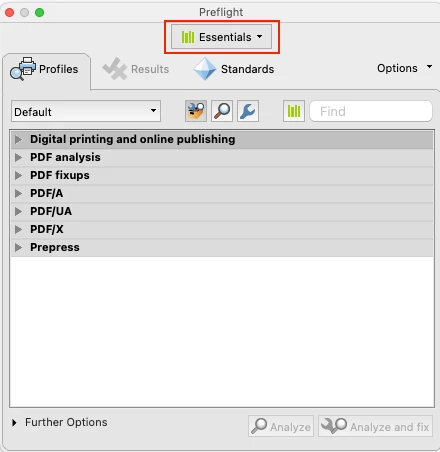
  2. In the case of empty Profiles (or generally), it is advisable to remove the Preflight preferences (%APPDATA%\Adobe\Acrobat\Preflight Acrobat Continuous) to get fresh libraries/profiles after the sandbox is disabled. Quit Acrobat , Remove Profiles from above mentioned path and Restart Acrobat. Try Preflight again after relaunch (All Tools->Print Production->Preflight) , it should then fetch the fresh libraries/profiles. Please select all libraries one by one from dropdown to fetch all the profiles (shown in screenshot). It will only take few minutes.


After the profiles have been fetched , then try to use your workflow .


Note: Please keep a backup of folder before removing from appdata as any custom profiles might get lost during removing/renaming folder.

Once the issue is resolved , please enable sandbox feature again and continue to use Product. 


Regards,

Divya Kumar Singh

3 replies

Participant
July 12, 2024

Having this same issue, does anyone have a fix?

divyasinCorrect answer
Adobe Employee
April 1, 2025

Save as PDF/A uses the Preflight conversion to save the document to required compliant standard. If you use Preflight Tool (All Tools-->Print Production-->Preflight) , most likely you would see some issues either in profiles loading blank or the issue you reported above. It appears to be some issue with Preflight Profiles getting corrupted or facing issue during install. Please try this suggested workaround and let me know if this resolves the issue :


  1. Disable the sandbox feature in Acrobat (under Preferences > Security (Enhanced) > Enable Protected Mode at startup (Preview)) , Quit Acrobat and Restart.
  2. In the case of empty Profiles (or generally), it is advisable to remove the Preflight preferences (%APPDATA%\Adobe\Acrobat\Preflight Acrobat Continuous) to get fresh libraries/profiles after the sandbox is disabled. Quit Acrobat , Remove Profiles from above mentioned path and Restart Acrobat. Try Preflight again after relaunch (All Tools->Print Production->Preflight) , it should then fetch the fresh libraries/profiles. Please select all libraries one by one from dropdown to fetch all the profiles (shown in screenshot). It will only take few minutes.


After the profiles have been fetched , then try to use your workflow .


Note: Please keep a backup of folder before removing from appdata as any custom profiles might get lost during removing/renaming folder.

Once the issue is resolved , please enable sandbox feature again and continue to use Product. 


Regards,

Divya Kumar Singh

Participating Frequently
May 11, 2025

解決しました。ありがとうございました。

Participant
February 12, 2024

I am haivng the same issue as defaulto5oggv94cnee

Participant
March 20, 2024

A user of mine was getting the following error messages when trying to save as a PDF/A document from Acrobat. Like shown in this YouTube video:
How to use the preflight tool in Adobe Acrobat Pro DC to fix PDF UA issues
https://www.youtube.com/watch?v=DmUGKZBuPmM&t=11s&ab_channel=Accessibility


Similarly to the issue described in this article:
Error Preflight when saving as PDF/A on Windows 11
https://community.adobe.com/t5/acrobat-discussions/error-preflight-when-saving-as-pdf-a-on-windows-11/td-p/13566427


The recommendation here did not resolved the issue:
preflight error_ unable to copy the user specific settings - then crashes
https://community.adobe.com/t5/acrobat-discussions/preflight-error-unable-to-copy-the-user-specific-settings-then-crashes/td-p/13607880


The solution in this article worked:
Preflight Error: Unable to load user preferences
https://community.adobe.com/t5/acrobat-discussions/preflight-error-unable-to-load-user-preferences/td-p/13342159


You can also try what is expressed in this article to see if Acrobat can fix any errors or problems when saving as PDF/A:
Preflight profiles (Acrobat Pro)
https://helpx.adobe.com/ca/acrobat/using/preflight-profiles-acrobat-pro.html

Participant
February 9, 2023

Update:

Not sure what does it, and its not a complete solve, but it does save some files as PDF/A without errors now with

  • a new installation
  • updating
  • deleting these keys in Hkey current user in regedit: Adobe Acrobat, Acrobat Arm, Acrobat Distiller, PDF settings.
  • And maybe most importantly unchecking "Enable protected mode at startup", restarting, then checking that option again, and restarting.


It works for some documents, but some still gives an error.

Participant
June 1, 2023

Did you find a solution for this. Windows 10 user has same issue.