stephaniea20591185
Participant
Sep 4, 2015 5:41 PM UTC
Answered

Extract PDF Pages Based on Content

Every fall and winter I have to work with PDF files that are hundreds of pages. Last fall I came across a java script that I was able to run and it worked beautifully. In the last year, I have either lost more brain cells or acrobat dc doesn't work the same way as acrobat X. I need to find a way to extract the pages based off of a word search and save those pages to another file. I would appreciate any suggestions. Also, I have added the java script that was used last year. Thanks in advance for your help.


// Iterates over all pages and find a given string and extracts all

// pages on which that string is found to a new file.

var pageArray = [];

var stringToSearchFor = "Total";

for (var p = 0; p < this.numPages; p++) {

// iterate over all words

for (var n = 0; n < this.getPageNumWords(p); n++) {

if (this.getPageNthWord(p, n) == stringToSearchFor) {

pageArray.push(p);

break;

}

}

}

if (pageArray.length > 0) {

// extract all pages that contain the string into a new document

var d = app.newDoc(); // this will add a blank page - we need to remove that once we are done

for (var n = 0; n < pageArray.length; n++) {

d.insertPages( {

nPage: d.numPages-1,

cPath: this.path,

nStart: pageArray,

nEnd: pageArray,

} );

}

  // remove the first page

  d.deletePages(0);


}

Karl Heinz  Kremer
Karl Heinz KremerCorrect answer
Community Expert
Sep 4, 2015 6:38 PM UTC

I assume you were running the script as an Action in Acrobat XI (as described in my blog post). You can do the same thing in Acrobat DC. Just download the SEQU file again (from here: Extract PDF Pages Based on Content - KHKonsulting LLC) - then make sure that the filename is ExtractPagesWithString.sequ (when I download the file using Safari on a Mac, it appends .xml at the end - in that case, just rename the file so that it has the .sequ extension again). Now you should be able to drag&drop the file on the new Acrobat DC icon or into the application window. You should get get a confirmation dialog (or two). Once the Action is imported, you should be able to run it. To find the Actions interface, type "Action" into Acrobat's tool search bar. You will find that at the top of the right hand pane, and at the top of the Tools collection when you click on Tools on the left side of the Acrobat window, or you can try to find the "Action Wizard" on the Tools page and click on it. You can now run the Action on one or more files, but it will always just search for the string that I've put into the code. To change that. select to edit the Action. Let's assume that you click on the Action Wizard on the Tools page. You should now see the following:


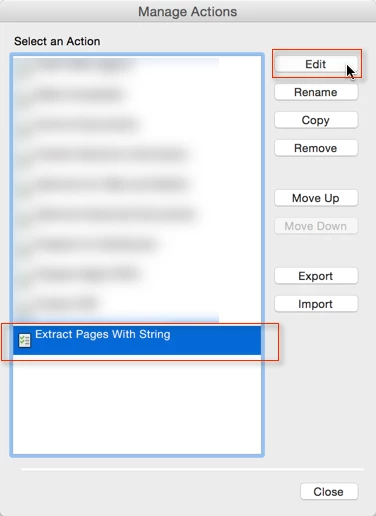
Click on the "Manage Actions" button and then select the "Extract Pages With String" Action and click on the "Edit" button:


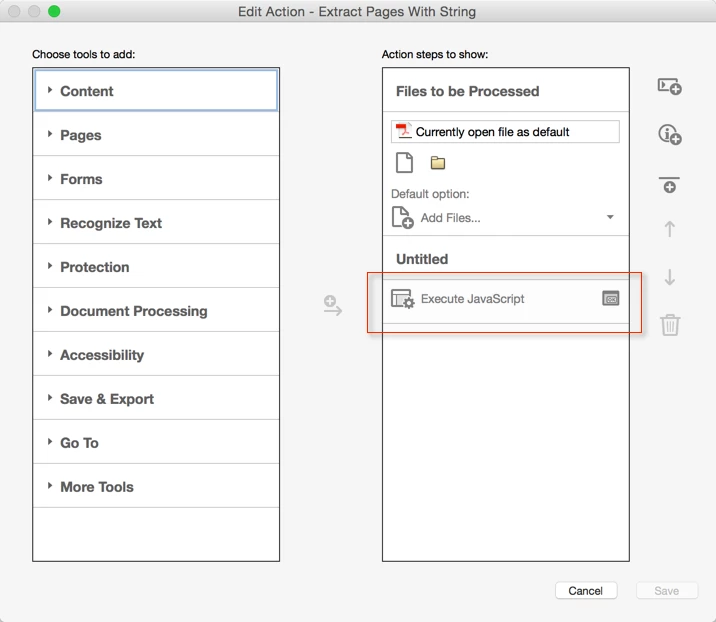
The next thing you will see is this:

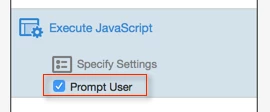
When you now click on "Execute JavaScript", this Action item will expand and will look like this:

Make sure that "Prompt User" is checked.

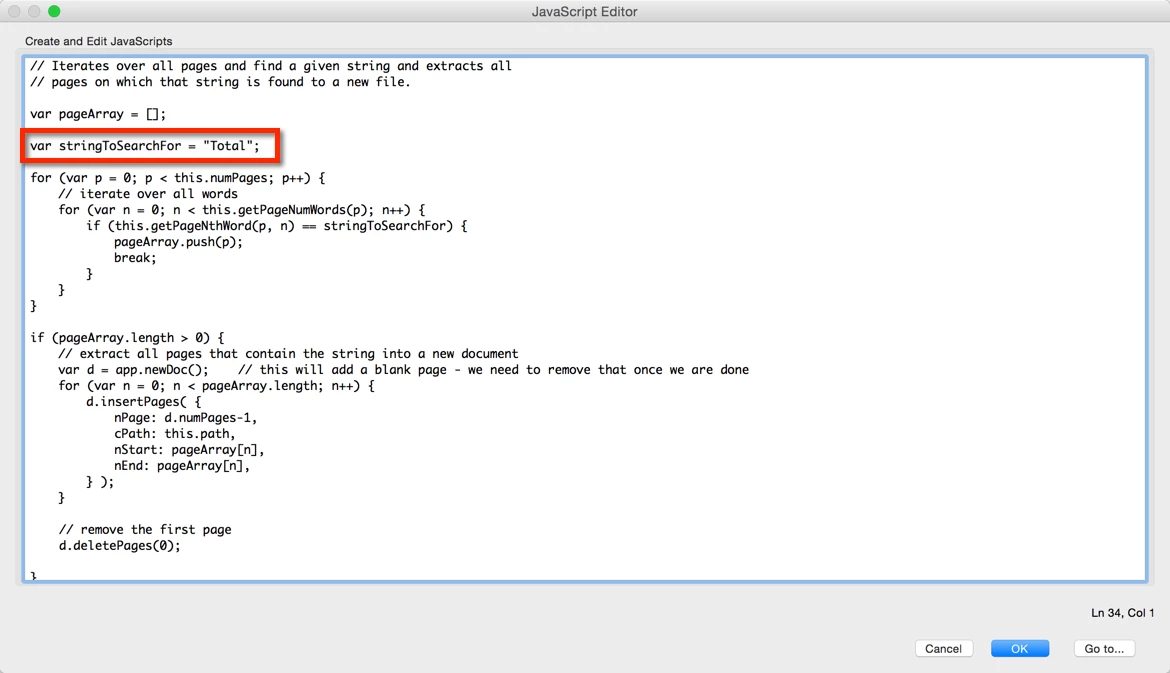
Now you can save your modified Action. When you run the Action, you will see the JavaScript editor pop up:

You can now change the "stringToSearchFor" variable and set it to whatever text string you want to search for and split the document at.

38 replies

Sasha003
Participating Frequently
Mar 9, 2026 11:22 AM UTC

Hey, I've had to deal with this before when trying to split up massive reports. If you're using Acrobat Pro, you can sometimes use the "Organize Pages" tool to manually pick them out, but it’s a pain if the file is huge. I actually found this little web tool recently that’s way faster for just grabbing specific pages: https://thetoolapp.com/extract-selected-pages-from-pdf/. It’s super straightforward and saved me a lot of clicking around.

Translate
Participant
Apr 16, 2024 6:50 PM UTC

Is there a Javascript that deletes pages if they do not contain one of the multiple supplied keywords? I have a functioning version that allows page deletion for one keyword but not multiple.

Translate
Known Participant
Dec 9, 2021 1:26 PM UTC

Is it possible to get this action to work with 2 words separated by a space?  For example: "AB 123"

Were looking to extract a form with the form number printed on the page.  So far, we have been able to get this action to work but only for the "AB", and we get 8 different forms.

When we try "AB 123"  nothing happens.

Translate
Known Participant
Dec 9, 2021 2:37 PM UTC

Also we need to get the extract to save automatically to folder.

Translate
Participant
Mar 4, 2021 4:04 AM UTC

Anyone know how I can make this process run over and over with different variables without having to sit in front of the computer and waiting? 

Translate
try67
Community Expert
Community Expert
Mar 4, 2021 9:58 AM UTC

Acrobat is not built for this kind of automation (on purpose). You would need to use a stand-alone tool to be able to do it like that. If you're interested I could develop for you such a tool (for a fee). You can contact me privately via [try6767 at gmail.com] to discuss it further.

Translate
Kasandra
Inspiring
Oct 18, 2018 3:07 PM UTC

Is there a way to extract the pages with the string and the pages that immediately follow it?

So for example, if page 3, and 7 contains the string 'Total' it will extract page 3, 4, 7, and 8?

Translate
Karl Heinz  Kremer
Community Expert
Community Expert
Oct 18, 2018 3:12 PM UTC

You can certainly do that, it's just a matter of expressing this in a script. Let's assume that the page you find the term on is n, then you would extract n and n+1. I would check to make sure that there is actually a page n+1 in the document.

Translate
Kasandra
Inspiring
Oct 18, 2018 3:15 PM UTC

Karl,

Thank you for the fast reply! I am pretty much an amateur at Javascript and see references to 'n' in the script, but I am not sure where to add the 'n+1' reference in the above code.

Could you help?

Translate
t_breeze09
Participant
Jun 20, 2017 9:45 PM UTC

Is it possible to delete pages that contain 'Total'? Also, is it possible to delete full phrases from pages instead of the page itself?

Translate
try67
Community Expert
Community Expert
Jun 20, 2017 9:53 PM UTC

- Yes, this is explained above. Read the full thread.

- That's possible, too, using the "Search & Remove Text" tool. However, it will not cause the rest of the text in the page to "re-flow". It will just leave a blank space in the middle of it, where the deleted text used to be.

Translate
t_breeze09
Participant
Jun 20, 2017 10:11 PM UTC

-I couldn't find where they provided a solution to delete the pages containing 'Total'.. I prefer to just delete them, not extract them

-Thank you, I was able to find and use the 'search and remove text' tool.

Translate
Participating Frequently
Nov 14, 2016 6:20 PM UTC

Would you have a suggestion to delete the pages that contain that word "Total" and save the others?

Translate
obh6
Participant
Jun 19, 2017 12:09 AM UTC

I didn't know about this sequence. Very handy.

Can it also be used so that rather than looking for the word "Total", it could be used to find a regular expression/GREP?

Colin

Translate
try67
Community Expert
Community Expert
Jun 19, 2017 9:26 AM UTC

It's possible, but if the search term is longer than one word it is quite complicated to implement it.

Translate
Karl Heinz  Kremer
Community Expert
Community Expert
Sep 4, 2015 5:50 PM UTC

I guess you found the script on my web site

What exactly is different now vs. when you used this last year? As far as I know, the script should work without any changes in Acrobat DC. In order to help, I would need a better understanding of what exactly is happening.

Keep in mind that text extraction is a pretty complex task, and it only works correctly if the PDF file contains all the information needed to find text information. You can test this by doing a search in your PDF file (Ctrl-F or Cmd-F), then type in the term you are looking for. Can Acrobat find it? If not, then it's not the script's fault, it's the PDF file that cannot be searched.

Translate
stephaniea20591185
Participant
Sep 4, 2015 5:55 PM UTC

First, I want to say that it worked perfectly last year so I’m sure it was me. It was a real time saver. I can’t seem to get to the right place to add the word that I need to search/extract. Also, I can’t find where to executing Java script in the newer version.

Translate
Karl Heinz  Kremer
Community Expert
Karl Heinz KremerCommunity ExpertCorrect answer
Community Expert
Sep 4, 2015 6:38 PM UTC

I assume you were running the script as an Action in Acrobat XI (as described in my blog post). You can do the same thing in Acrobat DC. Just download the SEQU file again (from here: Extract PDF Pages Based on Content - KHKonsulting LLC) - then make sure that the filename is ExtractPagesWithString.sequ (when I download the file using Safari on a Mac, it appends .xml at the end - in that case, just rename the file so that it has the .sequ extension again). Now you should be able to drag&drop the file on the new Acrobat DC icon or into the application window. You should get get a confirmation dialog (or two). Once the Action is imported, you should be able to run it. To find the Actions interface, type "Action" into Acrobat's tool search bar. You will find that at the top of the right hand pane, and at the top of the Tools collection when you click on Tools on the left side of the Acrobat window, or you can try to find the "Action Wizard" on the Tools page and click on it. You can now run the Action on one or more files, but it will always just search for the string that I've put into the code. To change that. select to edit the Action. Let's assume that you click on the Action Wizard on the Tools page. You should now see the following:


Click on the "Manage Actions" button and then select the "Extract Pages With String" Action and click on the "Edit" button:


The next thing you will see is this:

When you now click on "Execute JavaScript", this Action item will expand and will look like this:

Make sure that "Prompt User" is checked.

Now you can save your modified Action. When you run the Action, you will see the JavaScript editor pop up:

You can now change the "stringToSearchFor" variable and set it to whatever text string you want to search for and split the document at.

Translate