Fields don't keep property settings after conversion to Word
I am using Adobe Acrobat Pro DC and am trying to convert a pdf into an editable word document. it looks fine until you try to actually type text in it.
In Word, in the top four fields, none of the text is left aligned properly with the line underneath and all four columns are displaying different font sizes, and the two bottom ones are displaying bold text. Also, in the top two left columns, the text does not fill the entire field. In the table, the "year" and "dd mmm" columns are also set to align centered in the field but are instead left aligned.
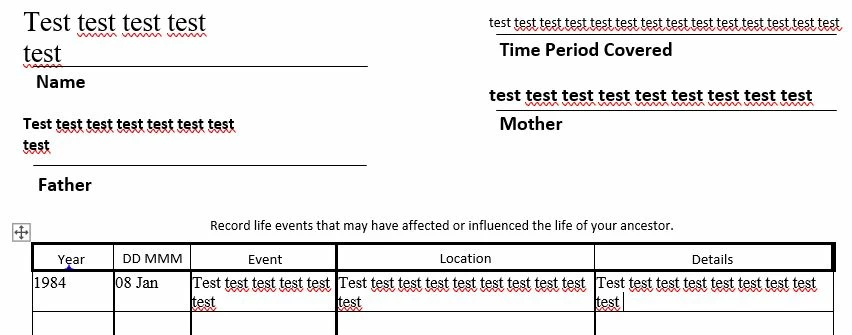
The original form was a pdf. I prepared the form and converted the pdf into a fillable pdf document as seen below.
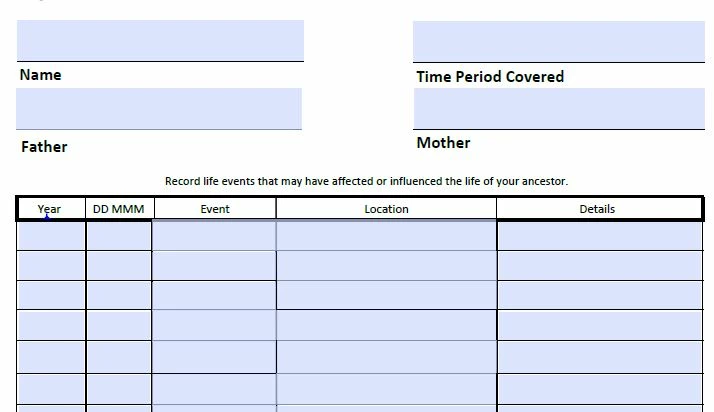
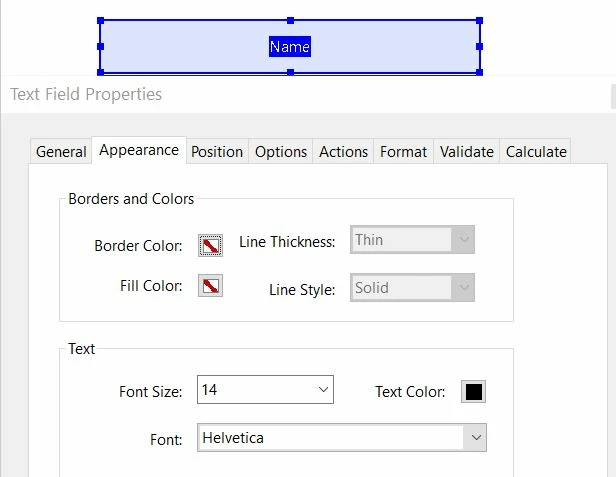
After seeing how it was rendering in Word, I checked the field properties and they were all set to Auto, so I changed them to reflect font size 14 as indicated below and all four are set as pictured below. However, the text in Word still renders the same. I tried adjusting the positioning as well and it also had no effect at all. Also, I could not find anything that would be causing the text to render as bold. I'm very frustrated as I have been searching forums and messing with settings for about three hours now to no avail. Can someone please tell me what I'm missing?
To reiterate, I would like to know what I need to do to:
1. make the top four fields align properly with the left margin of the line underneath
2. make the top two left fields fit properly in the text field instead of wrapping halfway across the field
3. adjust the font in the top four fields so all the text renders the same size and is NOT displaying bold
4. center the first two left columns in the table.
Thanks in advance for your help.
 AdChoices