Participant
March 31, 2025
Answered

Fields Missing From Text Field Properties

  • March 31, 2025
  • 2 replies
  • 561 views

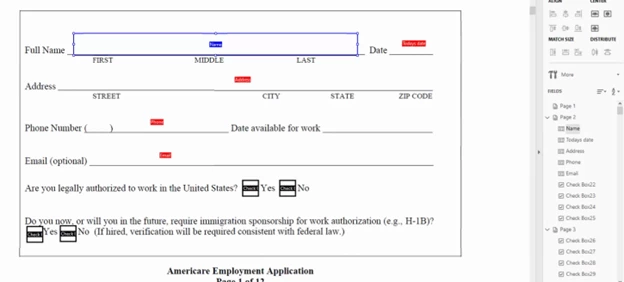
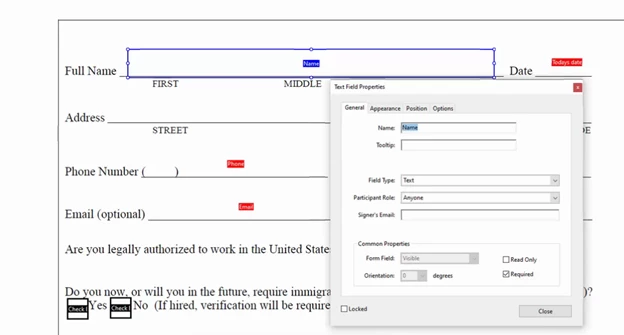
Hello, we are trying to figure out why certain fields are missing when we choose the "Prepare a Form" option. This is missing in the "Text Field Properties" pop-up when you double click. Some documents have this and some don't. Please refer to the photos for additonal clarification. 
 

Correct answer try67

If you're using the old Acrobat UI, click on Tools - Prepare Form and then on "More" at the right-hand side of the window and then on "Revert to Acrobat Form".

If you're using the new Acrobat UI go to Tools and search for "Prepare Form", then click the "three dots" icon next to "Prepare a Form" on the left-hand panel and then on "Remove e-signing options".

In the future, when creating the form for the first time do not tick the box that says "This document requires signatures", as it converts it to an Adobe Sign form, which has limited functionality.

2 replies

try67
Community Expert
try67Community ExpertCorrect answer
Community Expert
March 31, 2025

If you're using the old Acrobat UI, click on Tools - Prepare Form and then on "More" at the right-hand side of the window and then on "Revert to Acrobat Form".

If you're using the new Acrobat UI go to Tools and search for "Prepare Form", then click the "three dots" icon next to "Prepare a Form" on the left-hand panel and then on "Remove e-signing options".

In the future, when creating the form for the first time do not tick the box that says "This document requires signatures", as it converts it to an Adobe Sign form, which has limited functionality.

PDF Automation Station
Community Expert
Community Expert
March 31, 2025

Try right-click > properties.

Participant
March 31, 2025

Do you think that you can provide a screenshot of the steps throughout. 

PDF Automation Station
Community Expert
Community Expert
March 31, 2025

In form editing mode, just right-click the field and select properties.