Participant
February 21, 2022
Answered

"File => Reduce File Size" option disappears after reinstalling Adobe Acrobat Pro DC

  • February 21, 2022
  • 2 replies
  • 5195 views

I had to reinstall because AA Pro DC was still crashing. After reinstalling, I no longer have the "Reduce File Size" option under FILE. I have to go through the menu File => Save as Other => Reduced Size PDF.
I have the same installation of the same version on another PC where the file reduction feature via "File=>Reduce File Size" is still available.
Can anyone advise on the problem that this option has completely disappeared from the menu?

Correct answer hillrd1

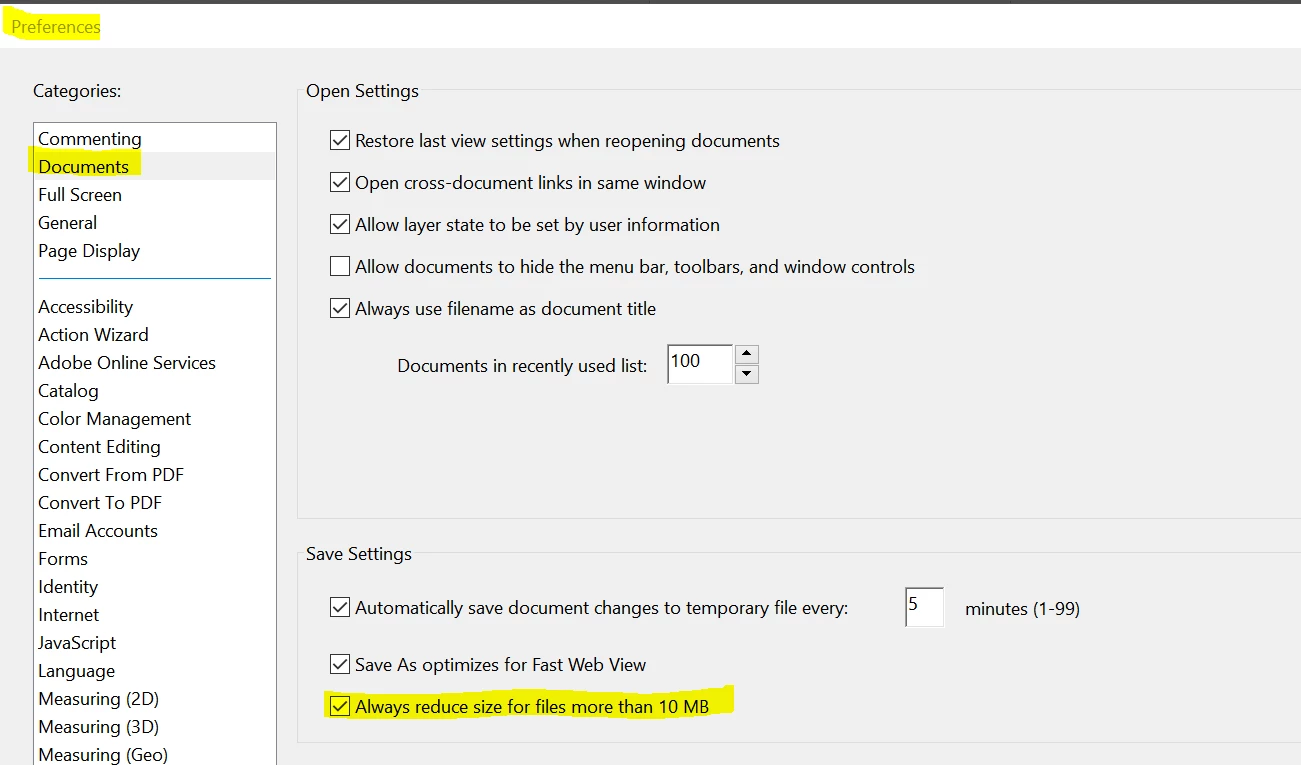
I recently had the same problem, too (I'm using Adobe Acrobat Pro version 24.002.20759). I found an option under Edit\Preferences\Documents - under Save Settings, check the box for Always reduce size for files more than 10 MB - make sure that option is checked.


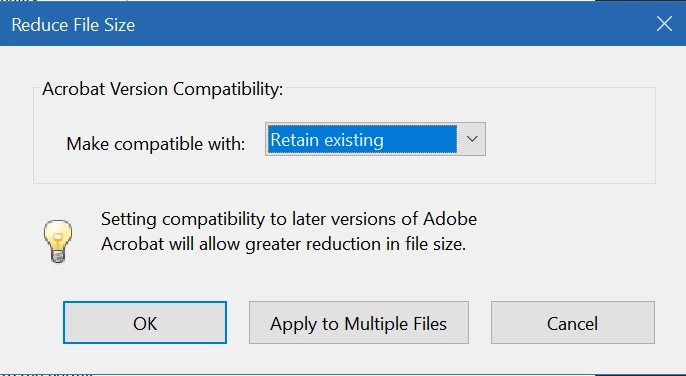
Then if the file size is still too big, you can use the File\Save as other\Reduced size PDF... That will bring up this dialog box -


While my "automatically optimized" file size was 19.82 MB, the "reduced" file size ended up at 11.92 MB (for an additional 40% reduction).


I also searched the Adobe Creative Cloud Desktop for "how to reduce pdf file size". It had a Tutorial Article called "How to compress a PDF file", which uses the Optimize PDF tool. I didn't try that method yet, but I'm pretty sure it does the same as the File\Save as other\Reduced size PDF... option mentioned earlier.


2 replies

Participant
June 17, 2022

We are seeing the same issue.  People on the same version of Adobe Acrobat Pro DC - some have Reduce File Size on the File men, others do not.  Is anyone able to provide a response to this issue?

McCready1982
Known Participant
February 12, 2024

Just ran into the same problem here. Has anyone discovered a solution yet?

hillrd1
hillrd1Correct answer
Participant
June 11, 2024

I recently had the same problem, too (I'm using Adobe Acrobat Pro version 24.002.20759). I found an option under Edit\Preferences\Documents - under Save Settings, check the box for Always reduce size for files more than 10 MB - make sure that option is checked.


Then if the file size is still too big, you can use the File\Save as other\Reduced size PDF... That will bring up this dialog box -


While my "automatically optimized" file size was 19.82 MB, the "reduced" file size ended up at 11.92 MB (for an additional 40% reduction).


I also searched the Adobe Creative Cloud Desktop for "how to reduce pdf file size". It had a Tutorial Article called "How to compress a PDF file", which uses the Optimize PDF tool. I didn't try that method yet, but I'm pretty sure it does the same as the File\Save as other\Reduced size PDF... option mentioned earlier.


PetrCZAuthor
Participant
February 22, 2022

Print Screen menu FILE