sherrym1344
Participant
January 15, 2019
Answered

File size will not reduce

  • January 15, 2019
  • 2 replies
  • 7615 views

I have a 4 page file containing construction drawings and it is 60.7 MB in size.  I have tried to reduce size but Adobe Acrobat Pro DC stops working.  I have also deleted pages and created separate files (1 page each) and the file size of the 1 page documents are 60 MB in size.  I thought the individual pages would reduce in size.  Why aren't they?

This topic has been closed for replies.
Correct answer try67

PDF files are not linear in this way. They consist of content streams that can be shared across pages (which is a very good thing).

For example, let's say you use the same background image in all the pages of your file, and the size of that image is 50MB.

Instead of creating a new 50MB copy of the image for each page the PDF producer (if used correctly) will create a single instance of it and then reference it from each page, so there's only one copy of the image. If you then take that file and split it into individual pages then each one of those will need to have a copy of that image, which means they'll also be around 50MB each.

The same thing happens with fonts. My guess is one of those two things is what's taking the most space in your file.

You can find it out by opening the Content panel on the left, right-clicking the top-most icon and select Audit Space Usage.

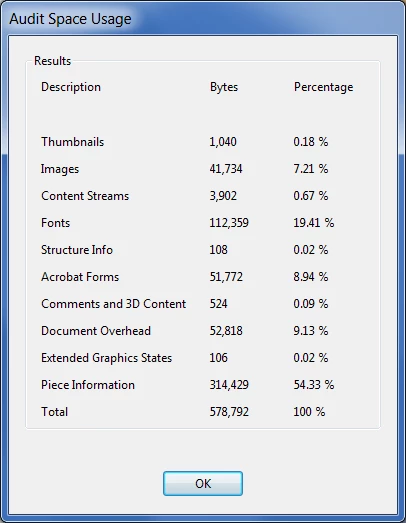
You'll see a window like this one, which will give you an indication as to the size of each type of object in your file:

2 replies

sherrym1344
Participant
January 15, 2019

Thank you.  The only problem I am still having is when I select Audit Space Usage the program stops responding.

try67
Community Expert
Community Expert
January 15, 2019

Sounds like there's something wrong with the installation. Try running a Repair Installation from Acrobat's Help menu, and make sure to install all available updates.

try67
Community Expert
try67Community ExpertCorrect answer
Community Expert
January 15, 2019

PDF files are not linear in this way. They consist of content streams that can be shared across pages (which is a very good thing).

For example, let's say you use the same background image in all the pages of your file, and the size of that image is 50MB.

Instead of creating a new 50MB copy of the image for each page the PDF producer (if used correctly) will create a single instance of it and then reference it from each page, so there's only one copy of the image. If you then take that file and split it into individual pages then each one of those will need to have a copy of that image, which means they'll also be around 50MB each.

The same thing happens with fonts. My guess is one of those two things is what's taking the most space in your file.

You can find it out by opening the Content panel on the left, right-clicking the top-most icon and select Audit Space Usage.

You'll see a window like this one, which will give you an indication as to the size of each type of object in your file: