
Participant
April 18, 2024
Answered

Fillable form won't let me type unless I right-click then tab through

  • April 18, 2024
  • 12 replies
  • 10968 views

Hello,

I have a fillable form that has recently stopped letting me click on the field and let me type into it. 

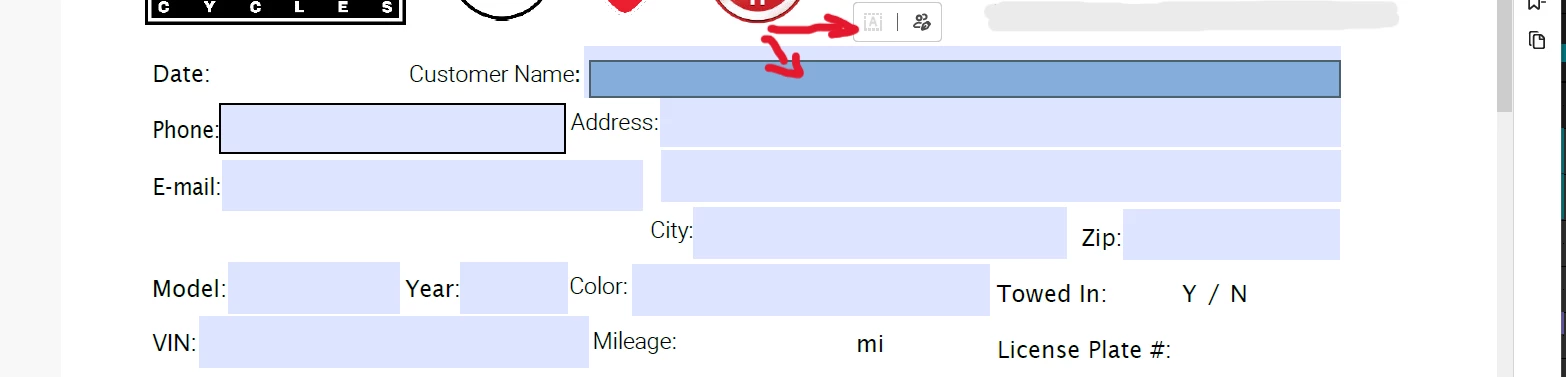
I have a picture attached for reference. 

It will let me click into the field and then another blue box will pop up along with a rectangle that, when you mouse over it, it has the "fill in form fields" symbol to the left and "request e-signatures" to the right. 

It already shows the "fill in form fields" symbol as being greyed out, as if I can already type into the field however, not even a cursor shows up when trying to click repeatedly in the field. 

I have found that, if I right-click in the field, it will then show the cursor with just the original field, no secondary field inside of it, and will let me type into it. 

I have checked security settings and also e-signature settings and everything looks good. 

To be clear, I am NOT looking to have e-signatures anywhere on the form and it is NOT setup for them either. 

Any help would be greatly appreciated! 
This topic has been closed for replies.
Correct answer Meenakshi_Negi

Hi All,


Thank you for your patience so far.


The issue has been resolved. Please reboot the machine and then relaunch Acrobat.

Then, wait for some time and try to fill out the forms again. 


Let us know how it goes.


Thanks,

Meenakshi


Marking a reply or response “Correct” will help future users with the same issue quickly identify the correct answer.

12 replies

Meenakshi_Negi
Meenakshi_NegiCorrect answer
Legend
May 2, 2024

Hi All,


Thank you for your patience so far.


The issue has been resolved. Please reboot the machine and then relaunch Acrobat.

Then, wait for some time and try to fill out the forms again. 


Let us know how it goes.


Thanks,

Meenakshi


Marking a reply or response “Correct” will help future users with the same issue quickly identify the correct answer.

Participant
May 2, 2024

Thank you for fixing the issue, I am no longer experiencing any problems! 

Participant
April 23, 2024

In addition to this most recent problem, the changes you make to the file are saved as a starred file and evidently not in the original file. When you open the original file after changes, they're not there. C'mon Adobe, quit screwing with basic functions. I have no idea where these starred files are stored and I need them on my computer, not the Adobe cloud. I've still never found a cure for why some of my fillable forms that have worked well for years now end up with text going in all different directions. Trying to find work-arounds after these updates eats up valuable time. And it's a much more difficult search on the Apple platform.

Participant
April 23, 2024

Same issue as well here - please correct or offer a work around, Adobe. Thanks!

JR Boulay
Community Expert
Community Expert
April 23, 2024

This is the most frequently asked question on the forum over the last few days. It's a bug in the latest version of Acrobat.
You'll have to wait for the next update, there's nothing else to do.

Acrobate du PDF, InDesigner et Photoshopographe
Participant
April 22, 2024

I'm experiencing the same issue. I have found that if I click on the field in front of the one I want to change, then tab to getg to the field that I want to change, then I can then edit that field, but only using the keyboard. If I click within the field, then I get that blue box again. Please fix quickly! I have a lot of forms I need to fill out!

Participant
April 22, 2024

I am having the same issue.

Participant
April 22, 2024

Also having the same issue.

Participant
April 22, 2024

I am also having the same issue. It is frustrating that it was difficult to find this informaiton. Hopefully thumbs upping this and posting here wil lraise visilibility foro ther users. 

Participant
April 22, 2024

I also have the same issue.

Participant
April 22, 2024

Also having this issue and was failing to describe it accurately. I did find that if you open the form in Chrome browser, it is fillable there while they work to fix this issue. My favorite temp fix though is @Tuna Melon below with the Fill&Sign work around. Thanks!

Participant
April 21, 2024

Hello @SageGrimm02,

I'm glad you posted as I had the same question.  I tinkered around and found a temporary fix.

In the All tools tab, if you select Fill & Sign (image below), it seems to work normally again.  The only downside is that the left toolbar has to remain open, which reduces active workspace.


--- --- ---


For anyone in engineering working on this, here are some additional comments of my experience:


SageGrimm02's picture showed exactly what I experienced, with the extra blue box appearing over top.  (I'll note that for larger height boxes in my form, the extra blue box was always 1 row in height, often, but not always, aligned near the top of my form box.  I believe that the blue box overlay appears where the initial form field was added when the form was created -- for blue boxes aligned near the top of my large height form box, they're fields I would've dragged down to make larger.  One blue box is aligned near the bottom of my large height form box, which is the only one I think I originally dragged up to increase the height when creating the form.)


Also, in normal viewing mode, sometimes when I'd open my form, I could type 2-3 field entries before it would revert to adding the dreaded blue box overlay.  (That was only after a computer restart that it appeared I could get temporary functionality, but the form didn't save the data properly after closing the file.)


The form does work as expected while in the Fill & Sign menu, but it would be nice to not have to be there as my screen real estate is diminished by a bit.