

pludiver
Participant
May 25, 2021
Answered

Fillable Forms to CSV file - form data is embedded with field names

  • May 25, 2021
  • 4 replies
  • 4508 views

I am creating an MS-Word form with tabbed underlines for field values.  Some fields have multiline input.  When copy out the data to CSV, I find some of the field data with the field names.  I'm trying to make this as "field names on the left and field data on the right" as possible, but I'm still finding the same result though it varies on which lines it happens to.  I've called Adobe Tech support and simply found that it is experimentation.


Please, don't let that be the answer.  There must be a way to do this albeit this IS acknowledged to be a rudimentary tool for getting data from a form into a csv.  I'm willing to work with someone on this if they have the time.  I need to get this to work...the only alternative is to have them input data into Excel 😞
 

This topic has been closed for replies.
Correct answer pludiver

It is extreemly sad that an Adobe support tech would tell you to do some so horribly wrong, but it's not unexpected. 


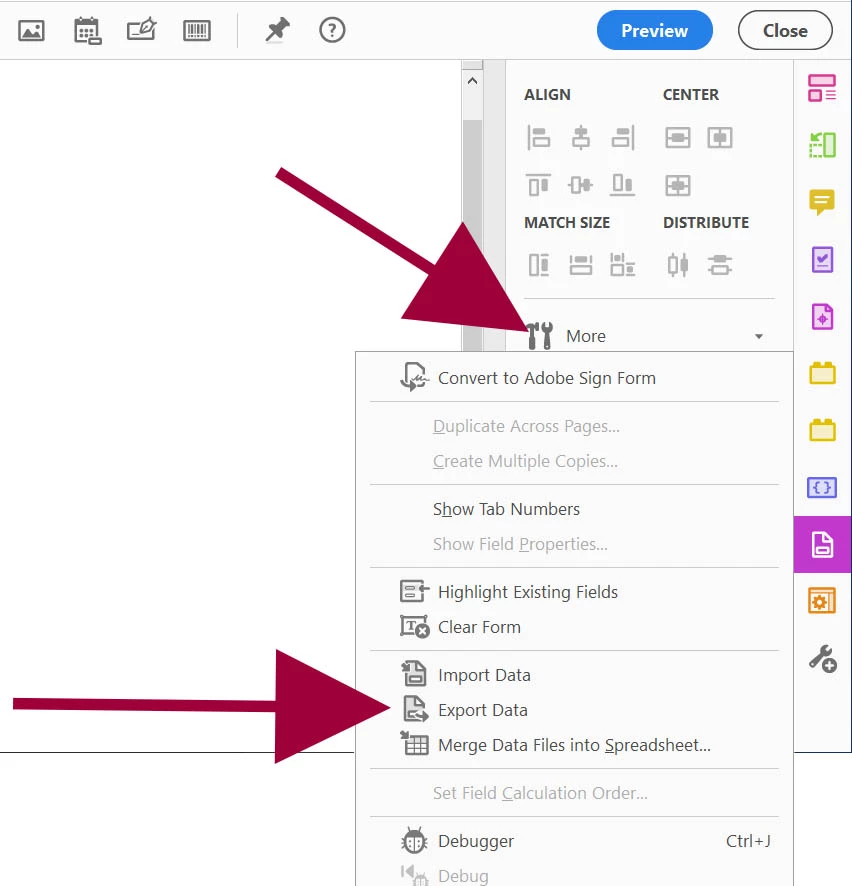
There are a couple of ways to export form data without a script. Both are on the "More..." popup menu in the Acrobat "Prepare Forms" panel.  Here's a screenshot.


I've received a response from Adobe Technical Support. The steps are as follows:
1. Open PDF in Adobe Acrobat DC (Reader will not work for this purpose)
2. Select Tool "Prepare Form"
3. More Tools..."Export Data"
     4. Select "Text Files"
     5. Result file has 1st row with field names (in ALPHABETICAL order)
     6. Data in the corresponding columns of the 2nd row
3. More Tools..."Merge Data into Spreadsheet"
     4. Click "Add Files" add the file you're working on
     5. Select "Export"
     6. Result defaults to report.csv as a csv file.
     7. Result file has 1st row with Field Names (in TAB order)
     8. Data in the corresponding columns of the 2nd row


What a learning experience. Thanks for all of your help in this community forurm as well!!


Peter

4 replies

pludiver
pludiverAuthor
Participant
June 2, 2021

[Sorry for not getting back right away! - I have "Email me when someone replies" but didn't see anything]

Steps to Perform this:

1. Create MS-Word Document with fieldname text followed by 1 or more underline-tabs for fillable fields.

2. Create Acrobat PDF where underlined-tabs become fillable fields and save

3. Fill in the Form in step 2

4. Select all in Form

5. On a field do a right-click and Save As... Comma Separated Values (Untitled.csv by default)

6. Open in Excel... observe that some of the filled in data is embedded with the text preceeding it and NOT comma separated.  Note - a raw text editor can confirm there are no commas separating the fieldtext and associated data.


try67
Community Expert
Community Expert
June 2, 2021

Your'e not exporting the form data, but copying the entire contents of the file. The two are not the same...

pludiver
pludiverAuthor
Participant
June 2, 2021

Try67, I was told to do it this way from Adobe Tech Support.  Is there another way to effectively export the data to CSV?  Please share the method.

Thom Parker
Community Expert
Community Expert
May 26, 2021

Do you mean that you are creating a PDF form from MS Word?  Cause we can't help you with a Word Form. 


What do you mean by "copy out the data to CSV"?  What tool/button/menu are you using for this?


The natural format for putting data into any spreadsheet/DB like format is for the field names to be the column names. And for all the data in a single set to appear in a single row.    If you want something else you'll have to write a script to do it. 


Thom Parker - Software Developer at PDFScriptingUse the Acrobat JavaScript Reference early and often
try67
Community Expert
Community Expert
May 26, 2021

Yeah, it's not very clear what you mean... Do you want to change the structure of the output file from having the fields names and values in two rows to having them in two columns, basically?

Eric Dumas
Community Expert
Community Expert
May 26, 2021

Hi,

Can you share a screenshot to better understand your issue?