We use the iPad to fill out training forms, and we would like the trainees to sign with their fingers on the signature field (in-person signature).
Is it possible to have a field where we just click on it and it is prompted to sign with the finger directly? We don't want to have to create/set up a signature every time we have a new trainee.
Hope you are doing well and thanks for reaching out.
To sign a PDF document or form, you can type, draw, or insert an image of your handwritten signature. You can also add text, such as your name, company, title, or the date. When you save the document, the signature and text become part of the PDF.
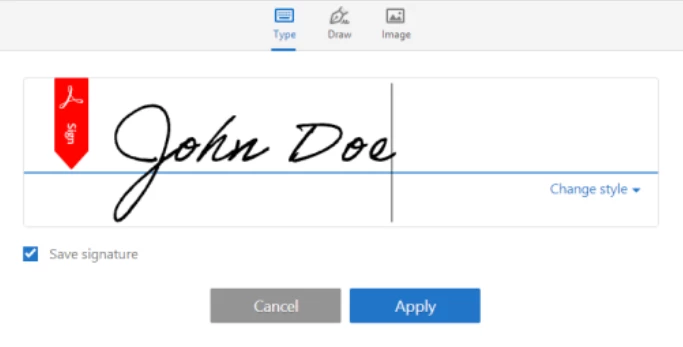
If you are signing for the first time, you see the Signature or Initials panel. Below is an example of the Signature panel.
You can choose to type, draw, or import a signature image. Added signatures and initials are saved for future use.
Type: Type your name in the field. You can choose from a small selection of signature styles; click Change Style to view a different style.
Draw: Draw your signature in the field.
Image: Browse and select an image of your signature.
Save Signature: When this check box is selected, and you're signed in to Acrobat Reader or Acrobat, the added signature is saved securely in Adobe Document Cloud for reuse.
Click Apply, and then click at the place in the PDF where you want to place the signature or initial.
Hope you are doing well and thanks for reaching out.
To sign a PDF document or form, you can type, draw, or insert an image of your handwritten signature. You can also add text, such as your name, company, title, or the date. When you save the document, the signature and text become part of the PDF.
If you are signing for the first time, you see the Signature or Initials panel. Below is an example of the Signature panel.
You can choose to type, draw, or import a signature image. Added signatures and initials are saved for future use.
Type: Type your name in the field. You can choose from a small selection of signature styles; click Change Style to view a different style.
Draw: Draw your signature in the field.
Image: Browse and select an image of your signature.
Save Signature: When this check box is selected, and you're signed in to Acrobat Reader or Acrobat, the added signature is saved securely in Adobe Document Cloud for reuse.
Click Apply, and then click at the place in the PDF where you want to place the signature or initial.




 AdChoices