Inspiring
April 22, 2026
Question

Fonts not displaying well in pdf for client.

  • April 22, 2026
  • 2 replies
  • 28 views

I have a pdf I exported from InDesign. Looks great when I look at it in Acrobat. All fonts are embedded. But when the client sent me a screenshot of what they see in Acrobat, it’s subtly different. The lowercase “a”’definitely looks different. Any ideas what could be causing the issue?

My screenshot is the top one, client screenshot is the bottom one. 

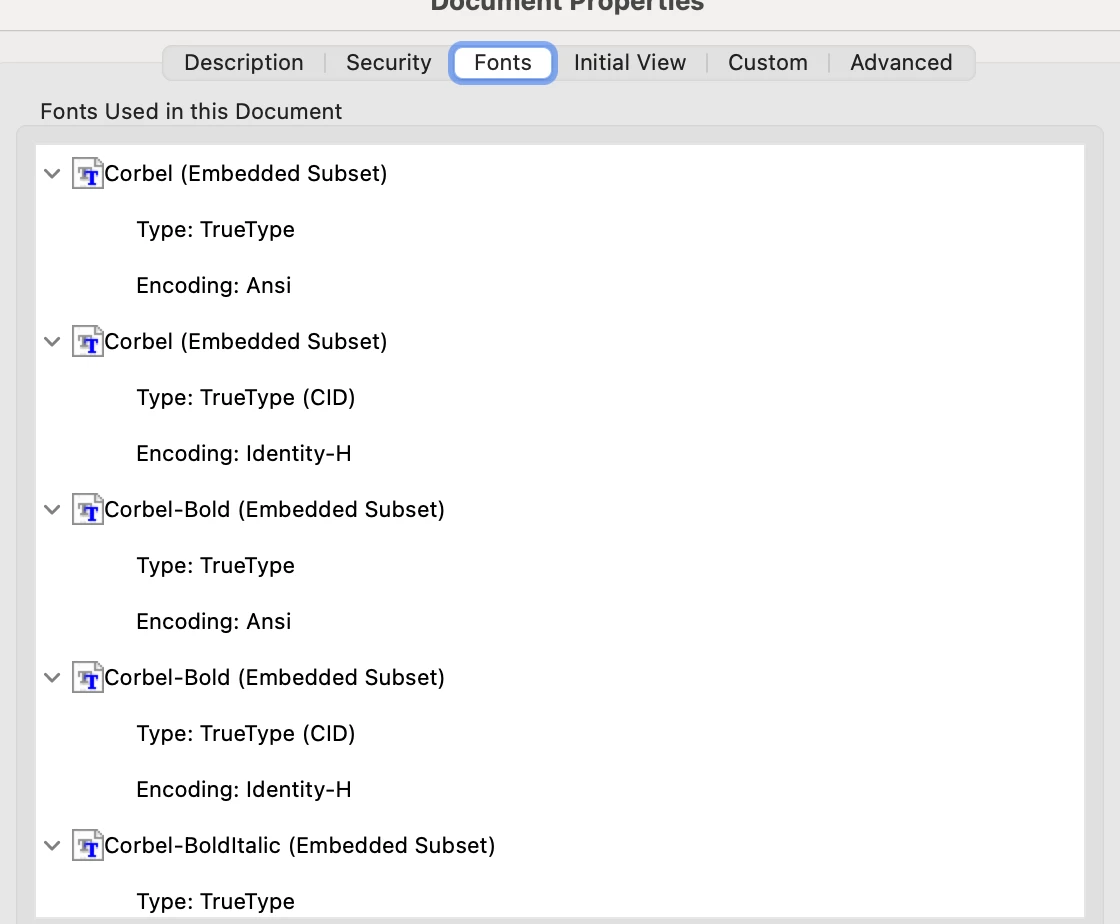
Here is a screenshot of the fonts embedded. 


    2 replies

    Inspiring
    April 24, 2026

    Hi ​@Meenakshi0101

    I appreciate your response. The client is are viewing the pdf through a link that was shared via Adobe Cloud Storage, so when they open it, it opens in their browser window. I don’t believe they can adjust the Acrobat setting in the browser when viewing the link on Adobe Cloud Storage. Is that correct?

    Meenakshi0101
    Community Manager
    Community Manager
    April 24, 2026

    Hi katielady1,


    Yes, you cannot adjust these settings in the browser when viewing the link on Adobe Cloud Storage. Thank you for sharing that the file is viewed in the browser.

    Please confirm if the file appears fine when using the desktop application at the client's end. They can use the free Acrobat Reader to view the PDF. 


    Thanks,

    Meenakshi

    Meenakshi0101
    Community Manager
    Community Manager
    April 24, 2026

    Hi katielady1,


    Thank you for reaching out, and sorry for the delay in response.


    Even though the fonts are embedded and the PDF looks correct on your system, Acrobat may render fonts differently depending on the viewer’s environment.


    Please ask your client to try the following suggestion:

    1. Ensure that the application is up to date. Different Acrobat builds can render fonts slightly differently. In Acrobat, go to Menu > Help > Check for updates.

    2. Check display scaling and smoothing: 

    • Try disabling the Enhanced Text Rendering: In Acrobat, go to Menu > Preferences > Page Display. Uncheck “Enhance thin lines”

    • Temporarily turn off ClearType text to test visual differences.

    1. Press Windows + S

    2. Type ClearType

    3. Select “Adjust ClearType text”

    4. In the ClearType Text Tuner:
       

    1. Embed the entire font: Ensure that the entire font is embedded, rather than just subsets, and check if this resolves the issue.


    If the above steps do not resolve the problem, please share a sample PDF with us. Also, check if it is a PDF-specific issue or happens with other PDFs.Also, please provide the Acrobat and operating system versions used on both machines.


    Let us know how it goes.


    Thanks,

    Meenakshi