


January 13, 2026
Frage

Forbidden - This operation could not be completed. Please try again later.

  • January 13, 2026
  • 1 Antwort
  • 157 Ansichten

Hello, 

I am recieving this error when I try to access my Scans or Document Cloud on my Adobe Acrobat Pro desktop app. I have tried restarting the app and computer as well as signing in and out of my account.


Please advise.


Thank you.
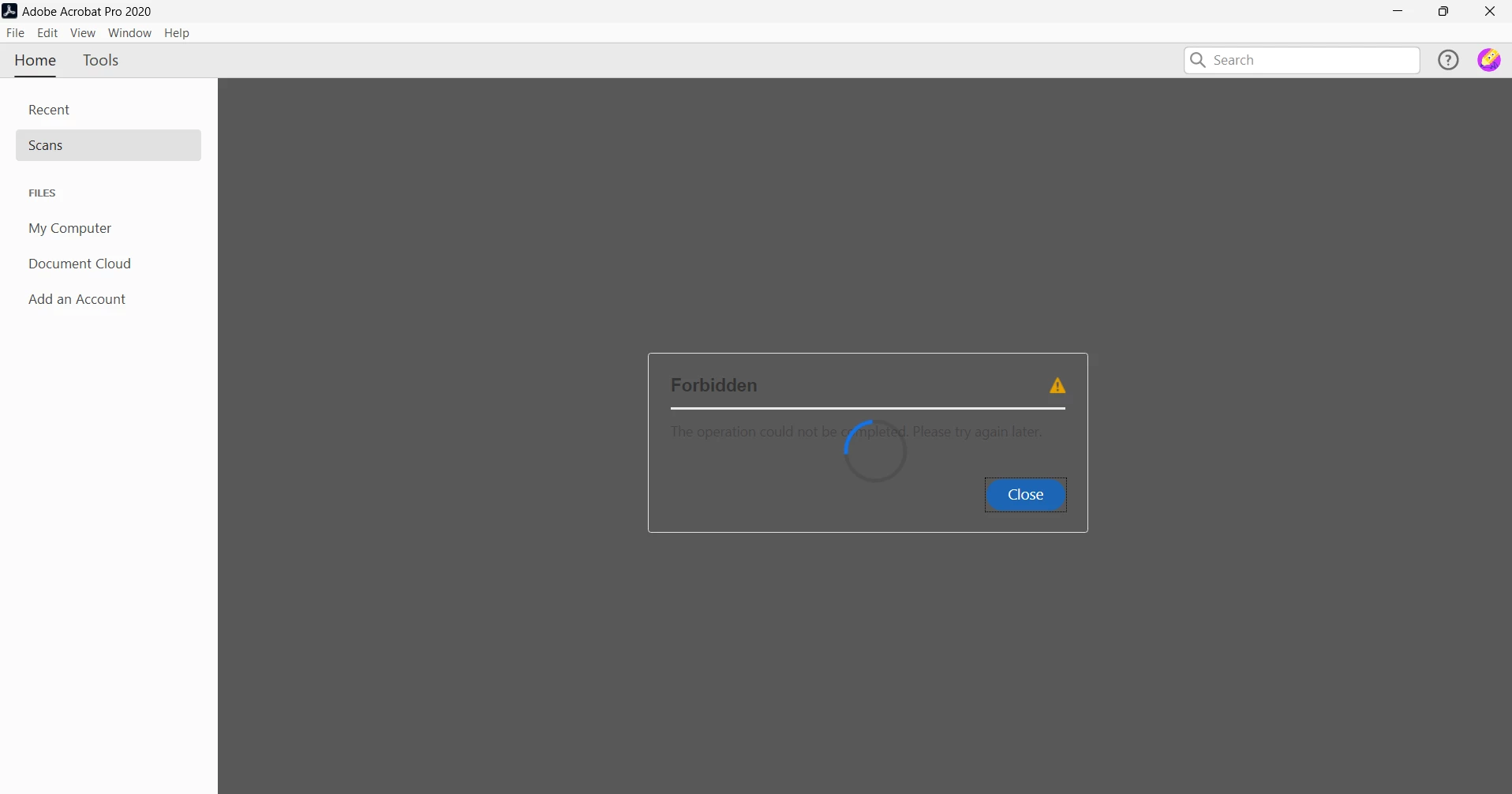
 

image.png

1 Antwort

Amal.
Legend
January 13, 2026

Hi there 


Hope you are doing well and thanks for reaching out. Sorry to hear you're running into that "Forbidden – This operation could not be completed" error when trying to access Scans or Document Cloud in Acrobat Pro.

This issue generally happens due to an account permission conflict, expired authentication, or a temporary server-side block. Since you’ve already restarted the app, system, and re-signed in, here are the next recommended steps:

1. Confirm You’re Signed Into the Correct Adobe ID

Make sure the desktop app and Document Cloud are logged into the same Adobe ID:

Go to Help > Sign Out

Close Acrobat

Reopen and Sign In again

Sometimes users have multiple Adobe IDs (work vs personal), which causes "Forbidden" access errors.

2. Clear Acrobat Cached Credentials

Windows:

Close Acrobat

Go to Control Panel > Credential Manager > Windows Credentials

Remove any entries starting with Adobe

Reopen Acrobat and sign in again

macOS:

Open Keychain Access

Search for Adobe

Delete related login tokens

Re-sign into Acrobat


3. You may also try to reset the host files manually as described here https://adobe.ly/49SPHIb 

4. Check Enterprise or Network Restrictions

If you're on a work device or VPN, firewalls/security policies may block the access.

Try disconnecting VPN,  switching networks and Checking with IT if applicable.


5. Update Acrobat to the Latest Build (25.01.21078) Go to Help > Check for Updates and reboot the device once. Older builds sometimes fail on Document Cloud authentication.

If Issue Continues, please share:

  • Operating System (Windows/macOS + version)
  • Acrobat version (Help > About Acrobat)
  • If the account is Personal or Enterprise/School
  • Whether Document Cloud works in a browser (https://adobe.ly/4pw7325)

This helps narrow down whether it's account, device, or server related.


~Amal

January 13, 2026

Hello Amal,


Thank you for the response. 


1. I only have one Adobe account and have signed out and resigned in several times. 

2. I cleared the credentials and restarted. 

3. I will have to reach out to our internal IT deparment to reset host files manually. 

5. My acrobat says there are no updates but my build is Adobe Acrobat 202 (20.005.30838). 


This is a work computer and license. Running Windows 11. The document cloud was working several weeks ago but stopped recently. The cloud works in a browser. 


I will reach out to my IT department if you think the issue has to do with an internal network/vpn issue.


Thank you!

Amal.
Legend
January 13, 2026

Hi there 


Your build number 202 (20.005.30838) indicates you’re on the Classic 2020 track, which is still supported but doesn’t auto-upgrade to DC Continuous. That means if something changed on your network recently (proxy, VPN, certificate policies, firewall rules, TLS settings, etc.) it can cause Document Cloud integration to stop, even though browser access still works.

As mentioned, it is a corporate license on a managed machine, and network/VPN/proxy filtering is a very common cause. Acrobat uses different endpoints and ports compared to a browser login, so IT may need to verify access.

~Amal