



winsonlee
Participant
February 9, 2026
Question

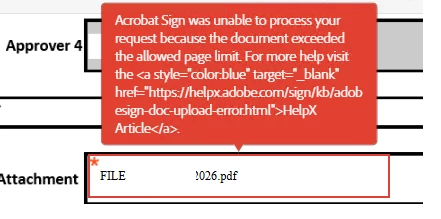
Getting the message that I have exceeded the page limit

  • February 9, 2026
  • 2 replies
  • 16 views

I had attaching a document via the adobe sign and getting below error message.

The file size is 1.1 mb having 41 pages in total.  On the link below, it is showing that the limit is 100 pages and 10 MB, but the document is within the specified constrain. Can please advise what may have caused this error ?

https://helpx.adobe.com/sign/using/transaction-limits.html


    2 replies

    Participating Frequently
    February 9, 2026

    Yeah this happens a lot even when limits are fine, usually the PDF itself is the issue like scanned, locked, corrupted, or not flattened, so just print it to a new PDF and reupload; Adobe explains it here  https://helpx.adobe.com/sign/kb/adobesign-doc-upload-error.html

    Amal.
    Community Manager
    Community Manager
    February 9, 2026

    Hi there 


    Hope you are doing well and sorry for the trouble.


    Just to make sure we narrow this down correctly, could you help clarify a couple of things first:


    • Are you sending this document from the Acrobat Sign web app, or from within Acrobat (desktop/mobile)?
    • Is this happening with this specific file every time, or are other documents also hitting the same error?
    • Does the PDF contain any scanned pages, embedded attachments, or mixed file types (for example, multiple files combined into one PDF)?
       

    A few things that can cause this error even when the page count and file size look fine:

    • Hidden or combined pages: If the PDF was created by combining multiple files or scans, Acrobat Sign may be counting total pages across all combined documents or attachments.
    • Account or plan-specific limits: Some limits vary by plan type, region, or whether you’re sending via API, integrations, or bulk send. In certain workflows, the effective page limit can be lower than the general limit listed in the help doc. 
      https://helpx.adobe.com/sign/using/transaction-limits.html
    • Corrupted or non-standard PDF structure: Occasionally, PDFs created by third-party tools or scanners can have structural issues that cause Sign to misread page counts.
    • Form fields or large images: Very image-heavy or scanned PDFs can sometimes trigger processing limits even if the file size is small.
       

    Here are a few things you can try:

    • Re-save or optimize the PDF: Open the file in Acrobat and use File > Save As (or Reduce File Size/Optimize PDF) and then try sending again.
    • Split the document: As a quick test, try sending only the first 10–15 pages to see if the error still appears. This helps confirm whether it’s file-specific.
    • Check for combined files: If this PDF was created by merging documents, try sending one of the original source files to see if it goes through.
    • Try a different send method: If you’re sending from within Acrobat, try sending directly from the Acrobat Sign web interface (or vice versa) to rule out a workflow-specific limit.
    • Recreate the PDF: If possible, export the document again from the original source (Word, scanner app, etc.) and test with the newly created PDF.
       

    If the issue persists even after trying the above, it would be helpful to know:

    • How the PDF was created (scanner, Word export, third-party app, etc.)
    • The exact workflow you’re using (web app, Acrobat integration, bulk send, API)
       

    That info can help pinpoint whether this is a file-specific issue or a limitation tied to the way the document is being sent.


    ~Amal