


Participating Frequently
December 30, 2021
Answered

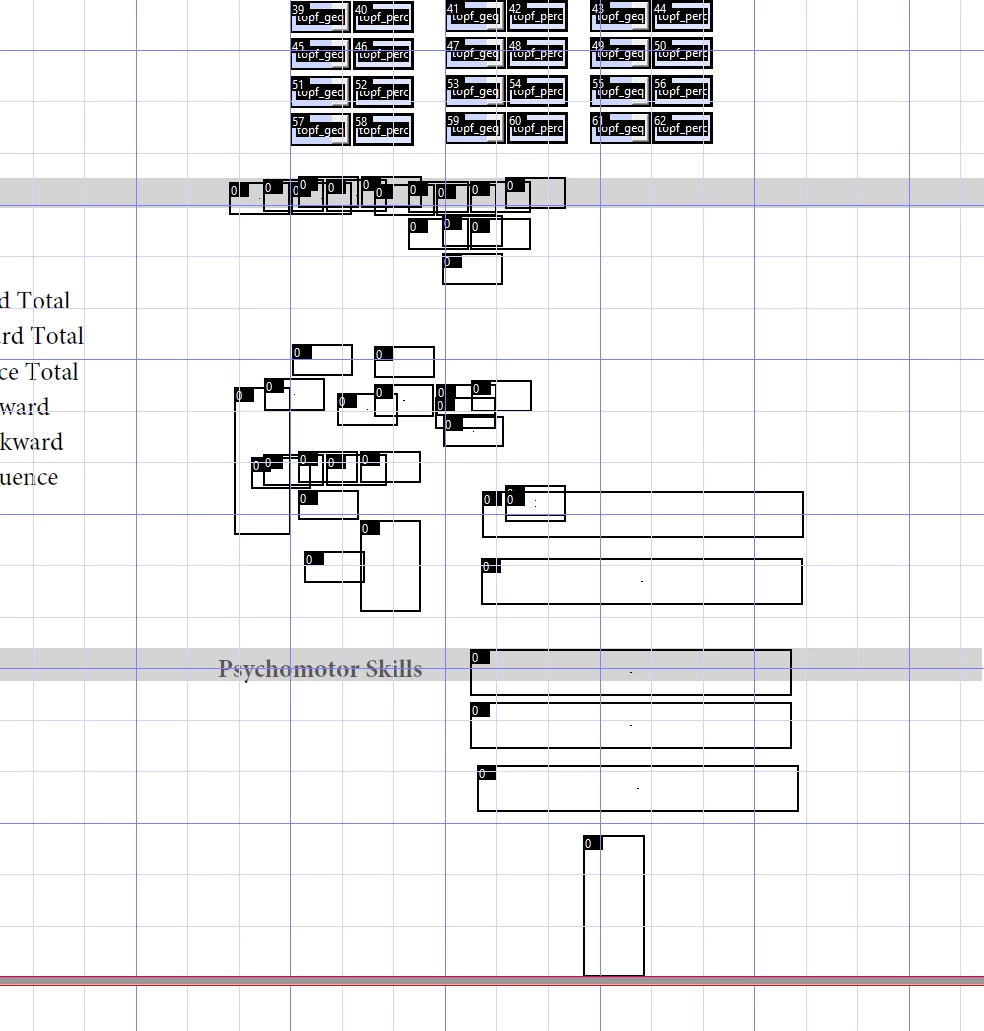
Ghosts of form fields past cluttering the document

  • December 30, 2021
  • 4 replies
  • 2133 views

I'm creating a PDF using form fields, but Acrobat keeps pasting extra fields and when I delete them, they still show up. 

The tab number of deleted fields is 0 now and they don't show up in the "fields" pane, but they do get in the way with working with other objects.  I deleted with right-click -> delete.  Now all the fields have ? in the properties (as in adobe thinks they have no attributes/don't exist).  I've restarted and resinstalled Adobe over 4 days and they continue to built up.  I even started over from scratch and they built up on the new PDF as well.  I tried changing the properties to 'hidden', resizing them, etc. and all the options do nothing or don't work. 


How can I delete these object ghosts? I'm not understanding where the memory of them is within the PDF document/javascript code so I don't know how to delete.



This topic has been closed for replies.
Correct answer Thom Parker

I'd need to see you're document to be sure, but it looks like you have a severly damaged PDF form, and will need to restart with a newly created PDF. 

It is possible, if you over-edit a PDF, to destroy the link between the field annotations on the page and the PDF form structure. The effect of breaking this link is that you see the fields on the page, but they do not behave properly and do not show up in the Prepare Forms listing.   There is no fix for this issue, you'll need to start over.


4 replies

Thom Parker
Community Expert
Thom ParkerCommunity ExpertCorrect answer
Community Expert
January 14, 2022

I'd need to see you're document to be sure, but it looks like you have a severly damaged PDF form, and will need to restart with a newly created PDF. 

It is possible, if you over-edit a PDF, to destroy the link between the field annotations on the page and the PDF form structure. The effect of breaking this link is that you see the fields on the page, but they do not behave properly and do not show up in the Prepare Forms listing.   There is no fix for this issue, you'll need to start over.


Thom Parker - Software Developer at PDFScriptingUse the Acrobat JavaScript Reference early and often
Participating Frequently
January 20, 2022

This is what I ended up doing and I never had the issue again, thankfully!

JR Boulay
Community Expert
Community Expert
January 14, 2022

If you don't know what Templates are then you don't use them, in which case this tip can't work for you.


To make a backup copy it's simple: duplicate the file every time (morning) you open it and at every important step.

Acrobate du PDF, InDesigner et Photoshopographe
JR Boulay
Community Expert
Community Expert
January 5, 2022

I re-started with a "clean" backup copy, in which I displayed all the hidden templates (are there any in your document?) before pasting the new fields.

But maybe it was a coincidence.

Acrobate du PDF, InDesigner et Photoshopographe
Participating Frequently
January 12, 2022

I don't understand what you mean by displaying "hidden templates".  I started with a blank form.  I tried creating a new PDF form using this one but it transferred all the ghost objects as well.  I'm concerned I'll need to start 100% over and I don't want to as a lot of work has gone into this.  Can you please tell me how you made the backup copy and how I would display any hidden templates?

JR Boulay
Community Expert
Community Expert
December 31, 2021

It already happened to me.

I had solved the problem by displaying the pages templates that were hidden.

Acrobate du PDF, InDesigner et Photoshopographe
Participating Frequently
January 4, 2022

Hi JR - I don't understand how this solved the problem.  Can you please tell me how you displayed the hidden templates and how you deleted these "ghost" icons?