
Participant
April 21, 2025
Question

Having an issue with digital signature

  • April 21, 2025
  • 2 replies
  • 605 views

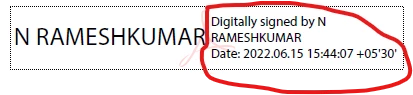
Hello - I'm supporting users with a current version of Acrobat Pro (version 25.001.20432).  I have one user having an issue with her digital signature.  She appears to be able to create the signature - but she needs for the signature to show the additional information just to the right of her name (Stating the document is digitally signed and showing the date).  

Below is an example I took from another forum post - not the user's actual signature - but she is missing what's circled in red.  Can someone point to which settings need to be checked/changed to enable this to be displayed?
 

2 replies

Participant
April 22, 2025

Truist Data Risk Classification: [-Public-]

Tariq -

Thank you for the prompt feedback. Unfortunately, it's still not working. The settings you sent along were already in place. One additional thing I wanted to add - she was seeing this when choosing to Fill & Sign -
[cid:image001.png@01DBB369.D94C35F0]
I had to go into Preferences and Disable New Acrobat and that seemed to allow her to try the Fill & Sign, but still not showing as I originally posted. Any other thoughts?

Thank you.

Roger Philyaw | CompuCom @ Truist
[Personal info removed by Adobe moderator: please remove personal info from signature if you are replying from email]

AnandSri
Community Manager
Community Manager
May 29, 2025

Hello @roger_4009!


I hope you are doing well, and apologize for the delayed response and the trouble. 


Please install the latest version of Acrobat on the machine: 25.001.20474 (Win) | 25.001.20476 (Mac), Apr 28, 2025. Then, check for any pending updates from the Menu > Help> Check for Updates, install the updates, restart the app and the machine, and try again.


If the issue persists, with the latest version of Acrobat, disable the Security settings once for testing purposes. Go to Menu > Preferences > Security Enhanced > and uncheck Enable Protected Mode at startup and Enhanced security. Click OK, restart the app and the machine, and try again. 

(Try this on the new UI of Acrobat.) Please enable the security settings after the test.


Let us know how it goes.

Thanks,

Anand Sri.

Community Manager
April 21, 2025

Hi @roger_4009


Thank you for reaching out. To make the required changes, let's try the following steps:


  1.  Launch Acrobat 
  2.  Ctrl/Cmd + K or Acrobat > Preference (mac) or Acrobat > Edit > Preferences
  3.  Preferences > Signatures. 
  4.  Digital Signatures > Creation & Appearances > Select One from the list. > Edit


Please check the screenshot attached. Let us know if you have further questions.


~Tariq

Participant
April 22, 2025

Tariq –


Thank you for the prompt feedback. Unfortunately, it’s still not working.  The settings you sent along were already in place.  One additional thing I wanted to add – she was seeing the attached when choosing to Fill & Sign and current Adobe features enabled.  

I had to go into Preferences and Disable New Acrobat and that seemed to allow her to try the Fill & Sign, but still not showing as I originally posted.  Any other thoughts?


Thank you.