
Participant
March 13, 2019
Answered

Highlighter Doesn't Work

  • March 13, 2019
  • 3 replies
  • 9487 views

My highlighter tool in Acrobat Pro DC stopped working! Can anyone help me? I press the highlighter icon on top of my screen, highlight my text, and then nothing happens. If I click the area that I tried to highlight this blue box/border shows up - but nothing is highlighted.

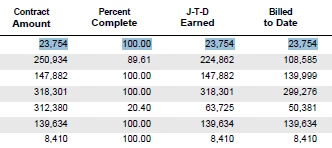
First screenshot is my text as I'm highlighting it -
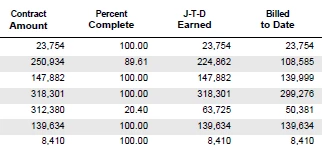
Second screenshot is after I "highlighted" it, but nothing happened
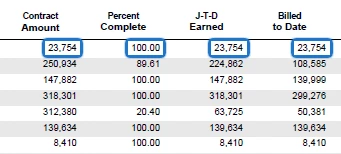
Third screenshot is when I click on the area that I had "highlighted", this annoying blue box appears.
Please help!

Correct answer try67

That "annoying blue box" is the highlight... You probably just set it to be transparent.

After clicking it press Ctrl+E and you'll be able to change it via the floating toolbar that will open (it's the check-board icon).

3 replies

Participant
November 23, 2022

My highlighter did work in Acrobat DC until recently but stopped.  I checked for updates and the updates are current.

I tried ctlE after pressing the icon.  I have rebooted, 

Participant
February 16, 2024

I am having the same problem.  The highlight tool worked on the first document I opened but has not worked in any of the subsequent documents in the same work session.  Have you found an answer yet?

Participant
February 23, 2024

Same problem. Different pdf from same session: some get highlighter tool some do not, so not a univ security setting...


Participant
November 17, 2020

I have a similar problem, but mine, it doesn't show the "blue box", it doesn't show nothing. 

try67
Community Expert
Community Expert
November 17, 2020

So what happens when you use the Highlight tool?

Participant
September 21, 2021

My highligher icon disapeared aftere one use. How can I get it back? 

try67
Community Expert
try67Community ExpertCorrect answer
Community Expert
March 13, 2019

That "annoying blue box" is the highlight... You probably just set it to be transparent.

After clicking it press Ctrl+E and you'll be able to change it via the floating toolbar that will open (it's the check-board icon).

try67
Community Expert
Community Expert
March 13, 2019

PS. After making this change right-click the highlight again and select Make Current Properties Default and it should not happen when you create a new one.