The “trick” is to go to the Document Properties (Ctrl-D) and select the Security tab:
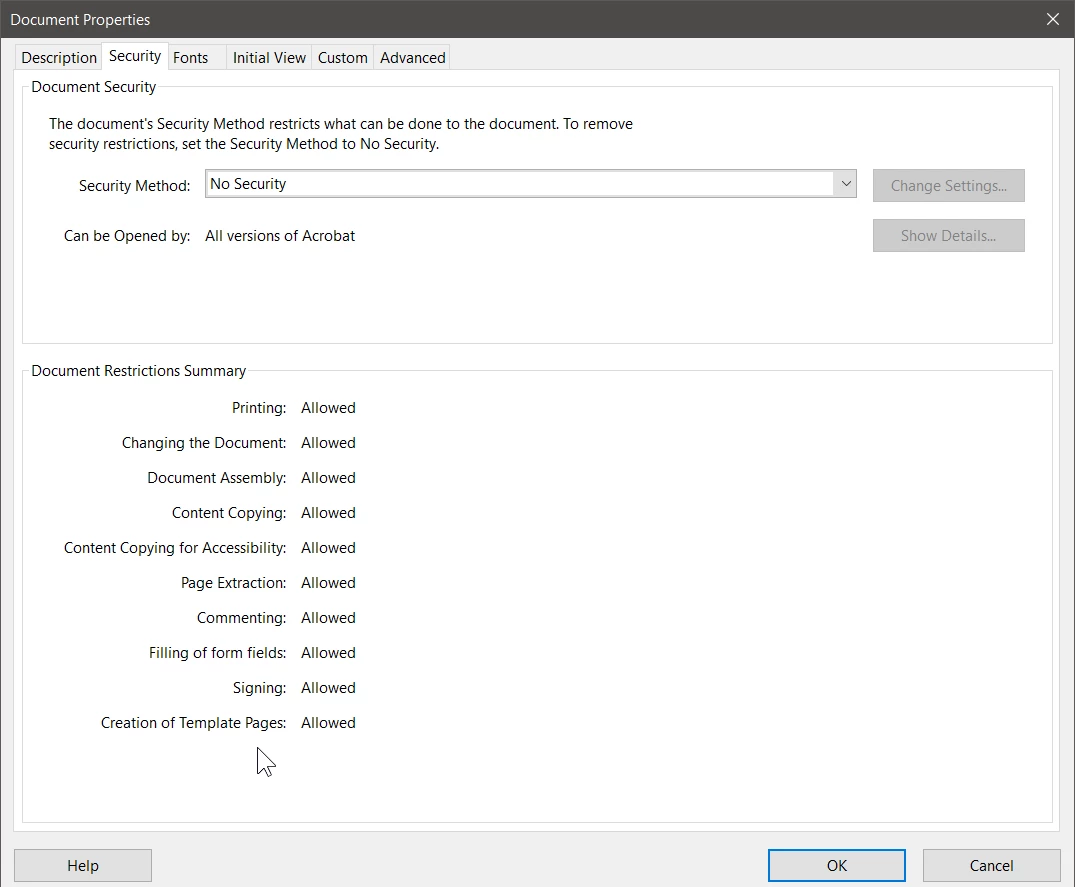
Then, for Security Methods, select Password Security and the following dialog will open:
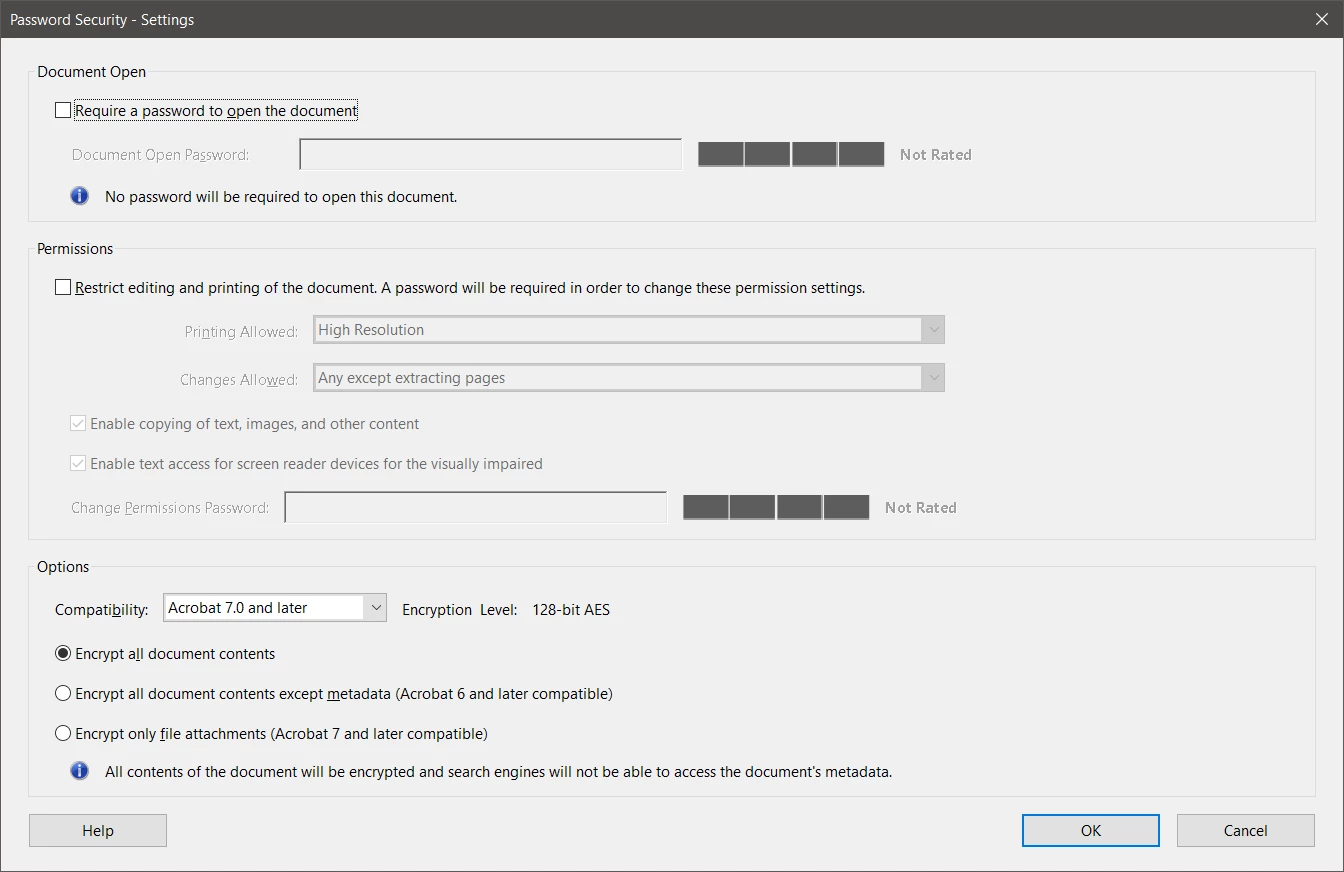
At this point you have a number of options. If you want to require a password to open up the document, you can specify that as the first option. This means that the only persons who can open the PDF file will be those who know the password for opening the file. This may be more protection than you need (at least based on what you initially posted), but the option is available. If you do this you select the option and specify the password you want to use. The “strength” of the password will appear graphically in the rating area on the right hand side.
To set permissions, check the “Restrict editing and printing” option, select the restrictions you need, and provide a password as appropriate. Also choose the encryption options. This determines what versions of software can open the PDF file. Acrobat 7 compatibility gives you the most compatibility with PDF readers but the weakest encryption (128-bit). Acrobat X compatibility gives you the least compatibility (requires at least Adobe Reader/Acrobat 10) but the highest level of encryption (256-bit).
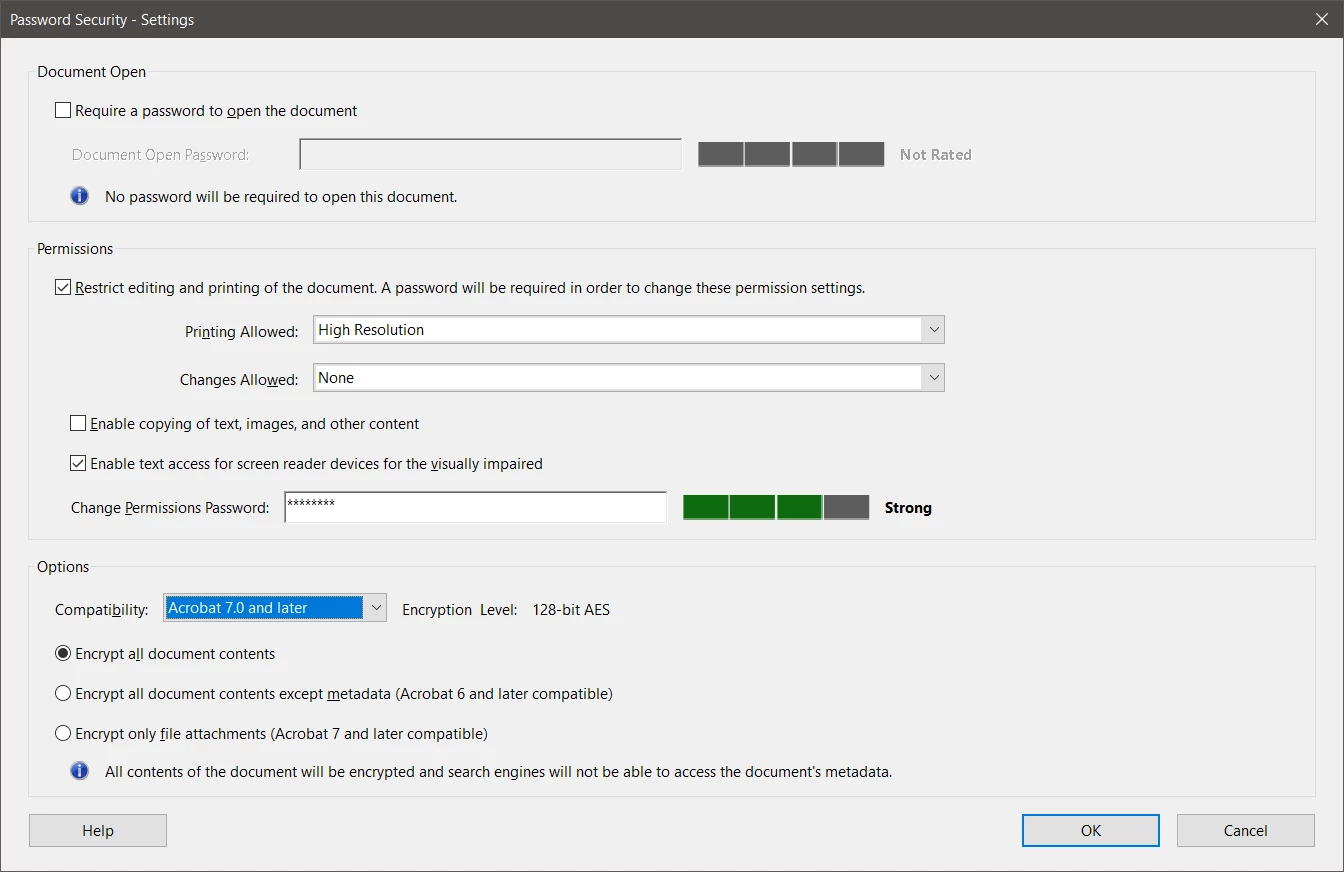
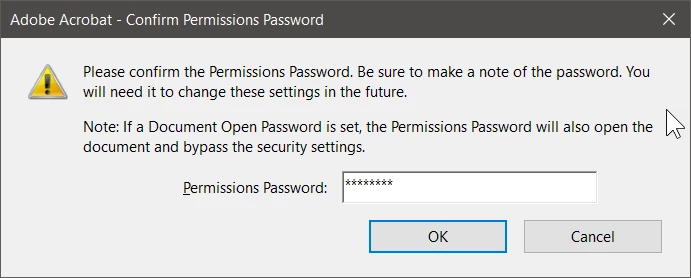
Press OK and you are then asked to confirm the permissions password and press OK.
Nothing actually changes though until you actually do a save as for the document.
Prior to saving the document, I would recommend that you digitally sign it using the digital signature tool within Acrobat. That process will then prompt you to save the document under a new name (or if you are crazy, overwrite the original).
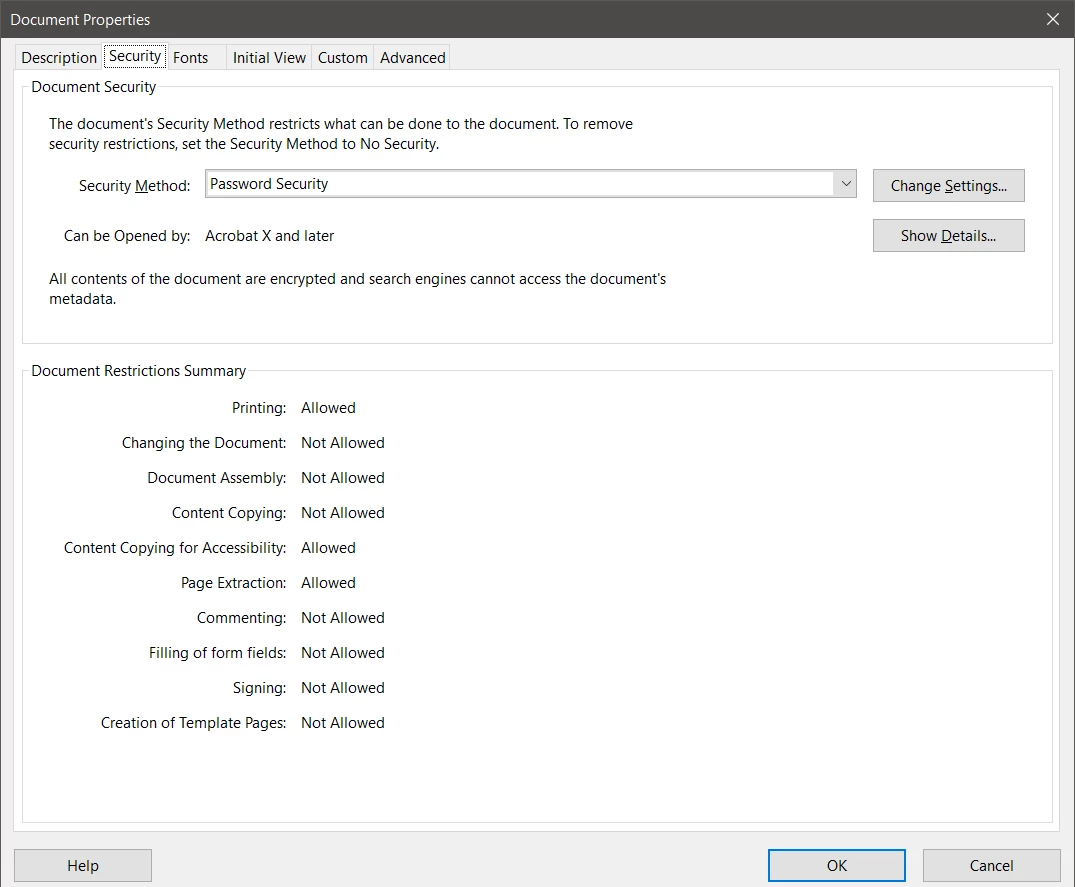
If you then look at Document Properties, you will see the following which is what I believe you want/need:
Good luck!
- Dov


 AdChoices