Swaroop Somanna
Participant
April 9, 2018
Answered

How do I match page numbers with page labels in Acrobat?

  • April 9, 2018
  • 3 replies
  • 11818 views

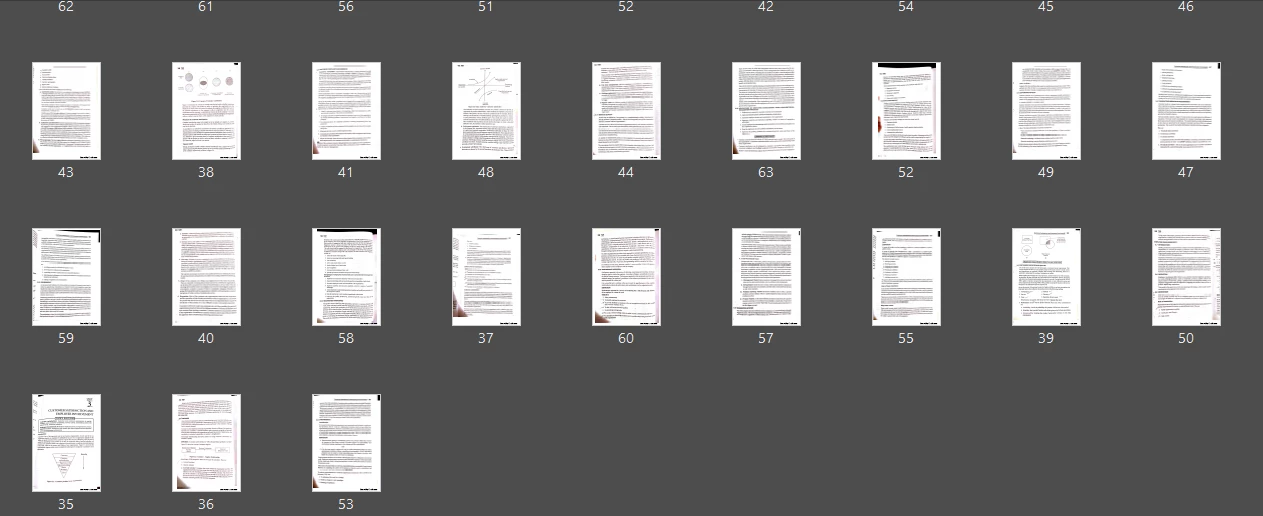
Let say I have the following pages as shown in the image below. If you go through the page labels, you'll notice the pages are all messed up. There are 30 pages in that scanned document. My scanner app mixed up all the scanned images and then produced the PDF. I managed to label the pages matching the page numbers printed on the scanned sheets. Now I want to rearrange the pages in such a way that pages get arranged in ascending order of the page numbers in the page labels. How do I do it? Pls note: There are a lot of pages in the documents so I cant manually drag and drop each of the pages and rearrange them.
This topic has been closed for replies.
Correct answer harshas13

Hi Swaroop,

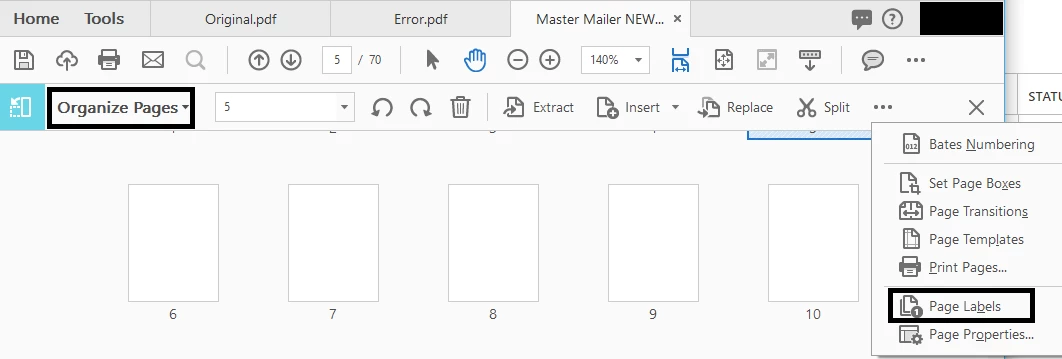
you can adjust the page labels by going to tools> organize pages > More > Page Labels.

Then you can select all pages or  the page range that you want to fix the labels on and apply it.

-Harsha

3 replies

harshas13
Adobe Employee
harshas13Correct answer
Adobe Employee
April 25, 2018

Hi Swaroop,

you can adjust the page labels by going to tools> organize pages > More > Page Labels.

Then you can select all pages or  the page range that you want to fix the labels on and apply it.

-Harsha

try67
Community Expert
Community Expert
April 10, 2018

[Question moved to the Editing & Exporting PDFs forum]

jane-e
Community Expert
Community Expert
April 9, 2018

I read your question three times, and I think what you want to do is rearrange the pages. The only way to do that is to drag and drop in the Pages panel (left) or Organize Pages (right).

Save first so you can revert.

If you have bookmarks, they need to be reordered after you rearrange pages.

You could also try drag and drop into another document using the pages panel if that works better.

Thirty pages isn't a lot, imho. Eight hundred pages is a lot. It won't take that long, really. Just save first, and Save as or Reduce File Size after. For fun, pay attention to the file size when you do this. Moving pages bloats your document and you need to make it smaller again.